


Is your laptop starting to feel like a miniature space heater? 🥵
Does the fan sound like a jet engine preparing for takeoff? 🚀
You’re not alone! Laptop overheating and noisy fans are common issues that can significantly impact performance and shorten your device’s lifespan. 💔
Often, the culprit is dust buildup suffocating your laptop’s internal components.
But what if you’re not comfortable opening your laptop, or your warranty prevents you from doing so?
Fear not, tech-savvy friend! 💡
This comprehensive guide will walk you through effective, non-invasive methods to clean your laptop fan and tackle overheating problems, all without needing a screwdriver. 🛠️🚫
The Silent Killer: Dust and Its Impact on Your Laptop
Dust, lint, pet hair – these seemingly harmless particles are the arch-nemeses of your laptop’s cooling system. 👾
Over time, they accumulate inside your laptop, particularly around the fan and heatsink. 🕸️
This buildup acts as an insulating blanket, trapping heat and preventing proper airflow. 💨⛔
The result? Your laptop struggles to dissipate heat, leading to higher internal temperatures. 🔥
This forces the fan to work harder, spin faster, and make more noise. 📢
Ultimately, persistent overheating can cause a range of problems, from sluggish performance and sudden shutdowns to permanent hardware damage. 😨
Understanding this process is the first step towards a cooler, quieter laptop. 🧠
As the saying goes, “An ounce of prevention is worth a pound of cure.”
Benjamin Franklin
Let’s prevent that dust from taking over! 🧹
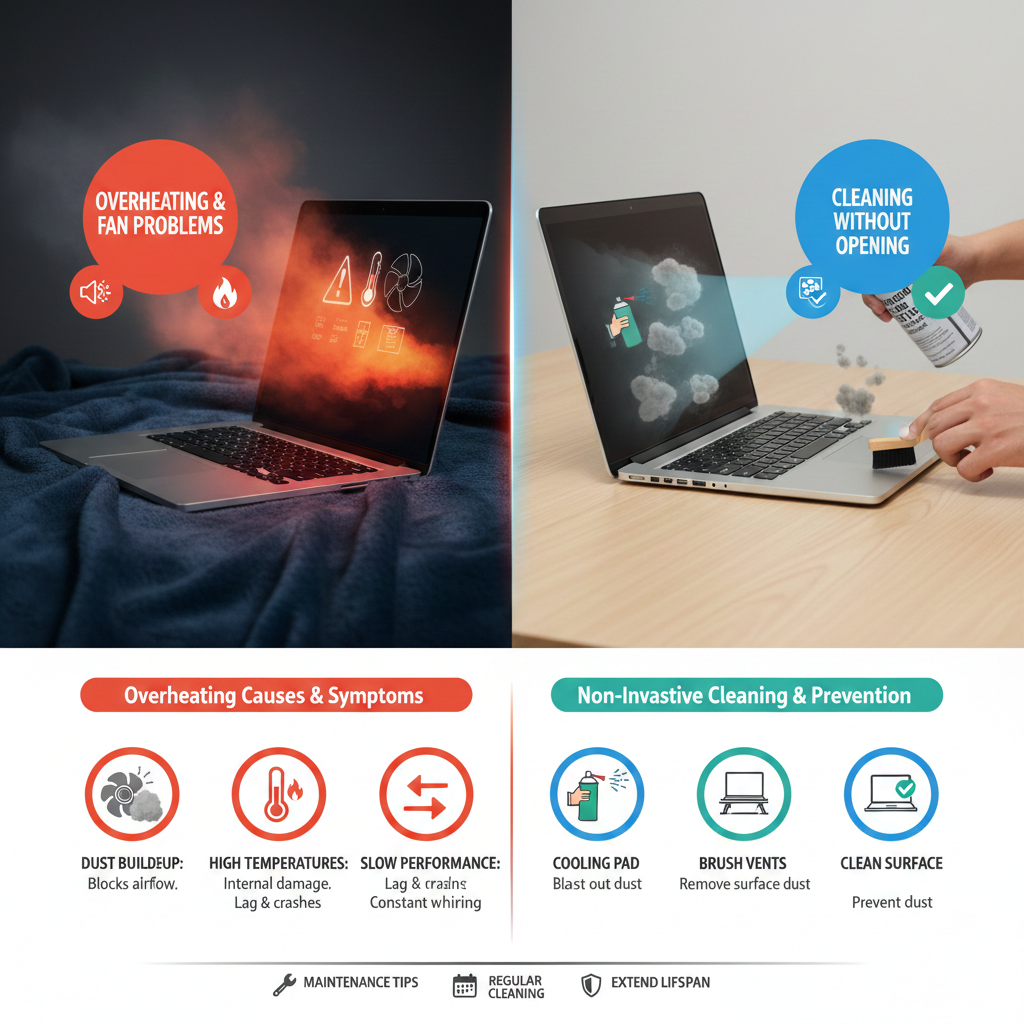
Here’s an infographic to visualize the problem:
Signs Your Laptop Fan Needs Cleaning
Before diving into cleaning methods, it’s crucial to identify if your laptop’s cooling system is indeed struggling. 🤔
Here are the tell-tale signs to look out for: 🚨
- Excessive Fan Noise: Is your laptop fan constantly whirring loudly, even when you’re just browsing the web? This is a primary indicator. 🔊
- High Temperatures: Does your laptop feel unusually hot to the touch, especially on the bottom or near the vents? Use a temperature monitoring tool to confirm. 🌡️
- Decreased Performance: Is your laptop slowing down, freezing, or experiencing lag during tasks it used to handle easily? Overheating often triggers CPU throttling. 🐌
- Unexpected Shutdowns: Has your laptop suddenly powered off without warning? This is a safety mechanism to prevent damage from extreme heat. 🛑
- Frequent Error Messages: Are you seeing error messages related to hardware or system stability? Overheating can sometimes manifest this way. 💻❌
If you’re experiencing one or more of these symptoms, it’s time to take action! 💡
Non-Invasive Fan Cleaning Methods (No Opening Required!)
Now, for the main event! 🎉
These methods focus on clearing dust from your laptop’s cooling vents and fan assembly without needing to open the chassis. 🙌
Remember to always turn off your laptop and disconnect it from power before performing any cleaning. 🔌⛔
Method 1: Compressed Air – Your Best Friend Against Dust
Compressed air is arguably the most effective tool for non-invasive dust removal. 🌬️
It allows you to blast away dust from hard-to-reach areas. 💪
- What You’ll Need: A can of compressed air with a thin nozzle. Make sure it’s electronics-safe and held upright to prevent propellant discharge. 💨
- How to Do It:
- Locate your laptop’s exhaust vents. These are usually on the sides or back.
- With short, controlled bursts, spray into the vents. Do NOT spray continuously, as this can cause moisture buildup or over-spin the fan.
- Hold the can upright to avoid expelling liquid propellant.
- Angle the spray to try and dislodge dust from different directions.
- You can also spray into intake vents (often on the bottom) if present.
- A crucial tip: Use a small paper clip or a straightened staple to gently block the fan blades from spinning excessively while you spray. This prevents potential damage to the fan’s bearings. 📌
- Frequency: Depending on your environment, every 3-6 months is a good routine. 🗓️
Method 2: Vacuum Cleaner (with caution!)
While less recommended than compressed air for direct fan cleaning, a vacuum cleaner can be useful for external vent cleaning. 🧹
- What You’ll Need: A small handheld vacuum or a regular vacuum with a brush attachment. 🧽
- How to Do It:
- Use the brush attachment to gently vacuum around the external vent openings.
- Avoid placing the vacuum nozzle directly against the vents with high suction, as this can potentially damage internal components or over-spin the fan.
- The goal here is to remove surface dust, not to pull dust from deep inside.
- Caution: Be extremely careful with this method. High static electricity from vacuums can be detrimental to electronics. It’s generally safer to use compressed air for internal dust. ⚡⚠️
Method 3: External Vent Brushing
Sometimes, simply removing visible dust from the external vents can make a difference. ✨
- What You’ll Need: A soft-bristled brush (like a clean paintbrush or a soft toothbrush). 🖌️🦷
- How to Do It:
- Gently brush along the vent openings to dislodge any accumulated dust or lint.
- This is a simple, quick way to ensure clear external pathways for airflow.
After cleaning, give your laptop a few minutes before powering it back on. ⏳
You should notice an immediate improvement in fan noise and potentially temperature. 😊
Here’s a visual guide for cleaning:
Beyond Cleaning: Best Practices to Prevent Overheating
Cleaning your fan is great, but preventing dust buildup and managing heat proactively is even better! 🌟
Here are some essential tips to keep your laptop cool and happy: 😎
1. Use Your Laptop on Hard, Flat Surfaces
This is perhaps the most fundamental tip. ☝️
Laptops are designed to draw air from the bottom and expel it through side/rear vents. 🌬️
Placing your laptop on soft surfaces like beds, blankets, or pillows blocks these crucial intake vents, trapping heat. 🚫🛌
Always use your laptop on a desk, table, or a dedicated laptop stand. 💻📚
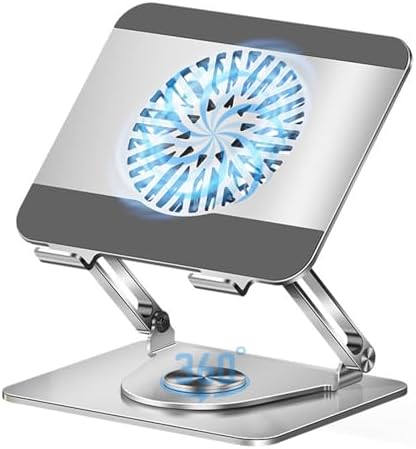
2. Invest in a Laptop Cooling Pad
A cooling pad is an excellent accessory for laptops prone to overheating. 🧊
These pads usually have built-in fans that blow cool air directly onto the laptop’s underside, aiding in heat dissipation. 🌬️⬇️
It’s an affordable and effective solution for sustained cooling.
You can find a variety of options on Amazon or other electronics retailers. 🛍️
3. Manage Background Processes and Resource Usage
The harder your laptop works, the more heat it generates. 🔥
Keep an eye on what’s running in the background. 🕵️♀️
- Close unnecessary programs and browser tabs. ❌
- Check your Task Manager (Windows) or Activity Monitor (macOS) for resource-hogging applications. 📊
- Consider adjusting power settings to “balanced” or “power saver” when not performing intensive tasks. 🔋
4. Keep Your Environment Clean
A dusty room equals a dusty laptop. 🧹
Regularly clean your workspace to minimize airborne dust particles that can get sucked into your laptop’s vents. 🌬️🏡
Consider using an air purifier if you live in a particularly dusty or pet-friendly environment. 🐾
5. Update Drivers and Operating System
Outdated drivers or operating systems can sometimes lead to inefficient power management and increased heat. 🔄
Ensure your graphics drivers, chipset drivers, and OS are always up to date for optimal performance and thermal management. Intel Driver & Support Assistant can help for Intel-based systems, and AMD Auto-Detect and Install Radeon™ Graphics Drivers for AMD. 💾
6. Check for Malware
Malware and viruses can secretly run processes that consume significant CPU resources, leading to overheating. 💻😈
Run regular scans with reputable antivirus software to keep your system clean and secure. Malwarebytes is a popular option. 🛡️
7. Consider Repasting Thermal Paste (Advanced – May Require Opening)
While this guide focuses on non-invasive methods, it’s worth noting for persistent issues: the thermal paste between your CPU/GPU and heatsink can dry out over time. ⏳
Replacing it can significantly improve heat transfer. However, this is an advanced procedure that requires opening your laptop and is usually best left to professionals if you’re uncomfortable. 🧑🔧
If you’re interested in learning more, you can consult resources like iFixit’s guide on applying thermal paste. 📖
Here’s a table summarizing common overheating causes and solutions:
| Problem | Solution (Non-Invasive) |
|---|---|
| Loud, constantly running fan | Use compressed air on vents, ensure clear surfaces. |
| Laptop hot to touch | Use a cooling pad, keep on flat surfaces. |
| Slow performance/freezing | Manage background processes, check for malware. |
| Sudden shutdowns | Apply all preventive measures, clean thoroughly. |
| General warm operating temperatures | Regular cleaning, ambient temperature control. |
When to Seek Professional Help
While these non-invasive methods are often highly effective, there are times when professional intervention is necessary. 👨🔧
If you’ve tried everything in this guide and your laptop still:
- Is consistently overheating. 🔥
- Exhibits extremely loud or grinding fan noises (suggesting a failing fan). 🔊☠️
- Experiences frequent and unexplained crashes or blue screens of death. 💻💀
…it might be time to take it to a qualified technician. 🧑🔬
They can safely open your laptop, perform a thorough internal cleaning, replace the thermal paste, or even replace a faulty fan if needed. Don’t hesitate to seek expert advice if the problem persists.
Sometimes, the solution is beyond simple cleaning. 🤷♀️
Conclusion: A Cooler, Happier Laptop Awaits!
Maintaining your laptop’s cooling system is crucial for its longevity and performance. 🛡️💻
By regularly employing these non-invasive cleaning techniques and adopting smart usage habits, you can significantly reduce the risk of overheating and fan problems. 🥳
A little proactive care goes a long way in keeping your device running smoothly, quietly, and efficiently. 📈
Say goodbye to the loud whirring and scorching chassis, and hello to a cooler, happier computing experience! 👋😊
Remember, “Take care of your tools, and your tools will take care of you.” 🛠️❤️
Happy computing! 🤓
For more detailed technical information on laptop cooling, you can always refer to Wikipedia’s article on Computer Cooling. 📚