
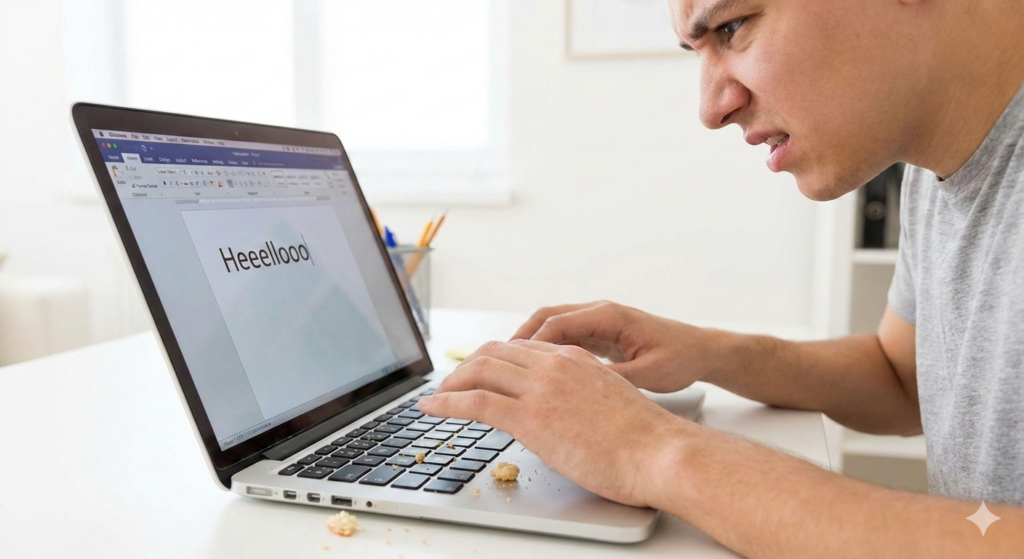


There is nothing quite as frustrating as trying to type an important email or document, only to find that your laptop keyboard has a mind of its own. 🤯
You press the “E” key once, but the screen displays “eee” or “ee.”
This phenomenon is often referred to in the tech world as “key chatter,” “key bounce,” or simply repeating keys. 😫
It turns a simple typing task into a maddening ordeal of constant backspacing and correction.
If your laptop keyboard is typing multiple letters, don’t panic just yet; you likely don’t need a new laptop. 💻
This issue can stem from a variety of sources, ranging from simple software glitches to stubborn physical debris hiding under the keycaps.
In this guide, we will walk you through a logical troubleshooting process to diagnose and fix laptop keyboard typing multiple letters. 🧐
Let’s get your typing back to normal! ✨
Understanding Why Your Keyboard Repeats Characters
Before we dive into the fixes, it is helpful to understand what might be causing the problem. 💡
When a laptop keyboard is typing multiple letters per press, it usually falls into one of two categories: software interference or physical hardware issues.
Sometimes, the operating system misinterprets a single keypress as holding the key down.
Other times, something physical is actually triggering the switch multiple times rapidly. ⚡
Here is a quick breakdown of common culprits:
| Potential Cause | Type of Issue | Likelihood |
|---|---|---|
| Dust/Crumbs under key | Hardware | Very High 🍿 |
| Keyboard Driver Glitch | Software | High 📉 |
| “Filter Keys” Misconfiguration | Software Setting | Medium ⚙️ |
| Liquid Damage Residue | Hardware | Medium (if spilled recently) ☕ |
| Worn Out Switches | Permanent Hardware Failure | Low (unless very old laptop) 👴 |
Understanding these possibilities will help guide your troubleshooting efforts effectively. 🗺️
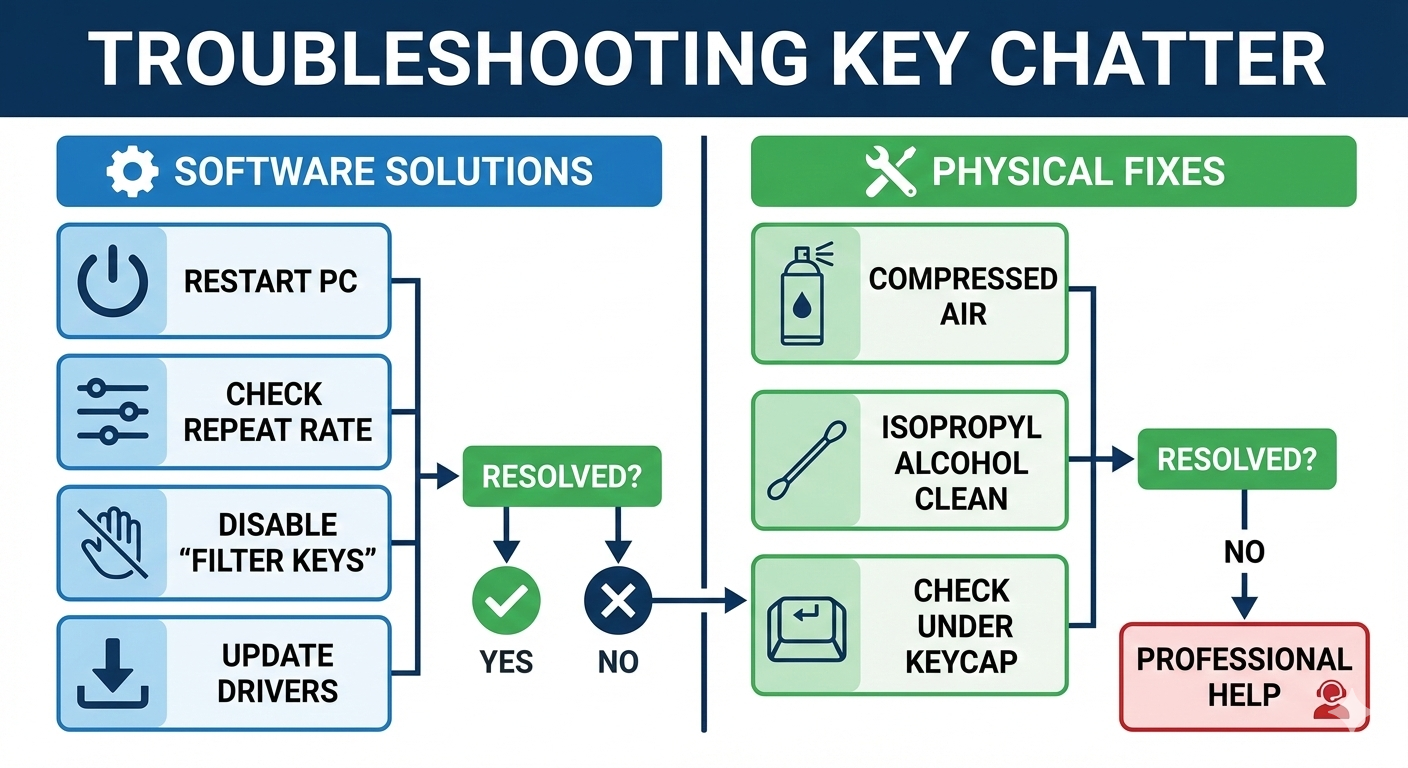
Phase 1: The Easy Software Fixes
We always start with software because it is the easiest to address and doesn’t involve taking anything apart. 🛠️
Sometimes your computer just needs a digital “reset” to get its peripherals behaving correctly again.
1. The Good Old Restart
It has become a cliché for a reason: have you tried turning it off and on again? 🤔
Simply restarting your computer can sometimes miraculously resolve temporary software glitches that cause input lag or repetition.
Don’t just put it to sleep; perform a full restart of the operating system.
Test typing in a notepad immediately after it boots back up. 📝
2. Check Keyboard Repeat Delay and Rate
Your operating system has settings that dictate how quickly a key begins repeating if you hold it down.
If these settings are too sensitive, a slightly lingering finger press might be interpreted as a request to repeat the character. 🤏
In Windows, you can find this in the Control Panel under “Keyboard.”
Try adjusting the “Repeat delay” to be longer (closer to “Long”).
Also, try adjusting the “Repeat rate” to be slower. 🐢
3. Disable “Filter Keys” (Windows)
Windows has an accessibility feature called Filter Keys designed to ignore brief or repeated keystrokes for users with hand tremors.
Ironically, if misconfigured, it can sometimes cause the very issue it is meant to prevent, or make typing feel incredibly sluggish, leading to accidental double presses.
Try turning it off completely to see if the chatter stops. 🚫
You can usually find this by searching “Filter Keys” in your Windows start menu search bar.
For comprehensive guides on Windows settings, Microsoft Support is always the best primary resource.
4. Run the Keyboard Troubleshooter
Modern operating systems are pretty good at self-diagnosing. 🩺
Windows 10 and 11 include a built-in troubleshooter specifically for keyboards.
Go to Settings > Update & Security > Troubleshoot > Additional troubleshooters.
Run the Keyboard troubleshooter and let Windows attempt to find and fix any driver conflicts automatically. 🤖
5. Update or Reinstall Keyboard Drivers
Corrupted drivers can cause peripherals to act strangely. 🤪
You can manage this through the Device Manager.
Locate “Keyboards,” right-click your standard PS/2 Keyboard, and select “Uninstall device.”
Don’t worry; after you restart your laptop, Windows will automatically reinstall a fresh version of the driver. 🔄
For Mac users experiencing similar issues, resetting the SMC or NVRAM can sometimes help with hardware anomalies, as detailed on Apple Support pages.
Phase 2: Physical Cleaning and Maintenance
If software tweaks didn’t fix your laptop keyboard typing multiple letters, it’s time to look at the physical hardware. 🕵️♂️
The most common cause of key chatter is debris interfering with the delicate scissor-switch mechanism underneath the keycap.
The Hardware Truth
“When software solutions fail, physics is usually to blame. A single crumb can defeat the most advanced processor.”
6. The Compressed Air Attack
This is the safest and easiest physical fix. 💨
Turn your laptop completely off and unplug it.
Tilt the laptop at a 75-degree angle, or even upside down if you can hold it safely.
Use a can of compressed air and use the straw attachment to blow short bursts of air under the affected keys. 🌬️
Compressed air is your best friend when dealing with stubborn crumbs lodged beneath scissor switches.
Try blowing from different angles to dislodge whatever might be causing the repeated electrical contact.
For detailed guides on electronics maintenance, reputable sites like iFixit offer invaluable advice. 📖
7. Isopropyl Alcohol Cleaning (Use Caution!)
If you suspect sticky residue from a past minor spill is causing the key to stick downwards, air won’t fix it. 🥤
You need high-percentage isopropyl alcohol (90% or higher) because it evaporates quickly and isn’t conductive.
Ensure the laptop is off.
Dip a Q-tip in the alcohol so it is damp, not dripping. 💧
Gently dab the edges of the repeating key, allowing a tiny amount of alcohol to seep underneath the mechanism.
Press the key rapidly multiple times to work the alcohol in and dissolve gunk. 🧼
Let it dry completely for at least 30 minutes before turning the laptop back on. ⏳
8. Removing the Keycap (Advanced)
⚠️ Warning: This step is risky. Laptop keys, especially scissor switches, are fragile and easy to break. 💔
Only attempt this if you are confident and have researched your specific laptop model’s keyboard mechanism.
If a specific key is constantly repeating, you might need to pop the cap off to clean underneath it thoroughly.
Use a specialized keycap puller or a thin pry tool, lifting gently from the correct edge (usually the top or bottom depending on the design). 🏗️
Once removed, you can gently clean the rubber dome and plastic mechanism with alcohol.
If you break the tiny plastic clips beneath the keycap, you will likely never get the key back on properly. 🚫
A Note on Patience
“Troubleshooting hardware requires the patience of a saint and the gentle touch of a surgeon. Don’t rush the process.”
When It’s Time for Professional Help
Sometimes, despite your best efforts, the issue persists. 😞
If you have tried all software resets and carefully cleaned under the key, you might be facing permanent hardware failure.
If cleaning and software resets fail, you are likely looking at permanent physical switch degradation that requires replacement.
Laptop keyboards are generally membrane-based; once the conductive layers wear out or corrode from significant liquid damage, they cannot be repaired, only replaced. ☠️
Here are signs you need a replacement keyboard:
- The chatter happens on many keys, not just one or two location-specific ones. 🎹
- The issue started immediately after a significant liquid spill. 🌊
- The keys feel physically “mushy” and don’t snap back up. 🐌
If your laptop is still under warranty, contact the manufacturer immediately. 📞
Major brands like Dell Support or HP Support have specific protocols for hardware defects.
If you are out of warranty, replacing a laptop keyboard can range from easy (some ThinkPads) to nightmare-level difficult (modern MacBooks where the keyboard is riveted to the chassis). 💸
Conclusion
A laptop keyboard typing multiple letters is a major annoyance, but it is usually solvable without buying a new computer. 😌
By systematically moving from easy software adjustments to careful physical cleaning, you can usually isolate and fix the “key chatter.”
Start with a restart, check your repeat rates, and grab that can of compressed air. 🌬️
Remember to always prioritize safety and caution when dealing with delicate laptop hardware to avoid turning a small annoyance into a broken machine.
Hopefully, your typing is now crisp, clean, and chatter-free! 🎉