

In the world of IT, virtualization has become a cornerstone technology, allowing us to create multiple simulated environments from a single physical machine.
This incredible flexibility, however, can sometimes introduce a new set of challenges, especially when it comes to getting our peripherals to play nicely with our virtual machines (VMs).
That’s where this guide comes in.
We’ll explore the common peripheral pitfalls in virtual environments and provide you with the knowledge to troubleshoot them like a pro.
The Root of the Problem: Understanding Peripheral Passthrough
At the heart of most peripheral issues in virtual environments lies the concept of device passthrough.
This is the mechanism by which a virtual machine gains direct access to a physical peripheral connected to the host machine.
When this process works seamlessly, your VM can use a USB drive, printer, or webcam as if it were physically connected to it.
However, when it fails, you’re left with a frustrating situation where your devices are not detected or don’t function correctly.
Several factors can disrupt device passthrough, including:
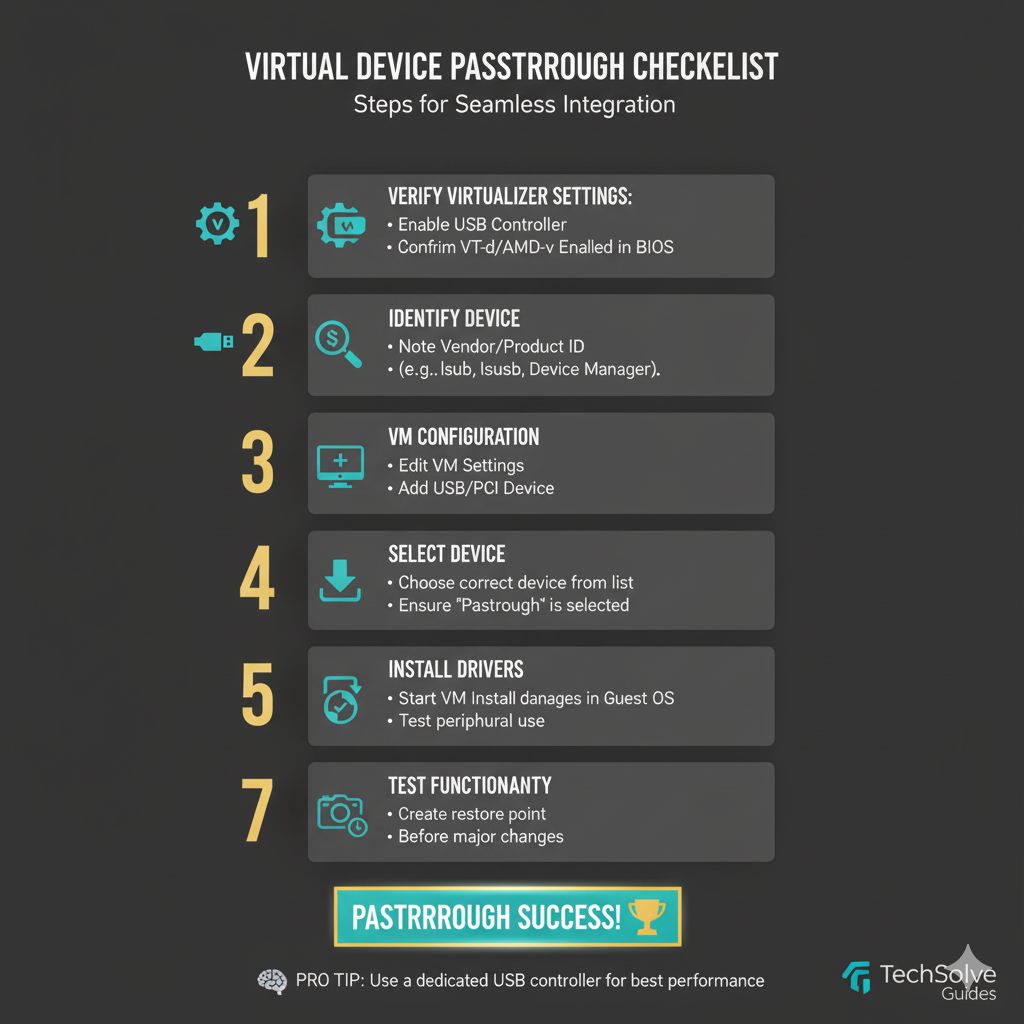
Hypervisor Configuration: The settings within your virtualization software (like VMware, VirtualBox, or Hyper-V) play a crucial role.
Incorrectly configured USB controllers or a lack of installed extension packs can prevent peripherals from being recognized.
Driver Incompatibility: Drivers are the software that allows your operating system to communicate with hardware.
If the necessary drivers are not installed on either the host or the guest operating system, your peripherals won’t work.
Resource Conflicts: Sometimes, the host operating system can ‘claim’ a peripheral, preventing the VM from accessing it.
This is especially common with USB devices.
Common Peripheral Problems and Their Solutions
Let’s dive into some of the most common peripheral problems you might encounter in a virtual environment and how to solve them.
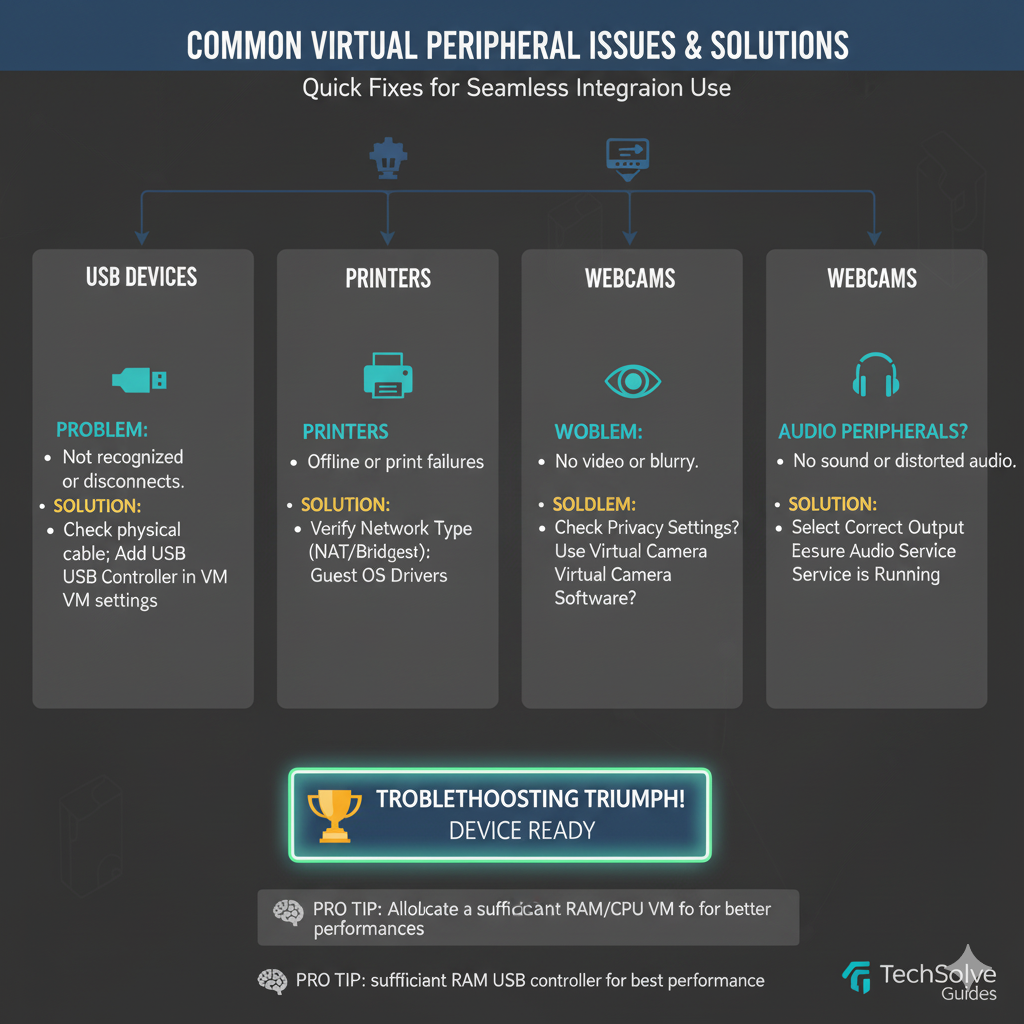
USB Devices Not Detected
This is perhaps the most frequent issue users face. You plug in a USB drive, and your VM remains blissfully unaware of its existence. Here’s what to do:
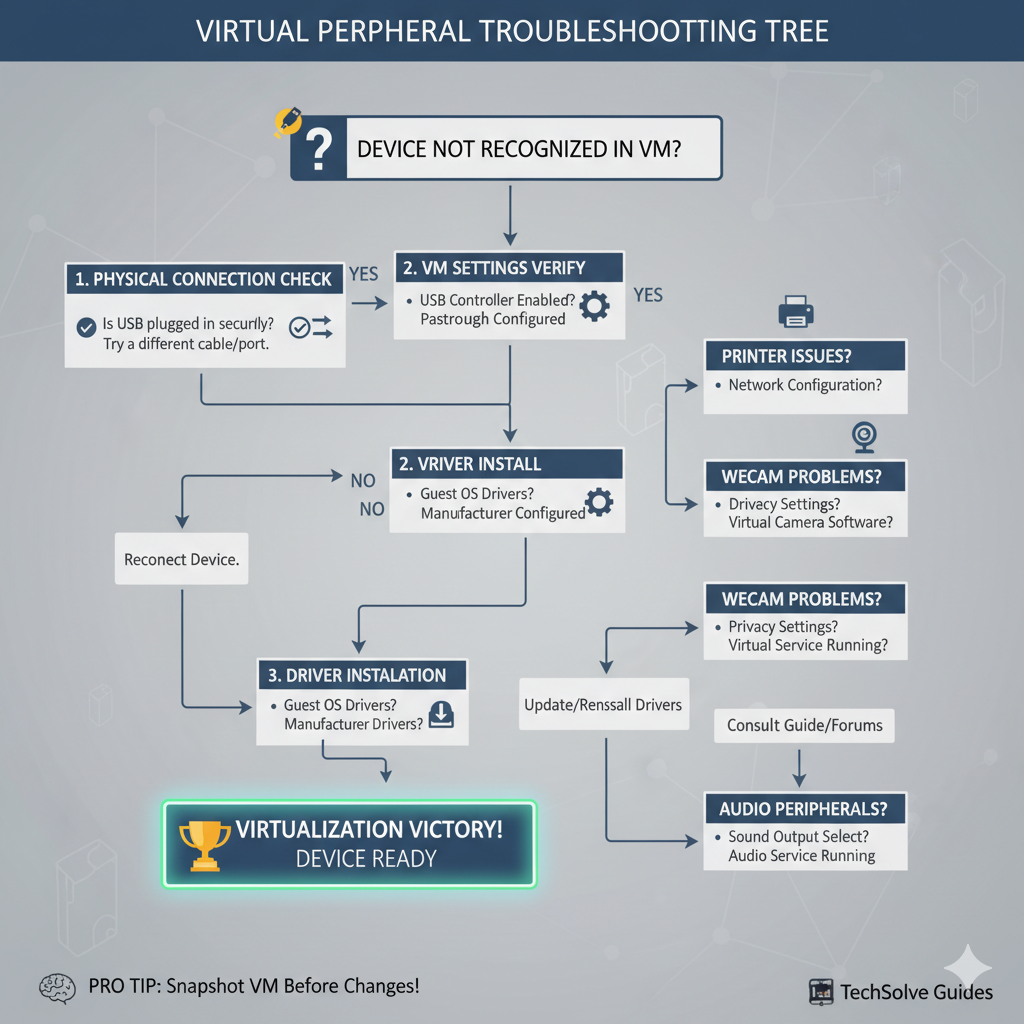
1. Check Your Hypervisor Settings: Ensure that the USB controller is enabled for your virtual machine. In VirtualBox, for example, you’ll find this in the machine’s settings under the ‘USB’ tab. You may also need to install the ‘VirtualBox Extension Pack’ to enable USB 2.0 and 3.0 support.
2. Verify Driver Installation: Make sure you have the necessary USB drivers installed on both your host and guest operating systems.
3. Use USB Filters: Most hypervisors allow you to create USB filters. These filters can force the VM to recognize a specific USB device by its vendor and product ID. This can be a powerful way to resolve stubborn detection issues.
4. Disconnect from Host: In some cases, you may need to ‘unmount’ or ‘eject’ the USB device from the host operating system before the VM can access it.
Printer Problems
Getting a printer to work with a VM can be a real headache. Here are some troubleshooting steps:
1. Network-Based Printing: The most reliable method for printing from a VM is to connect to the printer over the network. If your printer is network-enabled, configure your VM to access it via its IP address.
2. Shared Printers: If your printer is connected directly to the host machine, you can share it over the network. Then, from your VM, you can add the shared printer.
3. Port Configuration: Ensure that the necessary ports for printing (like TCP port 9100) are open and correctly configured in your firewall and network settings.
Webcam and Audio Issues
Webcams and audio devices can also be tricky to get working in a VM. Here are some tips:
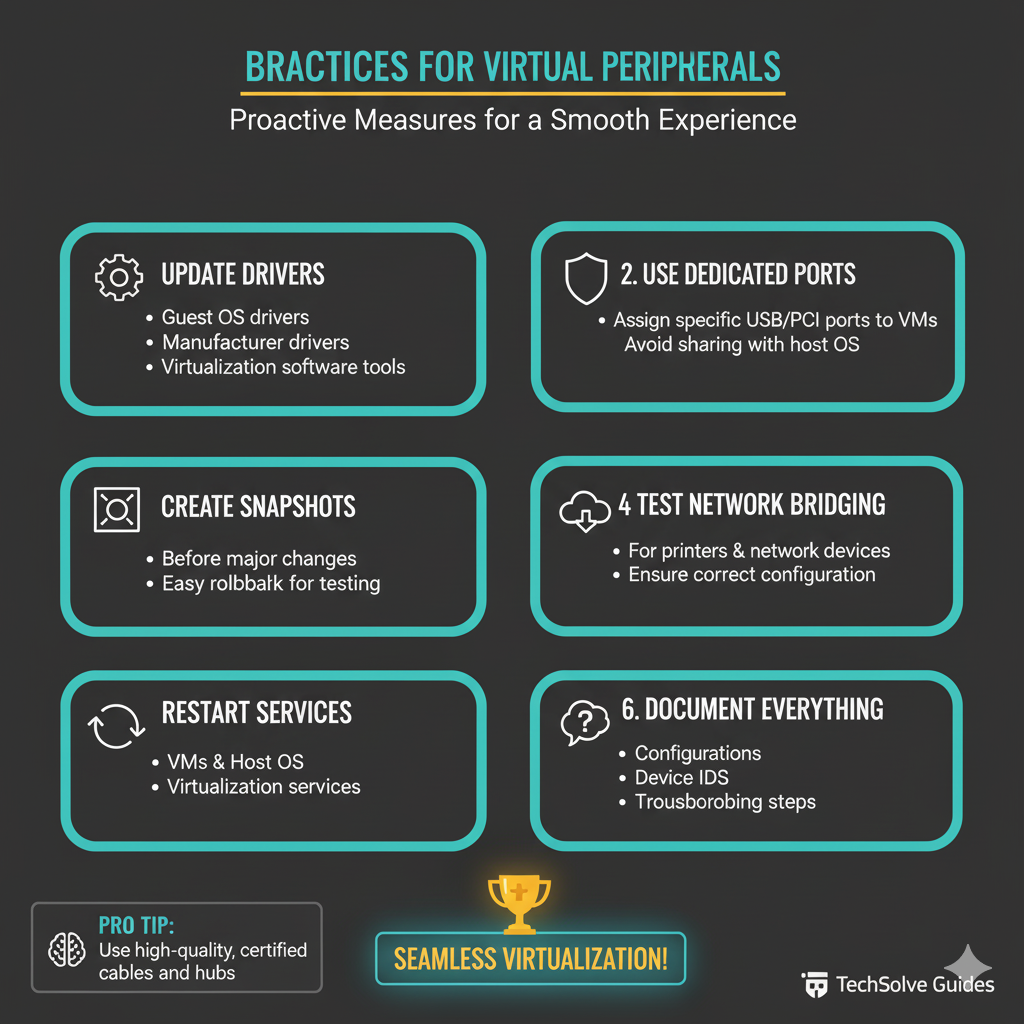
1. Enable Passthrough: As with other peripherals, you’ll need to ensure that your hypervisor is configured to pass through the webcam and audio devices to the VM.
2. Check for Exclusive Access: On the host machine, make sure that no other applications are using the webcam or audio device exclusively. If they are, the VM won’t be able to access them.
3. Driver Installation: Once again, drivers are key. Ensure that you have the correct drivers for your webcam and audio hardware installed on the guest operating system.
A Final Word
Troubleshooting peripherals in virtual environments can be a complex and sometimes frustrating process. However, with a systematic approach and a good understanding of the underlying technologies, you can overcome these challenges.
By carefully checking your hypervisor settings, ensuring you have the right drivers, and using tools like USB filters, you can achieve a seamless and productive virtual experience. So, the next time a peripheral gives you trouble in your VM, don’t despair.
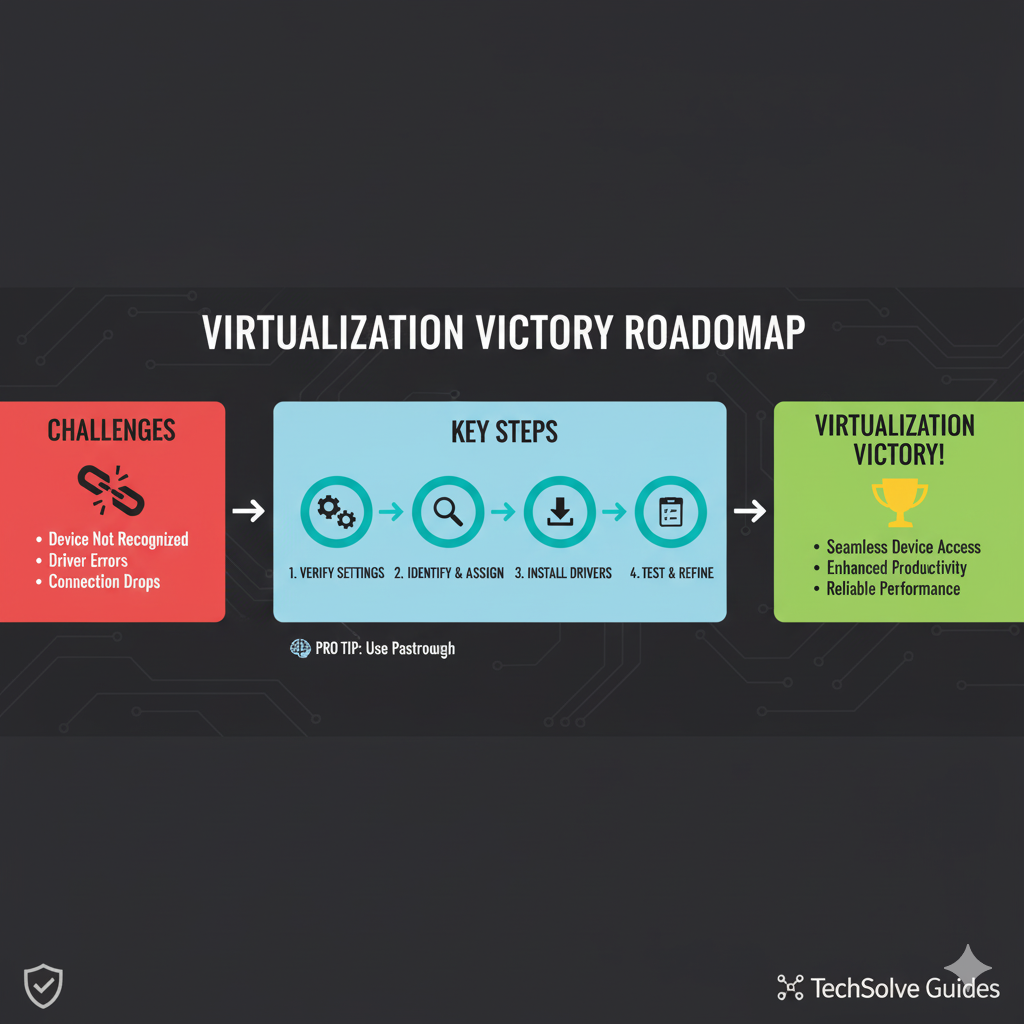
Armed with the knowledge from this guide, you’ll be well-equipped to tackle the problem head-on and emerge victorious.
References
[1] Broadcom. (n.d.). *Troubleshooting USB Passthrough Devices*. TechDocs. Retrieved from
[3] Net-USB. (2025, May 12). *VirtualBox USB Passthrough Extended GUIDE*. Retrieved from
[4] Vasion. (2018, January 8). *Common Virtual Print Problems and How to Solve Them*. Retrieved from