
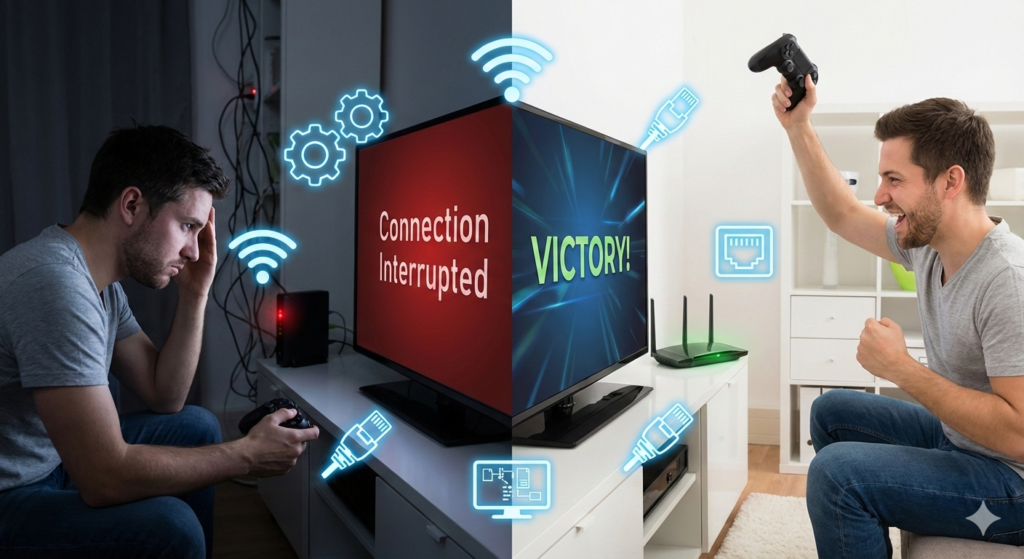
There is perhaps nothing more infuriating in the world of modern entertainment than a sudden disconnect right before a victory royale. 🤬
Online gaming demands a stable, fast, and responsive internet connection, far more so than streaming Netflix or browsing the web.
When your console struggles to connect, or when you experience rubber-banding lag, it ruins the immersion and competitive integrity of the game. 🎮
Troubleshooting network issues related to online gaming consoles requires a systematic approach, moving from simple hardware checks to complex router configurations.
Whether you are gaming on a PlayStation 5, Xbox Series X, or Nintendo Switch, the fundamental principles of networking remain the same. 💡
This guide will walk you through the essential steps to diagnose and fix your connection problems so you can get back into the lobby. 🚀
Step 1: The Basics — Power Cycle Everything
Before diving into complex settings, we must rule out temporary glitches. 🧐
Electronic devices, including your modem, router, and console, hold temporary data in their cache that can sometimes become corrupted and cause slowdowns.
A full “power cycle” completely clears this memory and forces a fresh connection to your Internet Service Provider (ISP).
Don’t just put your console into “sleep” or “rest” mode; do a full shutdown. 🛑
- Turn off your gaming console completely.
- Unplug the power cord from your modem and router.
- Wait for at least 60 seconds (this waiting period is crucial for capacitors to discharge). ⏱️
- Plug the modem back in first and wait for all lights to turn solid green or white.
- Plug the router back in and wait for it to fully reboot.
- Finally, turn your console back on and test the connection.
It seems too simple to work, but many network technicians will tell you this solves a surprising percentage of common connectivity issues. 🤷♂️
For more detailed information on why this works, check out this explanation on how to properly power cycle network devices.
Step 2: Check the Official Server Status
Sometimes, the problem isn’t you; it’s them. 👉
Before tearing apart your home network setup, verify that the gaming service itself is operational.
If PlayStation Network or Xbox Live is down for maintenance or experiencing an outage, no amount of local troubleshooting will fix your connection. 🚫
Always check these official sources first if you suddenly cannot connect.
| Console Platform | Action to Take |
|---|---|
| PlayStation (PS4/PS5) | Search online for “PlayStation Network Service Status”. |
| Xbox (One/Series X|S) | Search online for “Xbox Status” page. |
| Nintendo Switch | Search online for “Nintendo Online Service Status”. |
| Specific Game Servers | Check the official Twitter/X account for the specific game (e.g., Fortnite Status). |
If the status pages show all green, the issue is likely on your end, and we need to dig deeper. 🕵️♀️
Step 3: The Golden Rule — Use Ethernet Over Wi-Fi
If you take only one piece of advice from this guide, let it be this one. ☝️
Wi-Fi is incredibly convenient for phones and laptops, but it is inherently unstable for real-time gaming due to interference from walls, other devices, and even your neighbor’s network.
Switching from a wireless connection to a hardwired Ethernet cable is the single most effective step for instantly improving connection stability and lowering latency. 🟢
Packet loss, which causes stuttering and “rubber-banding” in games, is far more common on Wi-Fi signals that fluctuate in strength. 📉
Even if your router is in the same room, a physical cable provides a dedicated lane for your data that doesn’t have to compete with invisible airwaves.
If running a long Ethernet cable is absolutely impossible due to the layout of your home, consider looking into Powerline adapters, which use your home’s electrical wiring to transmit internet signals, often offering more stability than Wi-Fi. ⚡
“In the world of competitive gaming, milliseconds matter. A stable wired connection isn’t just a luxury; it’s a requirement for consistency.”
Step 4: Understanding and Fixing NAT Types
This is where many gamers get confused, but it is vital for multiplayer connectivity. 🤔
NAT stands for Network Address Translation.
Your router uses NAT to take the single public IP address assigned by your ISP and direct traffic to the various private IP addresses of devices in your home (your phone, laptop, and console). 🗺️
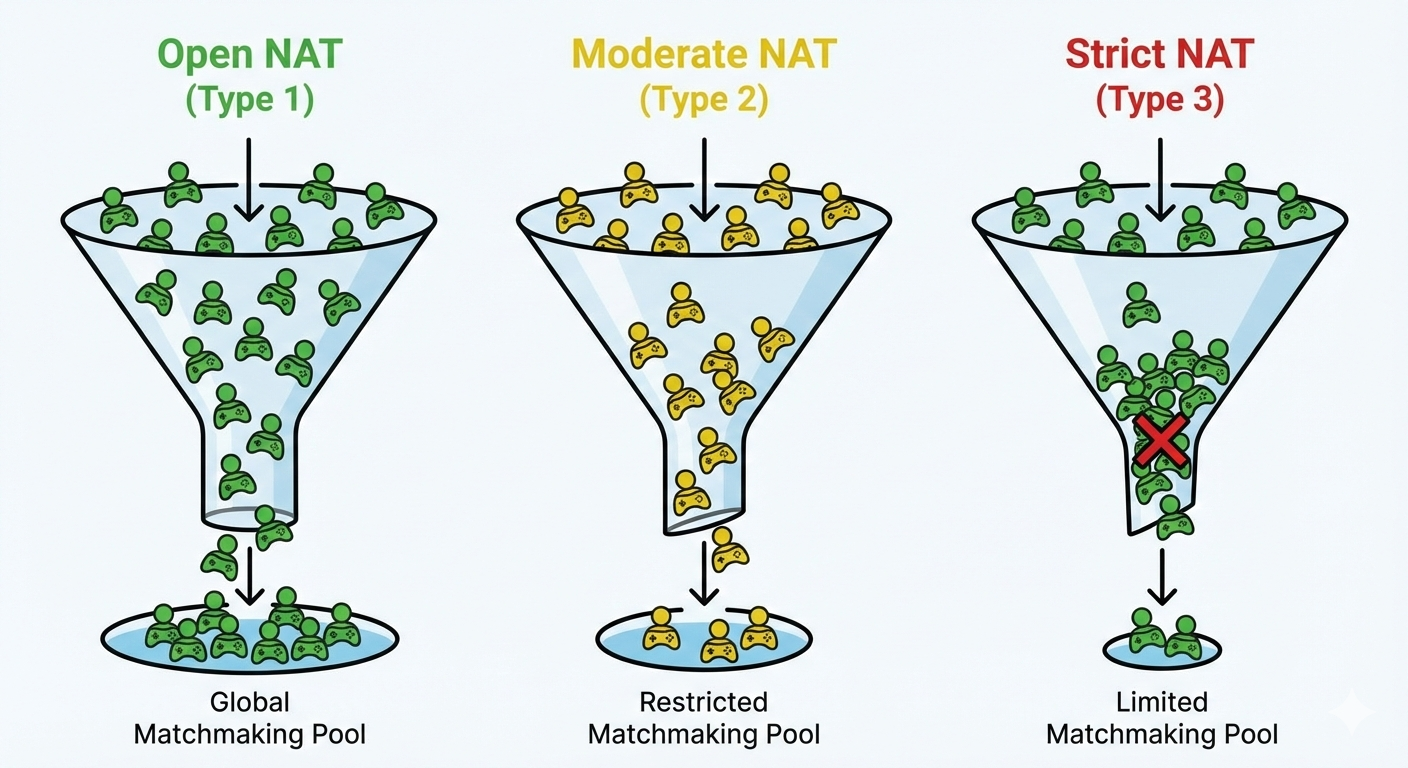
In gaming, your NAT “Type” determines how easily your console can communicate with other players over the internet.
There are generally three types of NAT depending on your console:
- Open NAT (Type 1): The ideal scenario. Your console can connect to anyone, host games easily, and you will have the best matchmaking experience. ✅
- Moderate NAT (Type 2): The most common scenario. You can connect to most players, but you might struggle to connect with people who have Strict NAT, and you may not be chosen as the game host. ⚠️
- Strict NAT (Type 3): The worst-case scenario. You can only connect to players with Open NAT. You will experience long matchmaking times, frequent disconnects, and problems with in-game voice chat. ❌
Your goal is to achieve an Open NAT. 🎯
If your console network test reports a Strict or Moderate NAT, your router’s firewall is likely blocking the ports the game needs to communicate freely.
You can learn more about the technical side of identifying NAT issues here.
Step 5: Advanced Solutions — UPnP and Port Forwarding
To fix NAT issues, we need to tell your router to open the necessary doors (ports) for gaming traffic. 🔓
There are two main ways to achieve this: Universal Plug and Play (UPnP) or manual Port Forwarding.
The Easy Method: UPnP
UPnP allows devices on your network to automatically discover each other and tell the router which ports they need opened. 🤖
For most users, enabling UPnP in your router settings is the easiest way to get an Open NAT.
Log into your router’s administration page (usually via an IP address like 192.168.0.1 or 192.168.1.1 in a web browser), find the UPnP setting, and ensure it is turned on.
The Manual Method: Port Forwarding
If UPnP doesn’t work or you prefer a more secure, manual approach, you must use Port Forwarding. 🛠️
This involves assigning a static IP address to your gaming console and then telling your router specifically which ports to open for that IP address.
Be very careful when modifying router settings; changing the wrong settings can disrupt internet access for your entire household. ⚠️
Every console and sometimes specific games require different ports to be opened.
You will need to look up the specific ports for your platform (e.g., TCP and UDP ports for PSN or Xbox Live).
A fantastic resource for finding specific port numbers and guides for different router models is PortForward.com. 📖
Step 6: Utilizing Quality of Service (QoS)
Does your game lag every time someone else in the house starts streaming a 4K movie on Netflix? 📺
This happens because your router is struggling to handle all the traffic demands simultaneously, and the video stream might be hogging the bandwidth.
Quality of Service (QoS) is a feature found on many modern mid-to-high-end routers that allows you to prioritize certain types of traffic.
By accessing your router settings, you can configure QoS to give your gaming console’s traffic peak priority over everything else on the network. 🔝
This ensures that even if the bandwidth is fully utilized by downloads or streams, your gaming packets get sent first, keeping your ping low and stable. 📉
Not all ISP-provided routers have robust QoS features, so this might require upgrading to a third-party gaming router.
“Think of QoS as a VIP fast lane for your gaming data on a busy highway. It ensures your important traffic doesn’t get stuck behind a massive semi-truck of video streaming.”
Step 7: Testing for Latency and Packet Loss
When troubleshooting network issues related to online gaming consoles, speed isn’t everything. 🏎️
You can have a gigabit download connection and still experience terrible gaming lag if your latency (ping) is high or you have packet loss.
Ping is the time it takes for data to travel from your console to the game server and back, measured in milliseconds (ms). ⏲️
Packet loss occurs when data traveling across the network fails to reach its destination, resulting in choppy gameplay.
Use your console’s built-in detailed network statistics test, or use a PC wired to your router to run in-depth tests on sites like Speedtest.net or Cloudflare’s speed test to check for ping and jitter.
Ideally, for competitive gaming, you want a ping below 50ms and absolutely zero percent packet loss. 💯
Conclusion: Getting Back in the Game
Troubleshooting network issues is rarely fun, but the payoff of a smooth, lag-free gaming experience is worth the effort. 😌
By starting with physical connections and moving into the digital settings of your router, you can solve the vast majority of console connectivity problems.
If you have tried everything in this guide—switched to Ethernet, opened your ports, and checked for packet loss—and are still experiencing significant issues, it may be time to contact your ISP.
Sometimes aged infrastructure outside your house or faulty ISP hardware is the root cause. 🏚️
You can read more about when network problems are likely your ISP’s fault here.
Be methodical, test after every change, and you’ll soon be back online dominating the competition. 🏆