
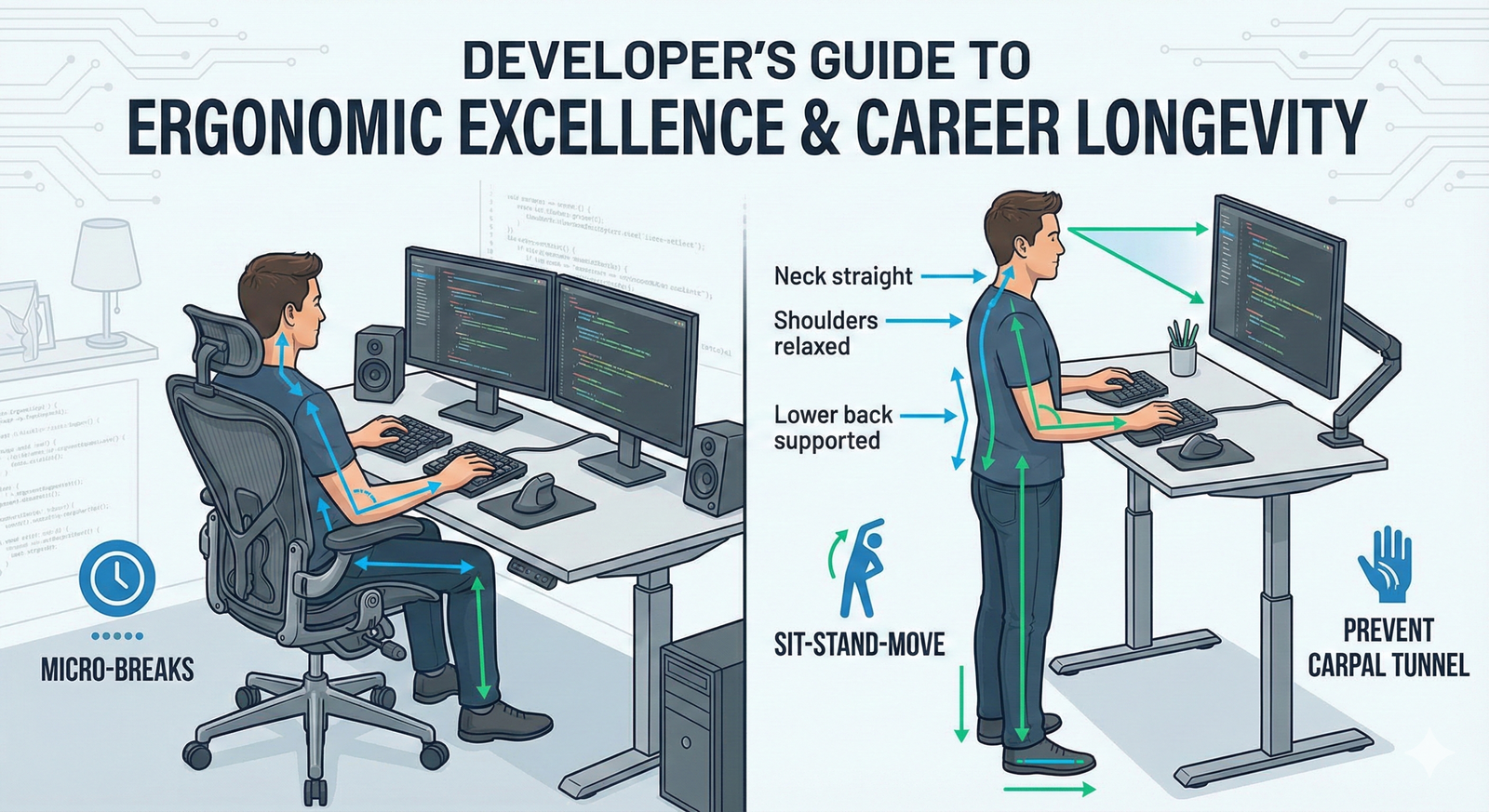
For software developers, the desk is the battlefield, and the keyboard is the primary weapon.
Unlike many professions, a developer’s work is intensely sedentary, often involving 8-12 hours a day of focused, repetitive motion.
This prolonged static posture and repetitive strain can lead to a host of chronic issues, including carpal tunnel syndrome, chronic back pain, neck stiffness, and eye strain.
These aren’t just minor discomforts; they are career-threatening conditions that severely impact productivity and quality of life.
The solution is not to work less, but to work smarter by optimizing your environment.
This comprehensive guide provides a deep dive into the essential principles of developer desk setup ergonomics, ensuring your workspace supports your body for a long, healthy, and productive career.
Phase 1: The Foundation – Chair and Posture
The chair is the single most important piece of equipment in an ergonomic setup.
It is the foundation upon which all other elements are built.
Investing in a high-quality, fully adjustable chair is the best defense against long-term musculoskeletal issues.
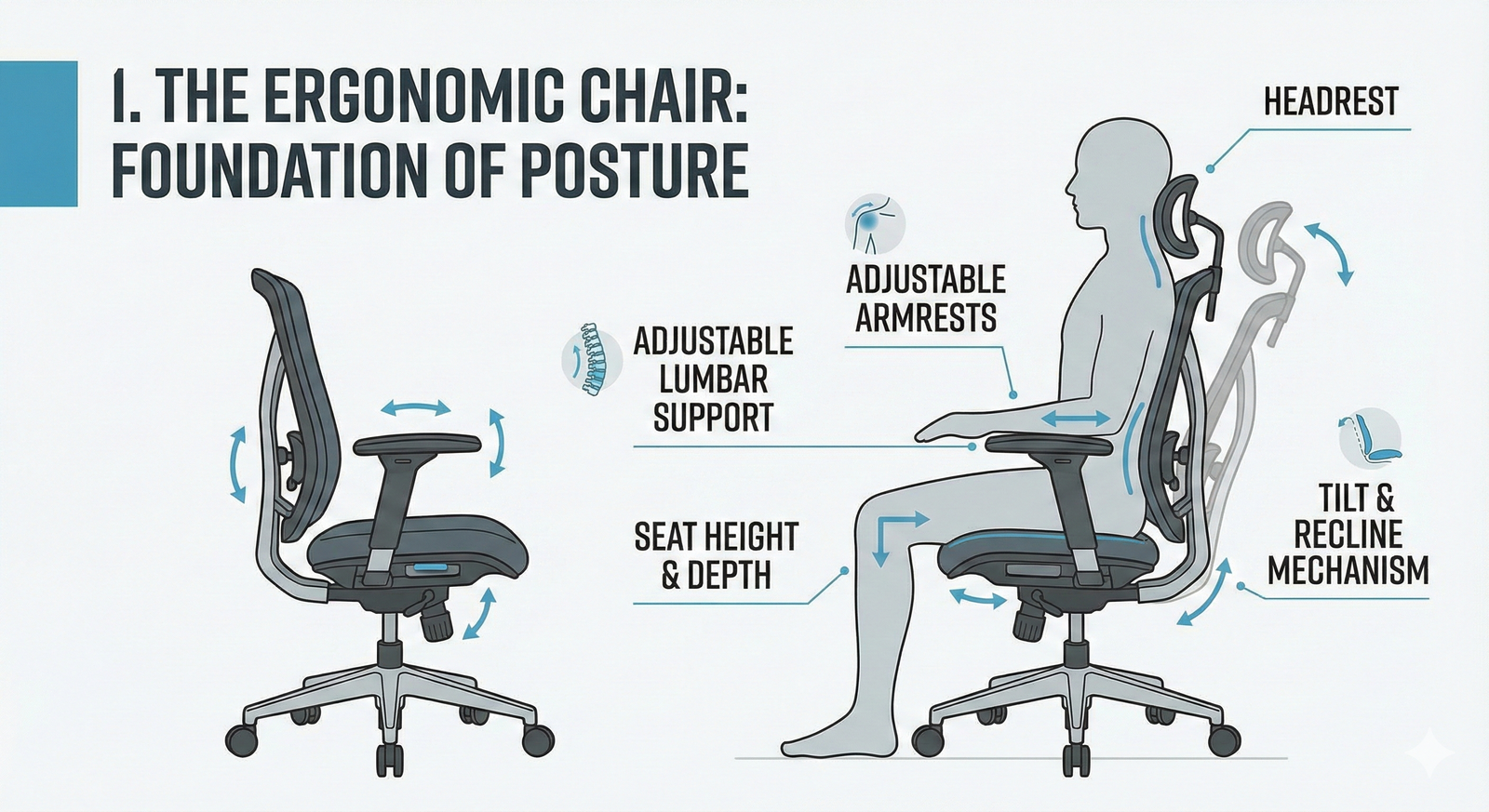
1. The Ergonomic Chair: Your Best Investment
A good ergonomic chair is not a luxury; it is a necessity.
Look for a chair that offers maximum adjustability to fit your unique body shape.
Adjustable Height
- Your feet should be flat on the floor or a footrest, with your knees at a 90-100 degree angle.
- Your hips should be slightly higher than your knees to maintain the natural curve of your spine.
Lumbar Support
- The chair should have adjustable lumbar support that fits snugly into the curve of your lower back.
- This maintains the natural S-shape of your spine, preventing slouching.
Armrests
- Armrests should be adjustable in height and width.
- They should allow your shoulders to be relaxed and your elbows to rest at a 90-110 degree angle, keeping your forearms parallel to the floor.
- Crucially, the armrests should not force your shoulders up or restrict movement.
Seat Depth
- Ensure the seat pan depth allows for 2-4 finger widths between the back of your knees and the edge of the seat.
- This prevents pressure on the blood vessels and nerves behind the knee.
2. Achieving the Ideal Sitting Posture
The “perfect” posture is a myth; the best posture is the next posture.
However, there are key principles to follow when seated, and the most important is frequent movement.
Spine
- Maintain the natural curve of your spine, supported by the lumbar support.
- Avoid leaning forward excessively.
- If you must lean forward, ensure your chair’s backrest is tilted forward to support your lower back.
Shoulders
- Keep your shoulders relaxed and your elbows close to your body.
- Avoid shrugging your shoulders up towards your ears, a common sign of tension.
Wrists
- Your wrists should be straight and neutral, not bent up or down.
- Avoid resting your wrists on the desk while typing; your hands should float above the keyboard.
Phase 2: The Interface – Keyboard, Mouse, and Input
The tools you interact with most directly—keyboard and mouse—are the primary culprits for repetitive strain injuries (RSI).
Optimizing these is critical for hand and wrist health.
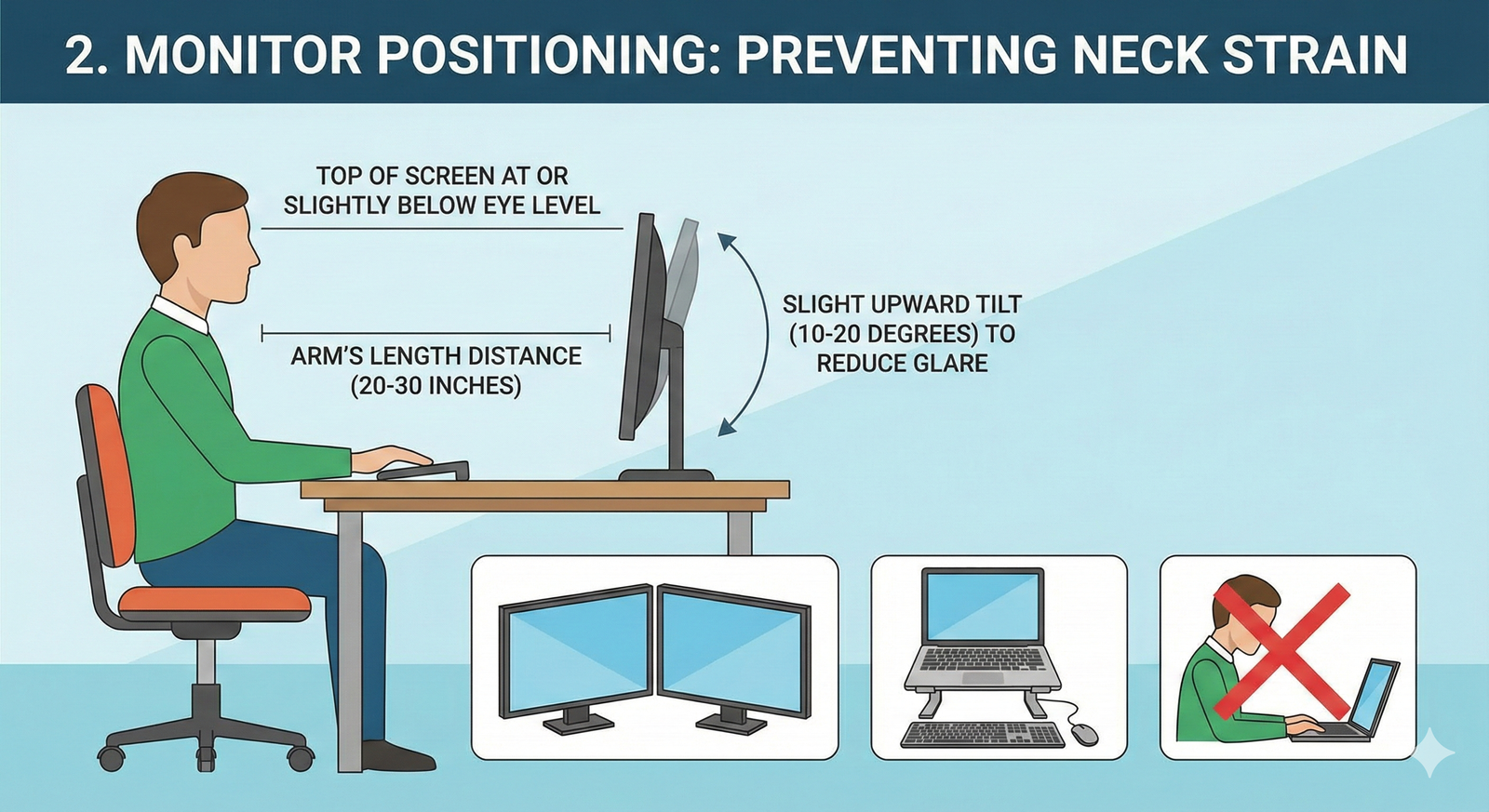
3. The Keyboard: Neutral and Split
The traditional flat keyboard forces your wrists into an unnatural angle, leading to strain.
Split Keyboards
- Consider a split or ergonomic keyboard (like a Kinesis or ErgoDox) that allows you to separate the halves, keeping your wrists straight and your shoulders relaxed.
- This allows your hands to align with your shoulders.
Tent and Tilt
- Use the negative tilt feature (if available) or a wrist rest to keep your wrists in a neutral position, parallel to the floor.
- The keyboard should be slightly lower than your elbows.
Keyboard Placement
- Place the keyboard directly in front of you, centered with your body.
- If you use a numeric keypad, consider a tenkeyless (TKL) or 60% keyboard to keep your mouse closer to your body.
4. The Mouse: Vertical and Trackball Alternatives
The standard mouse forces your forearm to twist, which can lead to carpal tunnel syndrome and other forearm issues.
Vertical Mouse
- A vertical mouse allows your hand to rest in a natural “handshake” position, significantly reducing forearm twist and pronation.
Trackball or Trackpad
- Consider a trackball or a large trackpad to reduce the amount of movement required by your arm and shoulder.
- Trackballs are excellent for precision work without moving the entire arm.
Switching Hands
- Periodically switch the hand you use for your mouse to distribute the strain.
- Even if you are right-handed, practicing with your left hand can provide significant relief.
Phase 3: The Visuals – Monitor and Lighting
Eye strain, headaches, and neck pain are often caused by improperly positioned monitors and poor lighting.
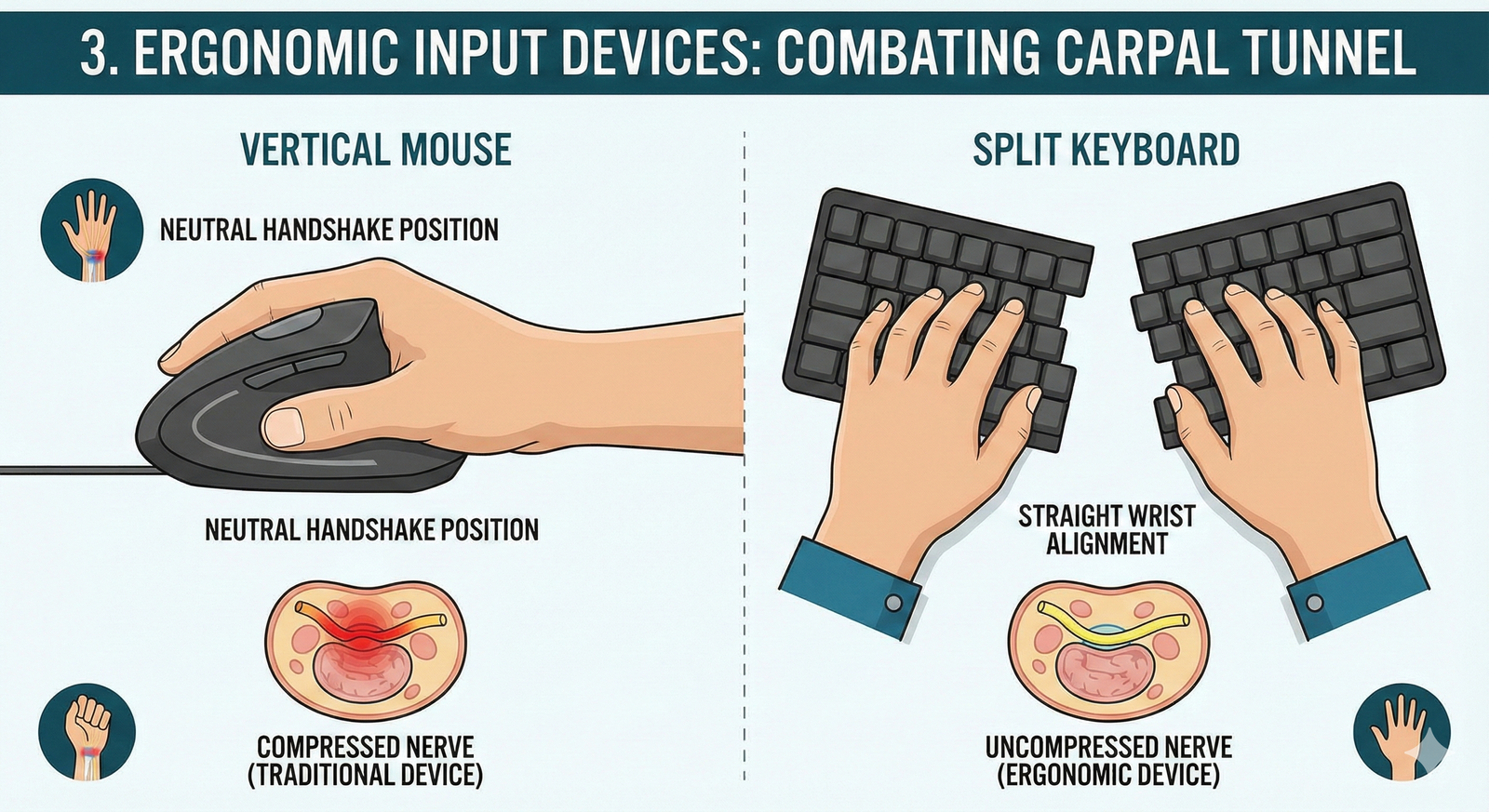
5. Monitor Placement: The 20/20/20 Rule
Correct monitor placement is crucial for preventing neck strain and eye fatigue.
Height
- The top of the screen should be at or slightly below eye level.
- This ensures your neck is in a neutral, relaxed position, as you naturally look slightly downward when reading.
Distance
- The monitor should be an arm’s length away (about 20-40 inches).
- Use a monitor arm to easily adjust the distance and height throughout the day.
Multi-Monitor Setup
- If using two monitors, place the primary monitor directly in front of you.
- If both are used equally, center the split between the two monitors directly in front of you.
The 20/20/20 Rule
- Every 20 minutes, look at something 20 feet away for at least 20 seconds.
- This relaxes your eye muscles and prevents digital eye strain.
6. Lighting and Glare Control
Poor lighting can cause significant eye strain and headaches.
Ambient Light
- Use soft, indirect ambient lighting.
- Avoid harsh overhead lights that create glare.
- A desk lamp with adjustable brightness and color temperature is ideal.
Monitor Brightness
- Adjust your monitor brightness to match the ambient light in the room.
- Use “night light” or blue light reduction features in the evening to reduce the impact on your sleep cycle.
Anti-Glare
- Position your monitor perpendicular to windows to minimize glare.
- Use an anti-glare screen protector or a monitor hood if necessary.
Phase 4: Movement and Micro-Breaks
Even the most perfectly set up desk cannot compensate for hours of static sitting.
Movement is the ultimate ergonomic solution, as the human body is designed to move, not to be static.
7. The Standing Desk: Sit-Stand-Move
A height-adjustable standing desk is the best way to break up long periods of sitting.
The goal is not to stand all day, but to alternate frequently.
The 20/8/2 Rule
- For every 30 minutes, aim to sit for 20 minutes, stand for 8 minutes, and move/stretch for 2 minutes.
- Set a timer to remind you to switch positions.
Standing Posture
- When standing, use an anti-fatigue mat.
- Keep one foot slightly elevated on a footrest to shift your weight.
- Ensure your monitor and keyboard height are adjusted to the correct standing position (elbows at 90 degrees, monitor top at eye level).
Treadmill Desks
- For the ultimate movement solution, consider a low-speed treadmill desk to incorporate gentle walking while working.
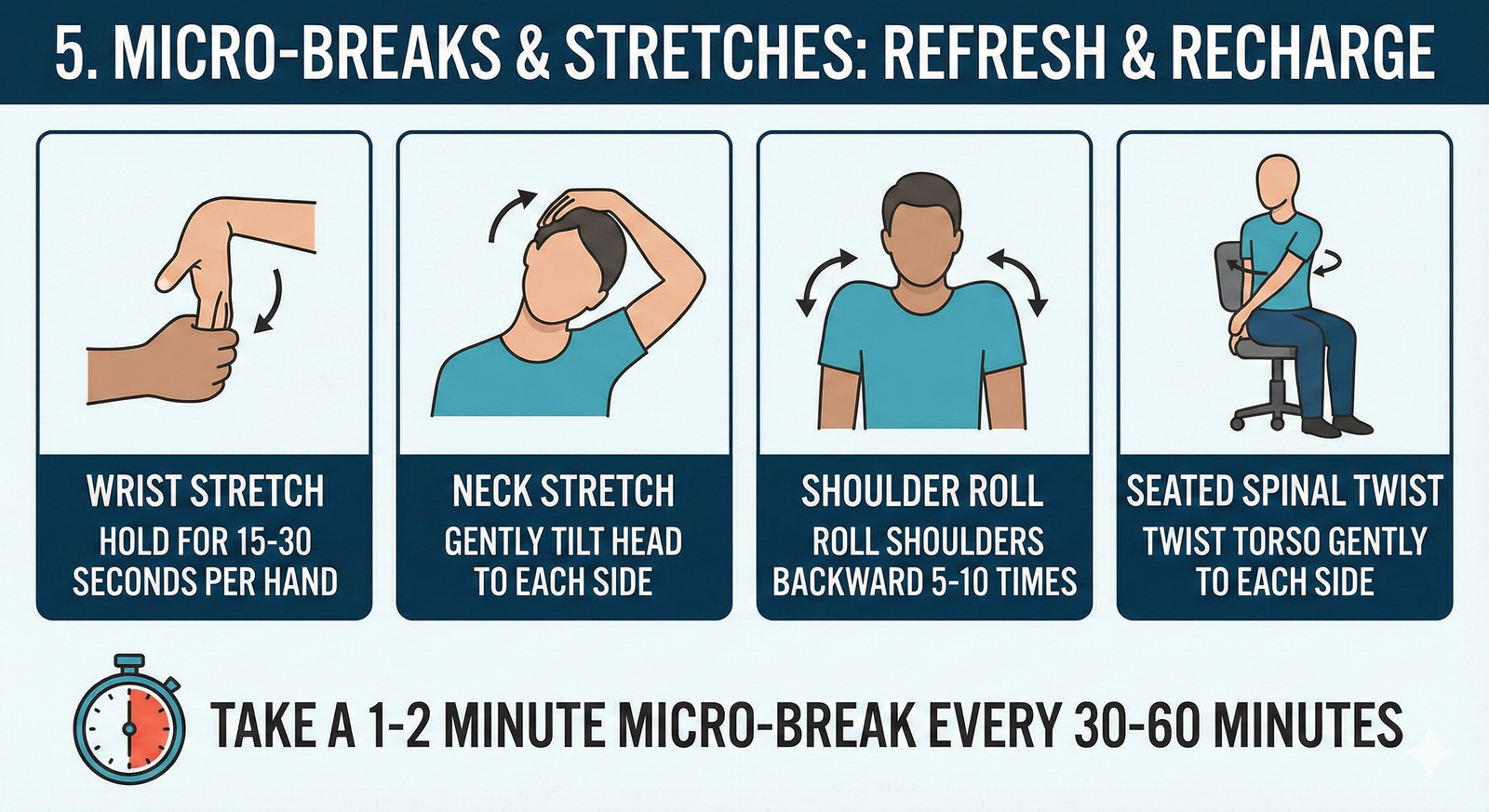
8. Micro-Breaks and Stretching
Micro-breaks are short, frequent pauses that allow your muscles to recover.
They are essential for preventing the buildup of tension.
Pomodoro Technique
- Use a timer (like the Pomodoro Technique) to enforce short breaks every 25-50 minutes.
- Use these breaks to stand up, walk around, and stretch.
Desk Stretches
- Perform simple stretches for your neck, shoulders, wrists, and back during these breaks.
- Focus on wrist extensions, shoulder rolls, and gentle neck tilts.
Walk and Talk
- Take phone calls or virtual meetings while walking around your office or home to incorporate movement.
Phase 5: The Developer-Specific Ergonomic Challenges
Developers face unique challenges due to the nature of their work, which involves intense focus and long periods of typing.
9. The Headset and Audio Ergonomics
Many developers use headsets for meetings and deep work.
Improper use can lead to neck and ear pain.
Lightweight Headsets
- Choose a lightweight, comfortable headset.
- If you are in meetings all day, consider a single-ear headset to keep one ear open to the environment.
Microphone Placement
- Ensure the microphone is positioned correctly to avoid straining your neck or jaw.
Volume Control
- Keep the volume at a safe level to prevent hearing damage.
- Use noise-canceling headphones for focus, but ensure the volume is low.
10. Coding Posture and Focus
The intense focus required for coding often leads to unconscious poor posture.
The “Code Slouch”
- Be mindful of the “code slouch,” where you gradually lean closer to the screen.
- Use your chair’s recline feature to lean back slightly (100-110 degrees) to reduce pressure on your spine.
Document Holders
- If you are working from physical documents or a second screen, use a document holder or monitor arm to position the source material at the same height and distance as your main screen.
Conclusion: Ergonomics as a Career Strategy
Ergonomics is not just about comfort; it is a strategic investment in your long-term career health and productivity.
By meticulously optimizing your chair, input devices, monitor placement, and incorporating regular movement, you are actively mitigating the risks of a sedentary lifestyle.
A developer who is free from chronic pain is a developer who can maintain focus, creativity, and high output for years to come.
Treat your body like the high-performance machine it is, and your career will thank you for it.
The transition from a basic setup to an ergonomic one is a journey, not a destination.
Start with the most critical components—your chair and monitor height—and gradually refine your setup over time.
Your body is your most valuable tool; protect it.
| Component | Ergonomic Goal | Key Metric/Tip |
|---|---|---|
| Chair | Maintain S-Curve of Spine | Adjustable Lumbar Support, 90-100° Knee Angle |
| Monitor | Prevent Neck Strain | Top of screen at/below eye level, Arm’s Length Distance |
| Keyboard | Neutral Wrist Posture | Split/Ergonomic Design, Negative Tilt, Forearms Parallel to Floor |
| Mouse | Reduce Forearm Twist (Pronation) | Vertical Mouse or Trackball, Switch Hands Periodically |
| Movement | Break Static Posture | The 20/8/2 Rule, Pomodoro Breaks, Anti-Fatigue Mat |