


When it comes to Battery calibration tool for Lenovo ThinkPad, getting the right details matters. ⚡️ Product Suggestions to Boost Your ThinkPad’s Life! ⚡️
Looking to upgrade or optimize your Lenovo ThinkPad? Consider these top-rated products to enhance your experience and battery longevity:
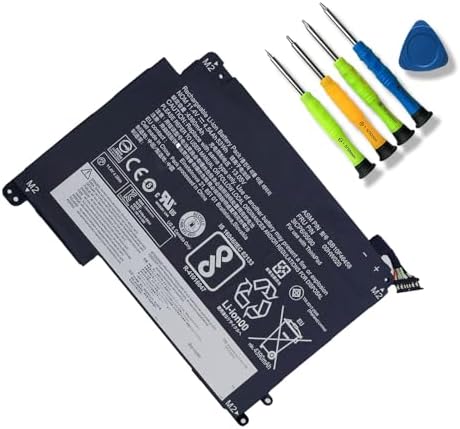
👉 Lenovo ThinkPad Compatible Battery
👉 Laptop Battery Health Monitor Software
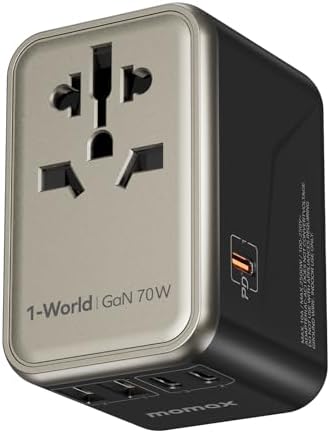
👉 Universal Laptop Charger (USB-C Power Delivery)
In the fast-paced world of technology, our laptops are often our most trusted companions, and for many, the Lenovo ThinkPad stands as a beacon of reliability and performance. Yet, even the most robust machines, like these legendary workhorses, require a bit of TLC to maintain their optimal battery health. One such crucial maintenance task is battery calibration. 💡
Understanding the Core: What is Battery Calibration?
Battery calibration is essentially the process of synchronizing your laptop’s battery management system (BMS) with the actual charge capacity of your battery. Over time, due to numerous partial charges and discharges, the BMS can lose track of the battery’s true full capacity, leading to inaccurate percentage readings, sudden shutdowns, or inconsistent battery life. Think of it as resetting your car’s fuel gauge to ensure it accurately reflects how much gas is really in the tank.
This process doesn’t magically restore lost battery capacity, but it ensures the operating system displays the correct battery percentage, preventing those frustrating moments when your laptop unexpectedly dies at 20% charge.
The Evolving Landscape of Calibration for ThinkPads
For years, Lenovo Vantage was the go-to utility for ThinkPad users seeking battery calibration. It offered a convenient, automated “Battery Gauge Reset” feature that streamlined the process. However, recent developments, specifically around May 2024, indicate that the battery calibration section has disappeared from the latest versions of Lenovo Vantage for many users. This change has sparked considerable discussion within the ThinkPad community, with some users speculating it might be a move to encourage new battery purchases.
Despite the removal of the automated tool from newer Lenovo Vantage versions, the need for accurate battery reporting remains paramount for many ThinkPad enthusiasts.
Alternative Approaches: The Manual Method Takes Center Stage
With the built-in Vantage tool becoming less available, the manual calibration method has re-emerged as the most reliable way to recalibrate your ThinkPad battery. This method, while requiring a bit more time and attention, is universally applicable and highly effective.
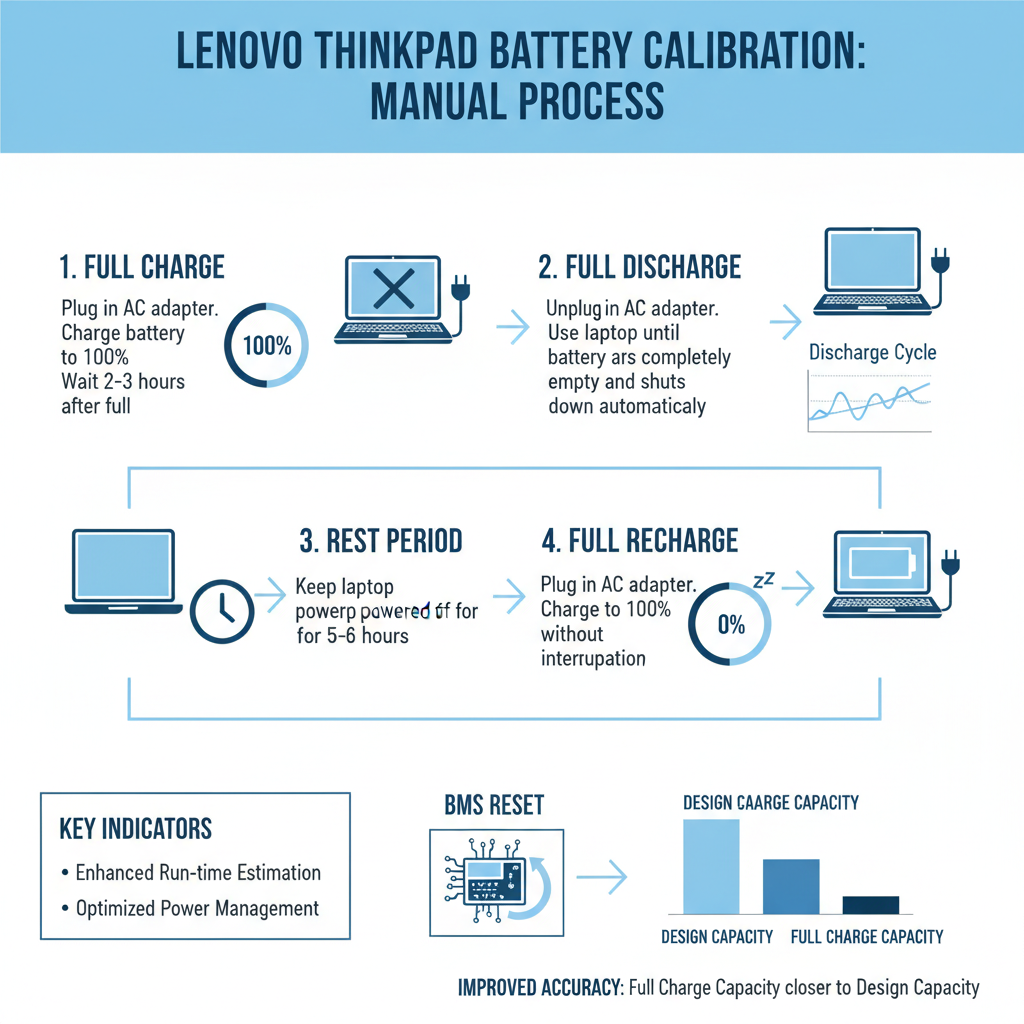
Here’s a detailed, step-by-step guide to manually calibrate your Lenovo ThinkPad battery:
- Step 1: Fully Charge Your Battery 🔋
Plug in your ThinkPad and let it charge completely to 100%. Once it reaches full charge, keep it plugged in for an additional 1-2 hours. This “trickle charge” phase ensures that every cell is fully saturated. - Step 2: Discharge Until Shutdown 📉
Unplug your laptop from the AC adapter. Allow the battery to discharge naturally until the laptop shuts down on its own due to low battery. It’s crucial *not* to use your laptop for demanding tasks during this period; allow it to drain passively, or with light usage. This process can take several hours, sometimes up to 10-12 hours depending on your battery’s capacity and usage. - Step 3: Let It Rest 🛌
Once the laptop has powered off, leave it in this discharged state for at least 5-6 hours, or ideally overnight. This ensures the battery is truly at its lowest possible charge, allowing the BMS to register the “empty” point accurately. - Step 4: Fully Recharge (Uninterrupted) 🔌
Plug your ThinkPad back into the AC adapter and charge it uninterrupted to 100%. Do not use the laptop during this charging cycle if possible. Once it reaches 100%, you can resume normal use.
Performing this cycle allows the battery’s internal fuel gauge to re-learn the precise full and empty points, providing you with a more accurate battery percentage reading.
“A well-calibrated battery is a happy battery, ensuring your digital companion performs predictably when you need it most.”
Firmware Updates and Their Role 💾
It’s worth noting that Lenovo occasionally releases Battery Firmware Update Utilities. For instance, a version released in February 2025 specifically updates battery firmware to fix issues and recommends resetting the battery gauge for calibration *after* updating. These utilities often provide similar manual calibration steps: charge to 100%, discharge to 5%, then charge back to 100%. Always ensure your ThinkPad’s operating system, drivers, and firmware are up to date, as Lenovo often releases updates to improve battery performance and address potential issues.
https://www.youtube.com/watch?v=N_pE0N85Fp8
Beyond Calibration: Maximizing ThinkPad Battery Longevity
While calibration is about accuracy, true longevity comes from diligent care and smart usage habits. Here are actionable tips, incorporating the latest insights, to extend your ThinkPad’s battery life:
| Tip Category | Actionable Advice | Benefit |
|---|---|---|
| Charging Habits | Avoid constant 0-100% charge cycles. Utilize “Battery Charge Threshold” settings in Lenovo Vantage to limit charging to 80-90% when plugged in for extended periods. | Reduces stress on the battery, significantly extending its overall lifespan. |
| Temperature Management | Operate your laptop in a temperature range of 10°C to 35°C (50°F to 95°F). Avoid direct sunlight or hot environments. Ensure proper airflow. | Extreme temperatures accelerate chemical degradation, leading to premature capacity loss. |
| Software & OS Updates | Regularly update your Windows OS, drivers, and Lenovo firmware. These updates often include battery performance optimizations. | Enhances efficiency and fixes potential bugs that could impact battery drain. |
| Power Settings | Use Windows Power Options to select “Best power efficiency” mode. Dim your screen brightness and close unnecessary background applications. Disable Bluetooth/Wi-Fi when not needed. | Reduces overall power consumption, extending runtime on a single charge. |
| Storage | If storing your ThinkPad for an extended period, ensure the battery is charged to around 50%. Store in a cool, dry place. | Prevents deep discharge or over-stress, preserving battery integrity during dormancy. |
Recent data indicates that many laptop batteries can lose 20-30% of their original capacity after just 300-500 full charge cycles. This highlights the importance of managing those cycles effectively rather than constantly pushing the battery to its limits.
“Prioritizing shallow discharges and setting charge thresholds are crucial practices that can significantly extend your battery’s operational life.”
The Role of Lenovo Vantage Today 🧭
Even without the explicit “Battery Calibration” button, Lenovo Vantage remains a powerful tool for battery management. It allows you to monitor battery health, set charge thresholds (like preventing charging above 80% to prolong lifespan), and activate conservation modes. Regularly checking your battery’s health status in Vantage or using tools like `powercfg /batteryreport` in Windows can provide valuable insights into its wear level and cycle count.
“In the digital age, understanding your battery’s true capacity is as vital as the tasks you perform on your device.”
https://www.youtube.com/watch?v=k3B5aXjF25A
When to Consider Replacement 🔄
Despite best efforts in calibration and maintenance, all lithium-ion batteries have a finite lifespan. If, after calibration and following all best practices, your ThinkPad’s battery still exhibits significantly reduced runtime, rapid draining, or other persistent issues, it might be time for a replacement. Typically, a battery showing less than 80% of its original design capacity is a strong candidate for retirement. 😔
“Ignoring a failing battery can sometimes lead to unexpected shutdowns or, in rare cases, battery swelling, which can damage internal components.”
Always opt for genuine Lenovo replacement batteries or reputable third-party alternatives to ensure compatibility and safety. Installing a new battery can instantly revitalize your ThinkPad, bringing back the mobility and endurance you once enjoyed. 🚀
https://www.youtube.com/watch?v=0h0X3b1K7oE
Concluding Thoughts: Empowering Your ThinkPad Experience
Maintaining a ThinkPad battery goes beyond just charging it when it’s low. It involves a holistic approach of understanding, calibrating, and nurturing its health. While the traditional automated “Battery Calibration tool for Lenovo ThinkPad” within Vantage may be less prevalent now, the knowledge and methods for manual calibration, coupled with smart power management, empower you to keep your legendary machine running at its best. By integrating these practices into your routine, you’re not just extending battery life; you’re preserving the performance and reliability that makes a ThinkPad, a ThinkPad. 💯
“Regular battery maintenance, including periodic manual calibration, is an investment in your ThinkPad’s long-term performance and your productivity.”
🔍 Explore More: See all related guides for Battery calibration tool for Lenovo ThinkPad on Z-A-D-A.