


💡
When it comes to 15.6 inch 1080p laptop screen replacement kit, getting the right details matters. There is nothing quite as frustrating as a cracked, flickering, or dead laptop screen. 😫
In our fast-paced digital world, a laptop is more than just a device; it is a gateway to productivity, entertainment, and connection. 🌐
When the visual interface falters, it can feel like a major setback, but it doesn’t have to be a death sentence for your beloved machine. 🛠️
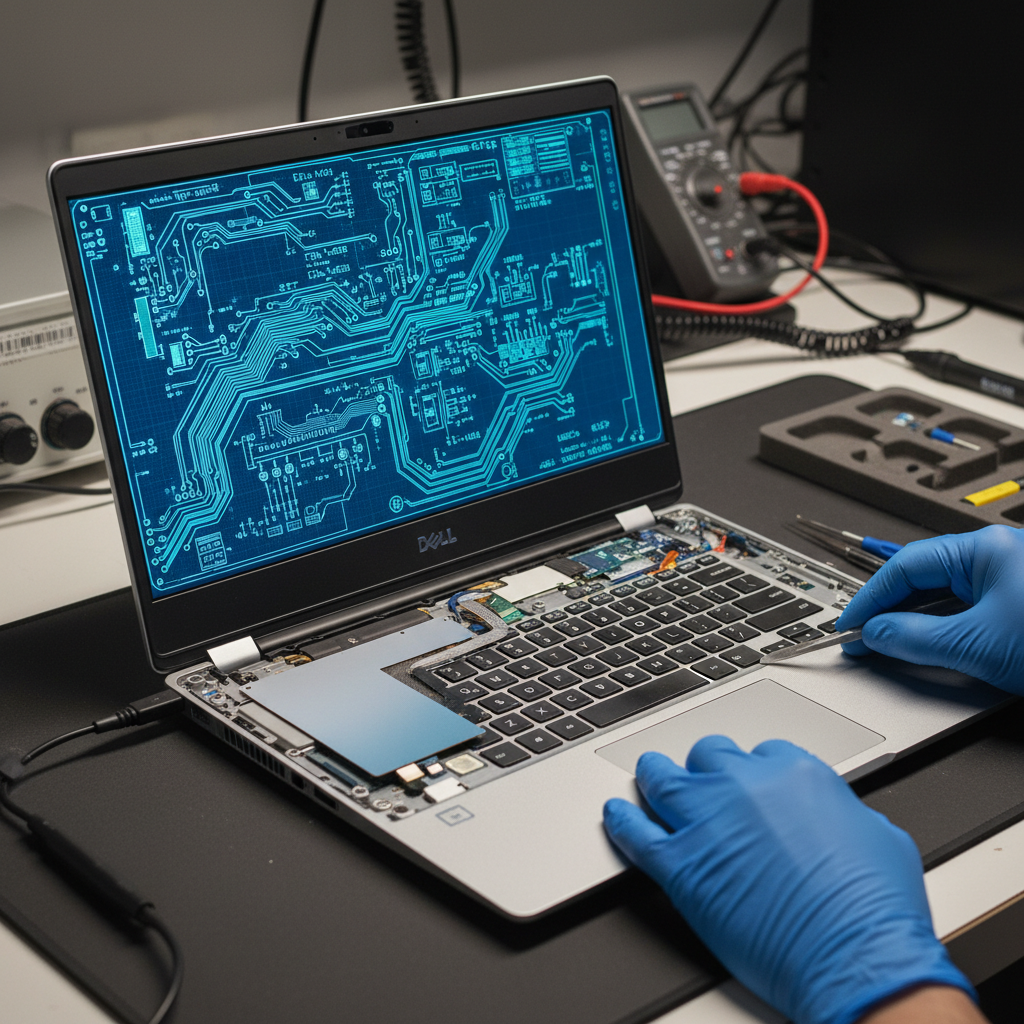
Welcome to the ultimate guide for breathing new life into your portable companion with a 15.6-inch 1080p laptop screen replacement kit. ✨
For tech enthusiasts and troubleshooting gurus, the idea of a do-it-yourself (DIY) repair is not just about saving money; it is about the satisfaction of mastering your hardware. 💪
This comprehensive post will equip you with the knowledge, steps, and confidence needed to tackle this upgrade yourself. 📚
Why Consider a Screen Replacement? 🤔
A broken screen can manifest in various ways, from a spiderweb of cracks to unresponsive pixels or a completely black display. 💔
Before you consider shelling out for a brand-new laptop, a screen replacement often presents a cost-effective and environmentally friendly solution. 💰♻️
Modern 15.6-inch 1080p (Full HD) screens offer a superb balance of visual clarity, size, and power efficiency, making them a popular choice for many users. 🌟
Opting for a replacement can extend the life of your laptop significantly, saving you hundreds, if not thousands, of dollars. 💸
According to Vision Computers, a professional screen replacement typically costs between $99 and $249, while a DIY replacement screen kit can be purchased for $40 to $120.
This stark difference often makes the DIY route highly appealing for those with a bit of technical inclination. 🧑🔧
Understanding Your 15.6-inch 1080p Screen 🧐
Before diving into the replacement process, it is crucial to understand the specifications of your existing screen and what to look for in a replacement. 🔍
The “15.6 inch 1080p” designation refers to the screen size and resolution (1920×1080 pixels), which is Full HD. 📐🖼️
However, several other factors are critical for compatibility:
- Connector Type: Most 15.6-inch 1080p screens use either a 30-pin or 40-pin eDP (embedded DisplayPort) connector, typically located on the bottom right side of the screen. Identifying the exact pin count is paramount. 🔌
- Finish: Screens come in either matte (anti-glare) or glossy finishes. Matte screens reduce reflections, while glossy screens often offer more vibrant colors. Your preference and original screen type might guide this choice. ✨
- IPS vs. TN Panels: In-Plane Switching (IPS) panels offer superior color accuracy and wider viewing angles compared to Twisted Nematic (TN) panels. Many modern 15.6-inch 1080p laptops come with IPS, providing a richer visual experience. 🌈
- Refresh Rate: While 60Hz is standard, gaming laptops often feature higher refresh rates like 120Hz or even 144Hz and 240Hz for smoother visuals. Always match the refresh rate to your laptop’s capabilities and your usage needs. ⚡
- Mounting Brackets: Some screens have mounting brackets attached to the sides, top, and/or bottom, while others are “slim” and rely on adhesive. Always verify this detail. 🔩
The Micro Center result mentions various OEM and manufacturer part numbers, emphasizing the need to match your specific model to ensure compatibility. 📌
https://www.youtube.com/watch?v=s2-y_31pX3s
The Anatomy of a 15.6-inch 1080p Laptop Screen Replacement Kit 📦
A typical replacement kit usually includes the LCD panel itself. Depending on the vendor, it might also come with a set of basic tools. 🛠️
Key components you’ll interact with:
- New LCD Panel: This is the heart of your replacement, a brand-new 15.6-inch 1080p display. 💖
- Video Cable (eDP Cable): This fragile ribbon cable connects the screen to your laptop’s motherboard. Be extremely gentle with it. 🎗️
- Bezel: The plastic frame that surrounds and protects the screen. It is usually held in place by screws or clips, sometimes adhesive. 🖼️
- Hinges: These metal components allow the screen to open and close. While not usually replaced, you’ll work around them. ⚙️
When purchasing a replacement, verify that the resolution, size, and connector type precisely match your original screen.
DIY vs. Professional: Making the Right Choice ⚖️
The decision to replace your screen yourself or seek professional help often boils down to comfort level, time, and budget. 💲
| Feature | DIY Replacement | Professional Replacement |
|---|---|---|
| Cost (Estimate 2026) | $40 – $120 (parts only) | $99 – $249 (parts + labor) |
| Time Investment | 30-60 minutes (standard), 1-2 hours (ultrabooks/touchscreens) | 30-60 minutes (standard), 1-2 hours (ultrabooks/touchscreens); often same-day service |
| Skill Level | Requires technical ability, patience, and attention to detail | No technical skill required from owner |
| Warranty Impact | Likely voids existing manufacturer warranty | Service provider may offer their own warranty (e.g., 30-day labor, lifetime parts from Micro Center) |
| Risk of Damage | Higher risk of damaging components if inexperienced | Minimal risk to owner, responsibility lies with the professional |
“If your laptop is less than 4-5 years old and works perfectly otherwise, screen replacement is almost always worth it.”
DIY can be incredibly rewarding, offering a deeper understanding of your device and significant savings. 💡
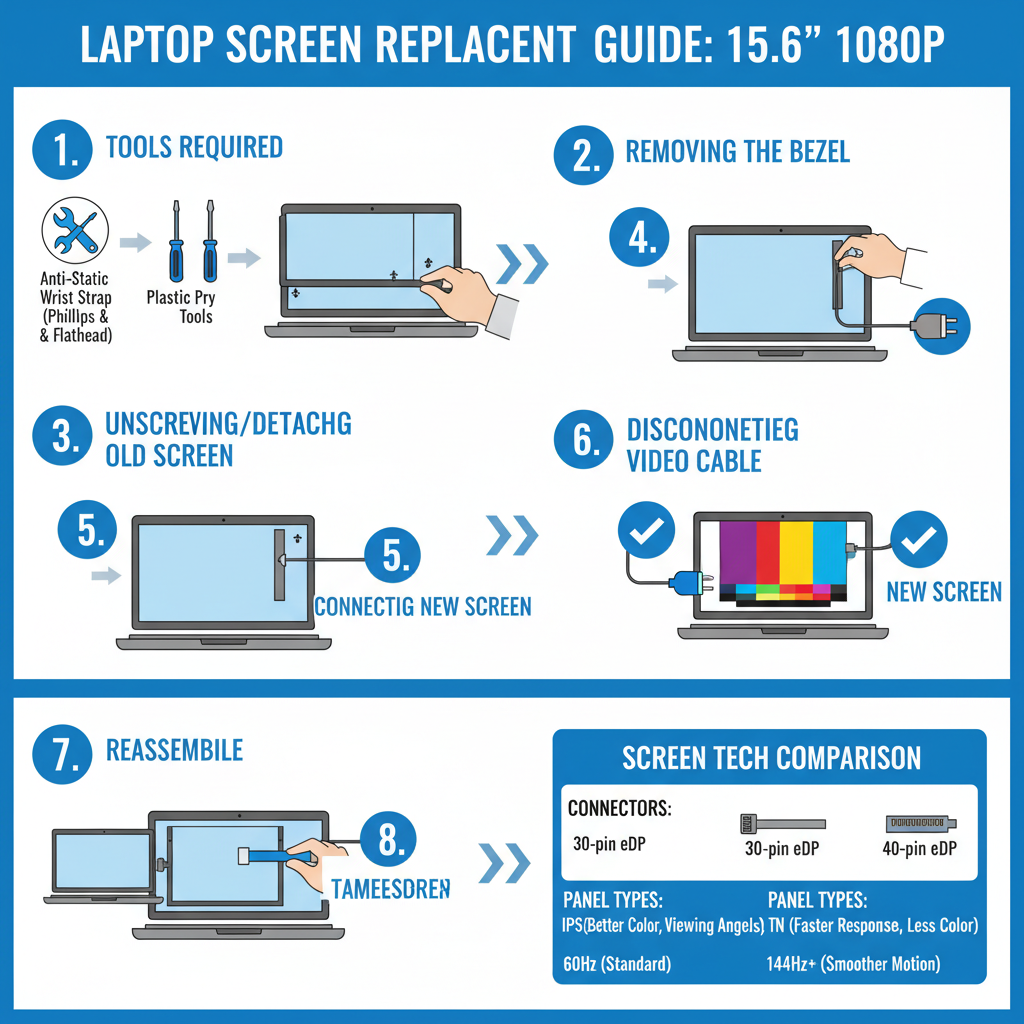
Step-by-Step DIY Guide: Replacing Your 15.6-inch 1080p Screen 🔧
This general guide applies to many laptops, but always refer to your specific laptop model’s service manual or a detailed video tutorial. 📹
1. Preparation is Key 🔑
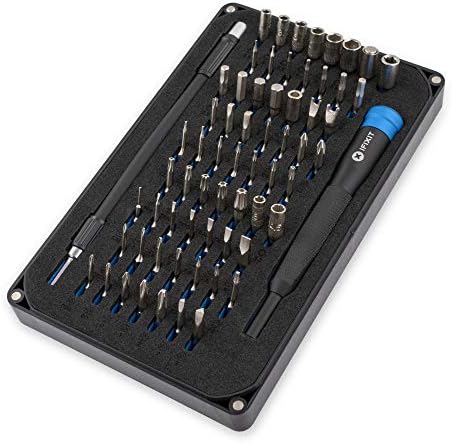
Gather your tools: a small Phillips head screwdriver, plastic pry tools (spudgers), tweezers, and an anti-static wrist strap. 🧤
Power down your laptop completely and unplug it from any power source. ⚡
Remove the battery if it is external. If internal, disconnect it from the motherboard after opening the laptop base. 🔋
Ground yourself to prevent electrostatic discharge (ESD) damage. ⚡
2. Bezel Removal: The First Hurdle 🚧
Look for rubber screw covers or stickers on the screen bezel; screws might be hidden underneath. 🕵️♀️
Carefully remove all visible screws holding the bezel in place. Keep them organized! 🪛
Use your plastic pry tool to gently separate the bezel from the screen assembly, starting from a corner and working your way around the edges. Take your time to avoid cracking the plastic. 🤏
3. Detaching the Old Screen 📉
Once the bezel is off, you will see the metal frame holding the LCD panel. 🔩
Unscrew the small screws holding the screen to the frame or hinges. Typically, there are screws on the sides, top, and/or bottom brackets. 🪝
Carefully lay the old screen face down on the keyboard, exposing the back. ⬇️
Locate the video cable connector (usually a flat ribbon cable) on the back of the screen. 🎗️
Gently peel back any tape securing the connector. 🩹
Unlatch the connector clip (if present) and carefully pull the cable straight out, avoiding any angles that could damage it.
https://www.youtube.com/watch?v=N64_o0Lw19k
4. Installing the New 15.6-inch 1080p Screen ✨
Take your new 15.6-inch 1080p screen and compare it to the old one to ensure it is an exact match in terms of size, resolution, and connector type.
Make sure the new screen has the same mounting brackets and connector type as your old one.
Carefully connect the video cable to the new screen, ensuring it is fully seated and the clip (if any) is latched securely. 🔌
Secure the video cable with new tape if necessary. 🩹
Place the new screen into the frame, ensuring it is oriented correctly. ⬆️
Reattach the mounting brackets and screws. Do not overtighten!
5. The Crucial Test! ✅
Before fully reassembling, reconnect your laptop’s battery (if internal) and power it on. 🔋
Check for any dead pixels, color inconsistencies, or other display issues. 🧐
If everything looks perfect, power down the laptop. 💖
6. Reassembly: The Final Touch 🥳
Carefully reattach the bezel, snapping it back into place or securing it with screws. 🖼️
Replace any hidden rubber covers or stickers. 덮개
Reconnect the external battery, if applicable. 🔌
Congratulations! You have successfully replaced your laptop screen. 🎉
https://www.youtube.com/watch?v=JmFmX2164Q4
Emerging Trends and Technologies for Laptop Screens (2024-2026) 🚀
The world of display technology is constantly evolving, and while 15.6-inch 1080p remains a staple, new features are becoming more common. 📈
By 2026, we’re seeing an even greater push towards enhanced visual experiences, even in standard replacement panels. 🌟
- Higher Refresh Rates: Gaming and professional laptops are increasingly adopting 120Hz, 144Hz, and even 240Hz refresh rates for incredibly smooth motion. These panels offer a noticeable upgrade for fast-paced content. 🎮💨
- Improved IPS Panels: While IPS has been around, newer generations offer even better color gamut, brightness, and contrast ratios, making your 1080p content pop. 🎨✨
- Slimmer Bezels: Manufacturers are continually reducing bezel sizes, leading to a more immersive viewing experience, even with standard screen sizes. 📏➡️🖼️
- Enhanced Durability: Though still susceptible to drops, some replacement screens are beginning to integrate slightly more robust materials or designs. 💪🛡️
Keeping an eye on these trends ensures that your screen replacement not only fixes a problem but also potentially upgrades your visual experience. 👀
Common Pitfalls and Troubleshooting ⚠️
Even the most careful DIYer can encounter issues. Here are some common problems and solutions:
- Ordering the Wrong Screen: This is the most frequent mistake. Always double-check the exact part number on the back of your original panel, not just the size and resolution. 🧐
- Damaged Video Cable: The ribbon cable is extremely fragile. If your screen shows no image or distorted graphics after replacement, a damaged cable is a likely culprit. 😭
- Loose Connection: Ensure the video cable is fully seated and secured on both the screen and motherboard (if you disconnected it there). A partially connected cable can cause flickering or no display. 🔌↔️
- Dead Pixels: While quality replacement screens guarantee zero dead pixels, some manufacturers follow ISO-9241 standards which permit a small number of stuck/dead pixels. Check seller policies before purchase. ⚫⚪
“Ordering the wrong screen: Always match the exact part number, not just the size and resolution.” [cite
🔍 Explore More: See all related guides for 15.6 inch 1080p laptop screen replacement kit on Z-A-D-A.