
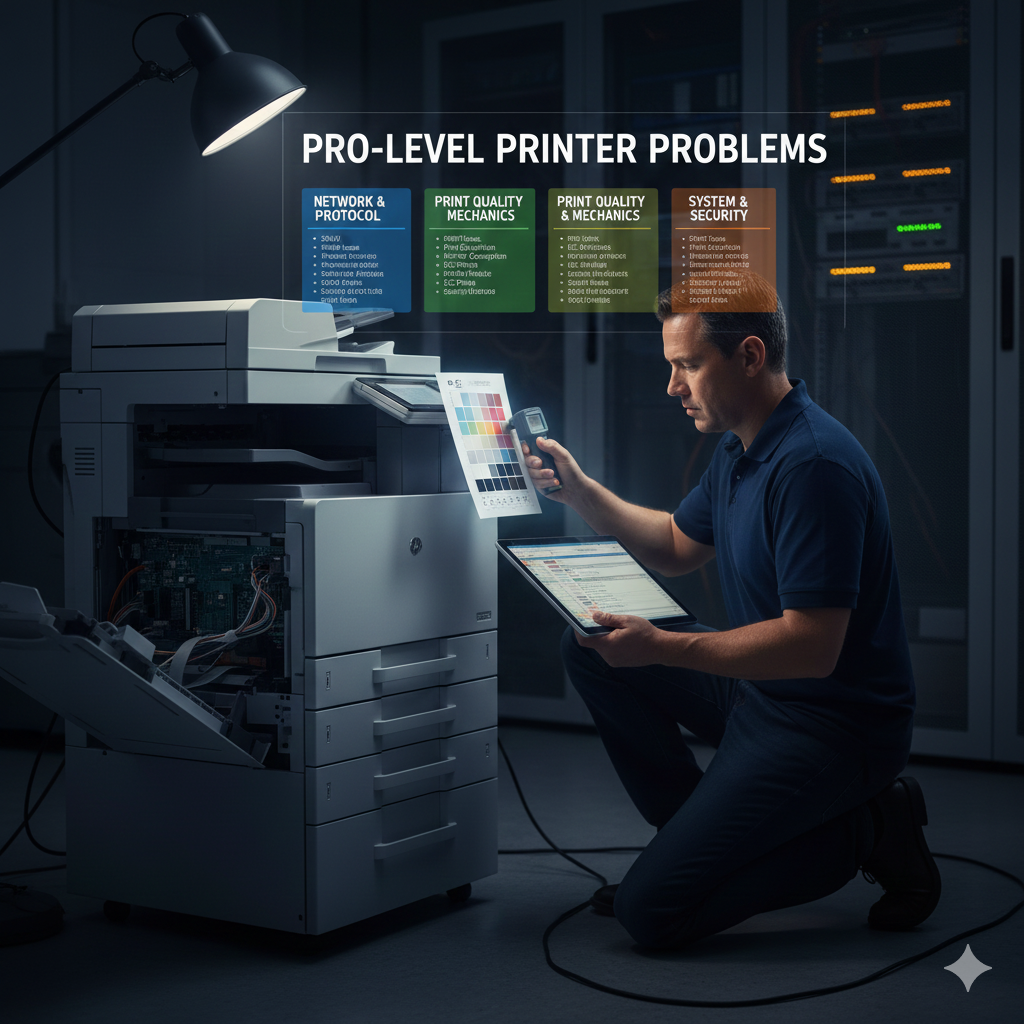
In a professional environment, a high-end networked printer or multifunction device (MFD) is a mission-critical asset.
When these complex machines fail, the resulting bottleneck can halt entire workflows, from graphic design proofing to enterprise-level document management.
Troubleshooting these devices moves far beyond checking for paper jams; it requires a deep understanding of network protocols, OS print architecture, and advanced color science. 🎨💻
This article delves into advanced techniques to diagnose and resolve elusive problems in pro-level, networked, and high-end printing systems. 🤯
Phase 1: Decoding Network and Protocol Failures 🌐
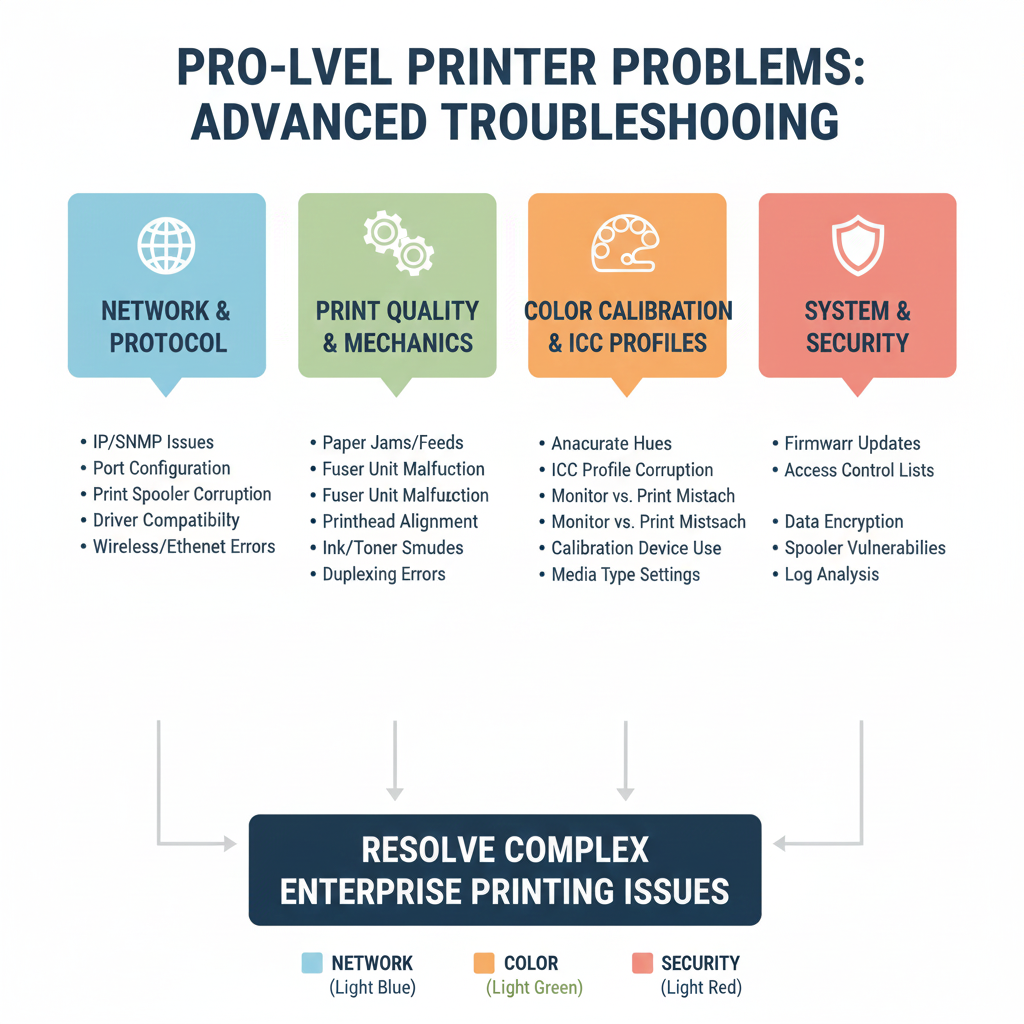
The majority of advanced printer issues stem from the interaction between the network, the host OS, and the printer’s embedded web server.
The SNMP “Offline but Not Really” Paradox 🧐
-
- Symptom: Network printer appears “Offline” despite being powered on, reachable via ping. ⚡
-
- Root Cause: Slow or misconfigured SNMP in Windows Standard TCP/IP Port Monitor or blocked by firewall. OS misinterprets lack of SNMP response as offline.
-
- Advanced Diagnosis:
- Wireshark Analysis: Capture traffic, look for unanswered SNMP GET requests (UDP 161). 🔍 Wireshark Demo
- Advanced Diagnosis:
-
-
- Port Monitor Configuration: Access printer port properties → Configure Port → Uncheck “SNMP Status Enabled”.
-
-
- Resolution: Disable SNMP status monitoring to rely solely on print job success. For SNMP monitoring, match community strings & open UDP 161. 🎯
Print Protocol Deep Dive: LPR vs. Raw (Port 9100) 🖨️
| Protocol | Port | Mechanism | Advanced Failure Mode |
|---|---|---|---|
| Raw (JetDirect) | 9100 (TCP) | Direct data stream | Connection reset due to printer buffer overflow or timeout |
| LPR (Line Printer Remote) | 515 (TCP) | Control + data files | Queue Name Mismatch: silent job failure |
| IPP (Internet Printing Protocol) | 631 (TCP) | HTTP-based, encrypted | SSL/TLS certificate errors, authentication failures |
Advanced LPR Troubleshooting: Verify exact queue name on printer web interface; ensure client’s LPR port configuration is exact and case-sensitive. 📝
Phase 2: Print Spooler Architecture and Corruption ⚡
Spooler Service Crashes & Dependency Errors 🛠️
-
- Crash often logged as Event ID 1000, caused by faulty/corrupt printer driver DLL.
-
- Advanced Diagnosis:
- Isolation: Change driver isolation from “None” → “Isolated/Shared” in Print Management Console to prevent spooler crash propagation.
- Advanced Diagnosis:
-
-
- Dependency Check (Error 1068): Verify required services (RPC, HTTP Service) are running.
-
Manual Spooler Cleanup 🧹
-
- Stop Print Spooler service (net stop spooler).
-
- Delete all files in %SystemRoot%\System32\spool\PRINTERS\ (pending jobs).
-
- Check %SystemRoot%\System32\spool\drivers\ for orphaned/corrupted driver files (W32X86 & x64).
- Restart Print Spooler (net start spooler). ✅
Phase 3: Advanced Color & Consistency Diagnostics 🎨
Color Calibration & Profiling 🌈
-
- Symptom: Color shifts between jobs, RGB vs CMYK mismatch.
-
- Advanced Diagnosis:
- Internal Calibration: Use printer’s built-in routine to adjust toner/ink density for environment & aging.
- Advanced Diagnosis:
-
-
- ICC Profile Validation: Measure printed color target with spectrophotometer (e.g., X-Rite i1Pro), generate custom ICC profile, load into design software. 🎨 Color Profiling Video
-
-
- Delta E (ΔE) Measurement: ΔE < 2.0 ≈ imperceptible. Track ΔE of control patch to detect drift.
Fuser & Transfer Belt Diagnostics 🔥
-
- Symptom: Ghosting, repeated images, toner adhesion issues.
-
- Diagnosis:
- Fuser Temperature Check: Use printer diagnostics/web interface. Low temp → smudging, high temp → paper curling.
- Diagnosis:
-
- Transfer Belt Cleaning: Run cleaning cycle. Replace consumables per manufacturer’s page count.
Phase 4: Security & Compliance Bottlenecks 🔐
-
- Secure Print & Authentication: Delays often due to communication with LDAP/AD server. Check DNS & server response times. 🕵️♂️
- Driver Bloat: Use Universal Print Driver (UPD) or Type 4 drivers to reduce resource usage & spooler crashes. 💾
Conclusion 🏆
Advanced troubleshooting for pro-level networked printers requires mastery of network protocols, OS services, and color management.
By analyzing SNMP, isolating spooler components, and validating ICC profiles, technicians can systematically eliminate complex bottlenecks.
This ensures uptime and consistent, high-quality output demanded by professional workflows. 🎯🖨️
References 📚
[1] Microsoft. Standard port monitor for TCP/IP – Windows Server. 🔗 Link
[2] Microsoft. The Print Spooler service terminated unexpectedly. ⚡ Support
[3] HP Support. Network Printer Regularly Appears Offline on Windows Clients. 🖨️ HP Guide
[4] Spiceworks Community. Shared printer suddenly stops printing. 🔧 Forum
[5] Dex Imaging. Achieving Print Perfection: The Innovations Driving Color Accuracy in Modern Copiers and Printers. 🎨 Dex Blog