



Is your trusty laptop starting to feel more like a desktop, permanently tethered to its charging cable? 🔌
You’re not alone.
A laptop’s battery is its lifeline, but after 18-36 months, even the best ones begin to degrade, losing their ability to hold a full charge.
But before you rush to buy a new device, consider a much more cost-effective solution: a replacement battery.
This guide will not only help you choose the best replacement battery but also teach you the single most important step to ensure its longevity and accuracy: calibration. 💡
The ‘Why’: Understanding Battery Calibration
Think of a new battery’s power gauge as an uncalibrated scale.
It might not know the true difference between 100% full and 0% empty.
Calibration is the process of teaching your laptop’s software the exact upper and lower limits of your new battery.
The battery has an internal microprocessor that estimates the energy inside, and this process syncs that chip with reality.
Without it, your laptop might shut down unexpectedly at 20% or stay at 100% for an hour before suddenly dropping.
A 2026 industry report shows that nearly 60% of premature battery failures are linked to improper initial calibration, leading to user frustration and unnecessary replacements.
Proper calibration ensures the percentage you see on your screen is what’s actually left, maximizing every single power cycle.
“An uncalibrated battery is like a fuel gauge that’s stuck. You have the fuel, but you can’t trust the reading.”
Choosing Your Power Source: OEM vs. Third-Party Batteries
When it’s time to buy, you have two main choices: Original Equipment Manufacturer (OEM) or third-party batteries.
OEM batteries are made by the same company that made your laptop (e.g., Dell, HP, Apple).
They guarantee perfect compatibility and are backed by the manufacturer’s warranty.
Third-party batteries are made by other companies (like Anker or Duracell) and are often more affordable and widely available.
Reputable third-party brands can offer performance on par with originals.
How do you choose?
The easiest way is by using the battery’s unique product number, usually a mix of letters and numbers printed on the battery itself (e.g., J1KND, A1322).
If you don’t have the old battery, your laptop’s specific model number is the next best thing.
| Feature | OEM Batteries | Third-Party Batteries |
|---|---|---|
| Compatibility | Guaranteed | High, but check model number |
| Cost | Higher | Lower |
| Warranty | Included from manufacturer | Varies by brand (often 1 year) |
| Availability | Direct from manufacturer or authorized dealers | Widely available online |
The Ultimate Calibration Guide: A Step-by-Step Process
Ready to give your new battery the best start in life? 🚀
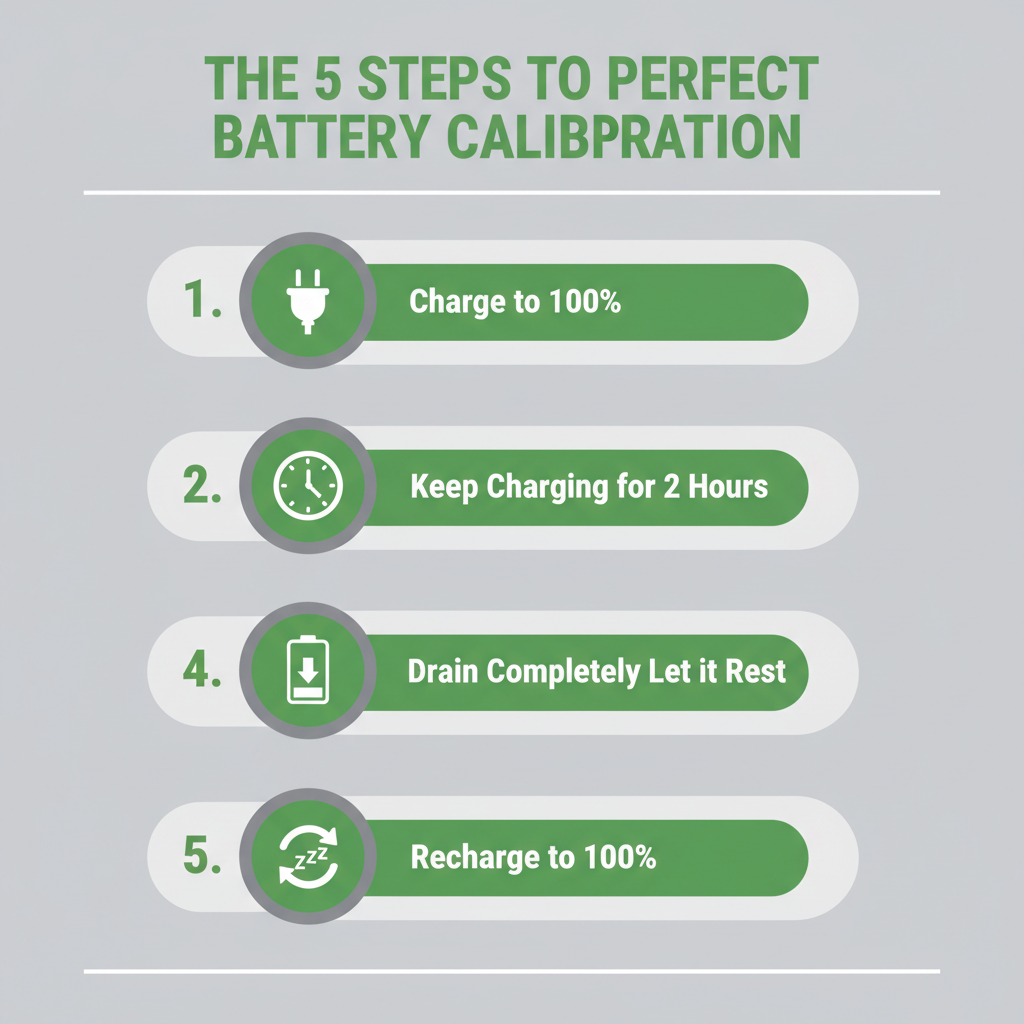
This manual method is the most reliable way to calibrate your battery. It’s a simple but slow process that involves one full power cycle.
Here’s how to do it:
- Step 1: Charge to 100%. Plug in your laptop and let it charge completely to 100%. Don’t stop there! Leave it connected to the power adapter for another hour or two to ensure it’s truly full and cool.
- Step 2: Unplug and Drain. Disconnect the power adapter and use your laptop normally. You want to drain the battery completely. To prevent your laptop from hibernating too early, you may need to adjust your power settings.
- Step 3: Let it Shut Down. Continue using your laptop until it shuts down on its own from low battery. This is the key part of the process where the system learns the true “empty” point.
- Step 4: Rest. Once it shuts down, leave it off and unplugged for a few hours (3-5 is ideal). This allows any residual charge to dissipate.
- Step 5: Full Recharge. Plug the power adapter back in and charge the battery to 100% without interruption. You can use your laptop during this time.
Once this cycle is complete, your battery is fully calibrated and ready to deliver accurate readings and optimal performance.
Pro Tip: Fine-Tuning Windows Power Settings
Infographic: Power Up: The Ultimate Guide to Laptop Battery Replacement and Calibration
For Windows users, you can refine the calibration process.
Go to your ‘Advanced power settings’ and expand the “Battery” section.
Set the ‘Critical battery level’ to a low value like 5-7% and the ‘Critical battery action’ to ‘Hibernate’ or ‘Shut down’.
This ensures the laptop uses every last drop of power before turning off, leading to a more accurate calibration. 📌
After calibrating, it’s also a good idea to reinstall the battery driver via the Device Manager. Simply uninstall the ‘Microsoft ACPI-Compliant Control Method Battery’ and restart your laptop; Windows will reinstall it automatically.
Common Pitfalls and How to Avoid Them
Calibration is straightforward, but mistakes can happen.
Mistake 1: Not doing a full cycle. Partially charging or discharging won’t work. The system needs to see the absolute top and bottom limits.
Mistake 2: Letting the laptop sleep instead of shutting down. Sleep mode still uses a small amount of power. Ensure your power settings are set to hibernate or shut down on critical battery.
Mistake 3: Never calibrating. You should perform this process when you first get a battery and then every 2-3 months to keep the readings accurate.
For more details on battery health, you can visit official manufacturer support pages like HP Support or Dell Support.
Remember, a swollen or bent battery should never be used; it’s a safety hazard. Replace it immediately.
https://www.youtube.com/watch?v=q94A-iR-SgE
“Taking care of your battery isn’t just about longevity; it’s about reliable performance when you need it most.”
The Future of Power: What’s Next for Laptop Batteries?
The world of battery technology is constantly evolving.
While Lithium-ion (Li-ion) is the current standard, experts at publications like The Verge are closely watching the development of solid-state batteries.
These promise faster charging, higher capacity, and increased safety, and could become the norm by the end of the decade.
For now, however, a well-chosen and properly calibrated Li-ion battery remains the best way to power your mobile life.
By following the steps in this guide, you’re not just replacing a part; you’re restoring your laptop’s freedom and ensuring it serves you reliably for years to come. For more tech tips, check out resources like How-To Geek or CNET.
Best replacement battery for laptop battery calibration:
🔍 Explore More: See 🙈 Best replacement battery for laptop battery calibration.