
🤓
In the fast-paced world of technology, efficiency is not just a buzzword; it’s a necessity.
For developers, system administrators, and tech enthusiasts alike, the terminal is often the primary interface with their digital world.
It’s where code is written, servers are managed, and ideas are brought to life.
Therefore, mastering your terminal and equipping it with the right productivity tools can dramatically enhance your professional growth and career trajectory.
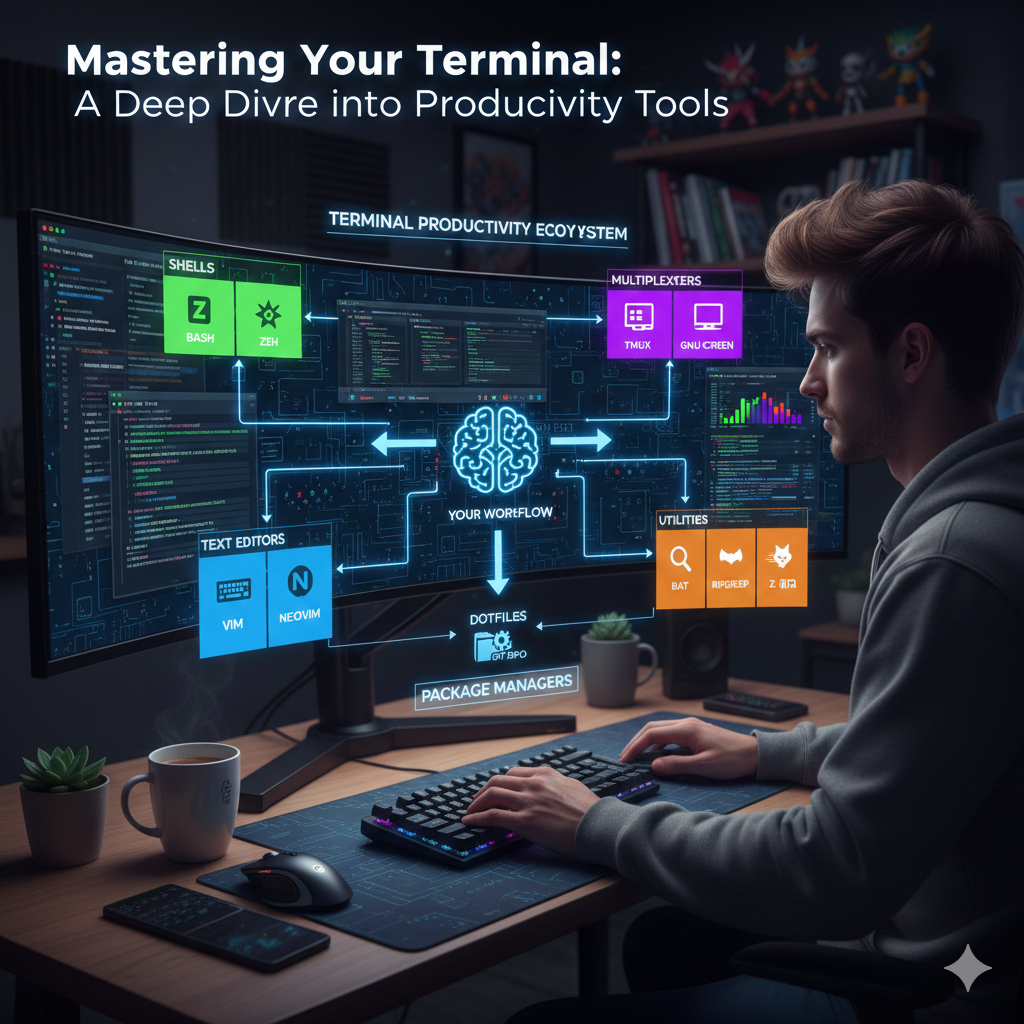
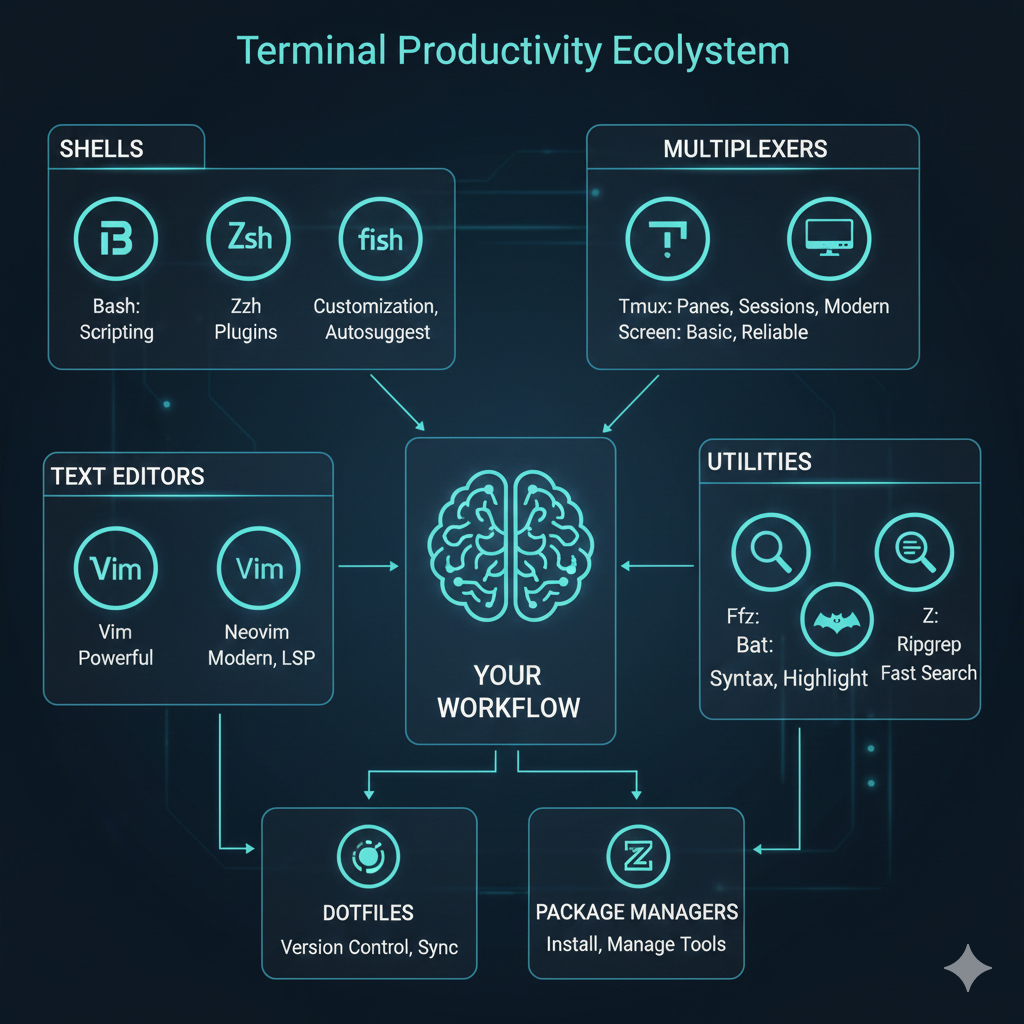
This comprehensive guide will explore some of the most powerful terminal tools, comparing their features, benefits, and use cases to help you build the ultimate command-line environment.
“The command line is the ultimate equalizer. It doesn’t care about your GUI, only your commands.”
The Core Shells: Bash, Zsh, and Fish 🐚
Your shell is the interpreter between you and the operating system.
Choosing the right shell is the foundational step in building a productive terminal setup.
Let’s look at the titans: Bash, Zsh, and Fish.
Bash (Bourne Again SHell) 💪
Bash is the default shell on most Linux distributions and macOS (until recently).
It’s ubiquitous, robust, and highly compatible.
If you’ve ever typed a command in Linux, you’ve likely used Bash.
- Pros: Widespread availability, extensive documentation, powerful scripting capabilities, and a huge community.
- Cons: Can feel a bit dated in terms of interactive features compared to newer shells.
- Best For: Beginners, system administrators, and anyone who needs maximum compatibility.
Zsh (Z Shell) ✨
Zsh is an extended Bourne shell with many improvements, especially for interactive use.
It gained immense popularity thanks to frameworks like Oh My Zsh.
macOS now uses Zsh as its default shell.
- Pros: Advanced tab completion, powerful globbing, theme and plugin support (especially with Oh My Zsh), spell correction, and a rich history.
- Cons: Can be overwhelming to configure initially without a framework.
- Best For: Developers and power users seeking a highly customizable and feature-rich interactive shell.
Fish (Friendly Interactive SHell) 🎣
Fish aims to be the most user-friendly and intelligent shell.
It offers features out-of-the-box that require extensive configuration in other shells.
- Pros: Smart autosuggestions, syntax highlighting, web-based configuration, and a focus on ease of use.
- Cons: Not POSIX compliant, which can lead to script incompatibility.
- Best For: Users prioritizing immediate productivity and a smooth out-of-the-box experience.
“Productivity is never an accident. It is always the result of a commitment to excellence, intelligent planning, and focused effort.”
| Shell | Key Features | Pros | Cons |
|---|---|---|---|
| Bash | Default on most systems, powerful scripting, extensive community. | Ubiquitous, high compatibility, mature. | Less interactive features out-of-the-box. |
| Zsh | Advanced tab completion, plugin support (Oh My Zsh), spell correction. | Highly customizable, interactive, powerful. | Steeper initial learning curve. |
| Fish | Autosuggestions, syntax highlighting, web-based config. | User-friendly, smart features, low configuration. | Not POSIX compliant (script incompatibility). |
Terminal Multiplexers: Tmux and Screen 🖥️
Working on multiple tasks simultaneously in the terminal can be cumbersome.
Terminal multiplexers like Tmux and Screen allow you to manage multiple terminal sessions, windows, and panes within a single terminal window.
This is invaluable for remote work, long-running processes, and general multitasking.
Tmux (Terminal Multiplexer) 🚀
Tmux is the modern darling of terminal multiplexers.
It’s highly configurable and offers a plethora of features for managing your terminal workspace.
- Features: Sessions, windows, panes, detach/attach functionality, highly scriptable, client-server model.
- Benefits: Persist sessions across disconnections, organize complex workflows, view multiple processes simultaneously.
- Why use it: Essential for server management, pair programming, and keeping development environments consistent.
GNU Screen 🖼️
Screen is the older, more established terminal multiplexer.
While Tmux has surpassed it in features for many, Screen remains a solid and reliable choice.
- Features: Similar to Tmux – sessions, windows, detach/attach.
- Benefits: Widely available on most Unix-like systems, stable.
- Why use it: Good for basic session management, especially on older systems or when Tmux isn’t an option.
Text Editors: Vim and Neovim 📝
For many tech professionals, the command line is incomplete without a powerful text editor.
Vim and its modern fork, Neovim, are command-line powerhouses known for their efficiency and modal editing.
Vim (Vi IMproved) ⌨️
Vim is a highly configurable text editor built to enable efficient text editing.
It’s famous for its steep learning curve but equally famous for the productivity gains once mastered.
- Pros: Keyboard-driven, highly extensible with plugins, available everywhere, low resource usage.
- Cons: Steep learning curve, not intuitive for beginners.
- Best For: Developers, system administrators, and anyone who spends a lot of time editing code or configuration files.
Neovim (Nvim) 🌟
Neovim is a refactor of Vim with the goal of improving extensibility, usability, and maintainability.
It builds upon Vim’s core strengths while introducing modern features and better integration with external tools.
- Pros: All the benefits of Vim, plus better plugin architecture, built-in Language Server Protocol (LSP) support, and a more vibrant community for modern development.
- Cons: Still has the Vim learning curve, though arguably more accessible due to improved defaults and plugins.
- Best For: Modern developers looking for an extremely powerful and customizable command-line IDE experience.
Other Essential Productivity Tools and Utilities 🛠️
Beyond shells, multiplexers, and editors, a plethora of smaller utilities can significantly boost your terminal productivity.
Fzf (Fuzzy Finder) 🔍
Fzf is a general-purpose command-line fuzzy finder.
It’s incredibly useful for quickly searching and selecting files, command history, hostnames, processes, and more.
Integrates seamlessly with Bash, Zsh, and Fish.
Using Fzf dramatically speeds up navigation and command recall, saving precious keystrokes and mental effort.
Bat (Cat clone with wings) 🦇
Bat is a cat(1) clone with syntax highlighting and Git integration.
It’s a beautiful way to view files directly in your terminal, making code reviews and quick file inspections much more pleasant.
The syntax highlighting and line numbering provided by Bat are invaluable for quickly understanding code structure.
Ripgrep (rg) (grep replacement) 🔎
It’s exceptionally fast and intelligent, ignoring files specified in your .gitignore by default.
For large codebases, Ripgrep is an absolute game-changer for finding specific strings or patterns.
Z (Jump Around) 💨
Z tracks your most used directories and allows you to “jump” to them with a fuzzy search.
No more endless cd ../../ commands!
Just z project_name and you’re there.
Z is a fantastic tool for developers who frequently navigate between many different project directories.
Alistair’s Shell History (AHS) 📜
A more advanced history solution, AHS stores your command history in a SQLite database, allowing for powerful searching, tagging, and analysis.
This is a step above standard shell history, offering deeper insights and recall capabilities.
Customization and Configuration: Dotfiles and Beyond ⚙️
The true power of these tools often comes from their configuration.
This is where “dotfiles” come in.
Dotfiles are the hidden configuration files in your home directory (e.g., .zshrc, .tmux.conf, .vimrc).
Managing your dotfiles effectively is crucial for maintaining a consistent and personalized development environment across multiple machines.
- Version Control: Store your dotfiles in a Git repository. This allows you to track changes, revert to previous versions, and easily sync them across different machines. Learn more about Git here.
- Package Managers: Use tools like Homebrew (macOS) or your Linux distribution’s package manager to install and manage your terminal tools.
- Frameworks: Leverage frameworks like Oh My Zsh for Zsh, or plugin managers for Vim/Neovim (e.g., Vim-Plug) to simplify customization and plugin management.
Building Your Ultimate Terminal Setup 🚀
The journey to a hyper-productive terminal is personal and iterative.
There’s no one-size-fits-all solution, but here’s a recommended path:
1.
Choose Your Shell: Start with Zsh and Oh My Zsh for a powerful and user-friendly experience, or Fish if you prefer immediate ease of use. Bash is always a reliable fallback for scripting.
2.
Embrace a Multiplexer: Install Tmux. Learn its basic commands for creating windows and panes, detaching, and attaching sessions. It will change the way you work.
3.
Master an Editor: Dedicate time to learning Vim or Neovim. Start with basic navigation and editing, then gradually explore its vast plugin ecosystem. Even if it’s not your primary IDE, knowing Vim is a superpower in the terminal.
4.
Integrate Utilities: Experiment with tools like Fzf, Bat, and Ripgrep. Integrate them into your shell configuration for quick access.
5.
Manage Dotfiles: Put your shell configs, Tmux configs, and Vim/Neovim configs into a Git repository. This makes your setup portable and reproducible.
“The journey of a thousand commands begins with a single dotfile.”
Conclusion: Invest in Your Workflow 📈
Investing time in optimizing your terminal workflow is one of the best decisions you can make for your tech career.
The initial learning curve for some of these tools might seem daunting, but the long-term benefits in speed, efficiency, and reduced mental overhead are immense.
By leveraging powerful shells, multiplexers, text editors, and utility tools, you transform your terminal from a simple command prompt into a highly efficient, personalized development cockpit.
Start experimenting today, customize your environment, and watch your productivity soar. 💡
Your future self will thank you. 🌟