


Is your trusty laptop starting to feel more like a portable heater? 🥵
You’re not alone!
Many users experience their laptops getting uncomfortably hot, especially during intensive tasks or long working sessions.
Overheating isn’t just an annoyance; it can seriously damage your laptop’s internal components and shorten its lifespan. 💡
But don’t panic! There are many quick and effective solutions you can implement right away to bring down the temperature and get your machine running smoothly again. 🚀
As Benjamin Franklin once said, “An ounce of prevention is worth a pound of cure.” This certainly applies to laptop care!
Understanding Laptop Overheating: Why Does It Happen?
Before diving into the fixes, let’s briefly understand why laptops overheat in the first place. 🤓
Laptops generate heat during normal operation, particularly from the CPU (Central Processing Unit) and GPU (Graphics Processing Unit).
They rely on internal fans and heatsinks to dissipate this heat and maintain optimal temperatures.
When these cooling mechanisms are compromised, or the heat generation exceeds their capacity, your laptop starts to overheat. 🔥
Several factors contribute to this issue.
One common culprit is dust accumulation. 😩
Over time, dust, lint, and pet hair can clog air vents and cooling fans, acting as an insulating layer and preventing efficient heat transfer.
Another major factor is poor airflow. 💨
Using your laptop on soft surfaces like beds, blankets, or pillows can block the ventilation openings, trapping heat inside.
High CPU/GPU usage from demanding applications, games, or too many background processes also generates excessive heat.
Finally, aging thermal paste, a material that helps transfer heat from the CPU/GPU to the heatsink, can lose its effectiveness, leading to higher temperatures.
https://youtu.be/G2z0fN1zN34
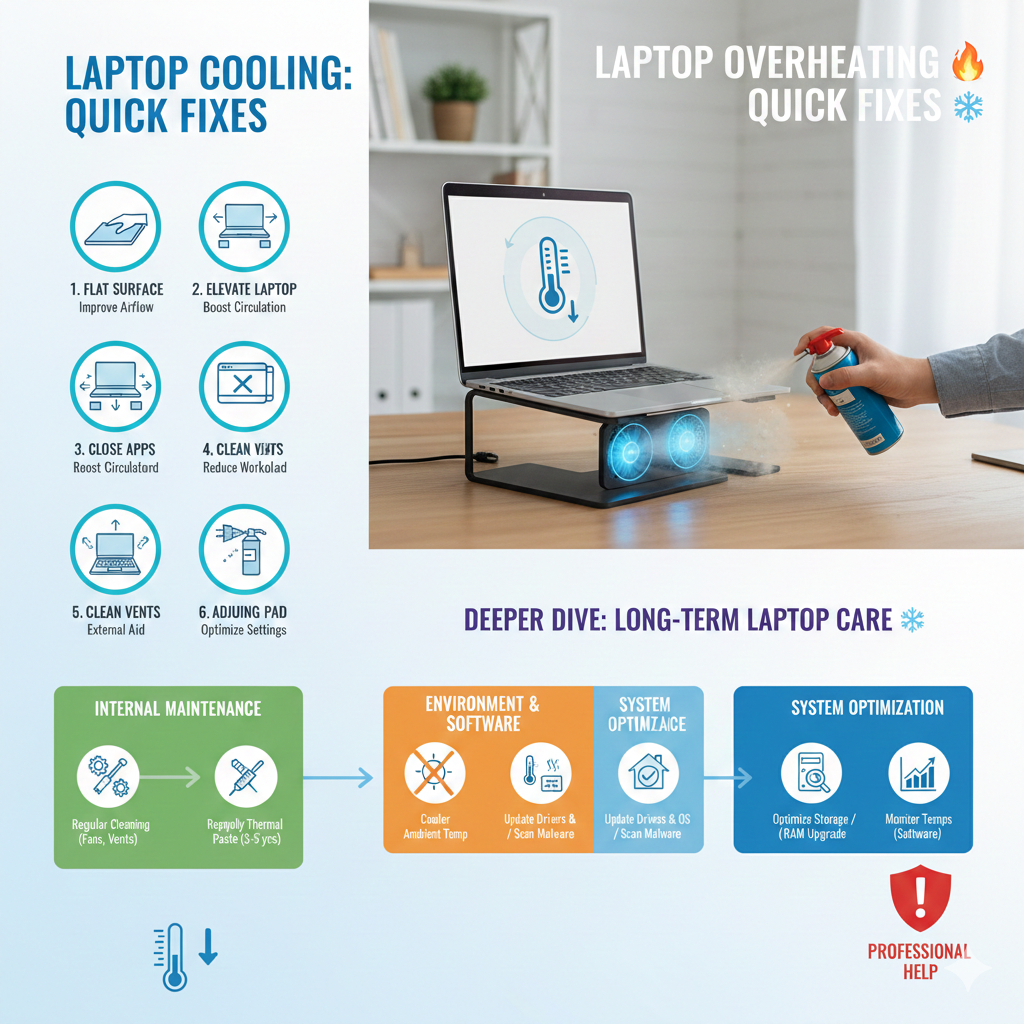
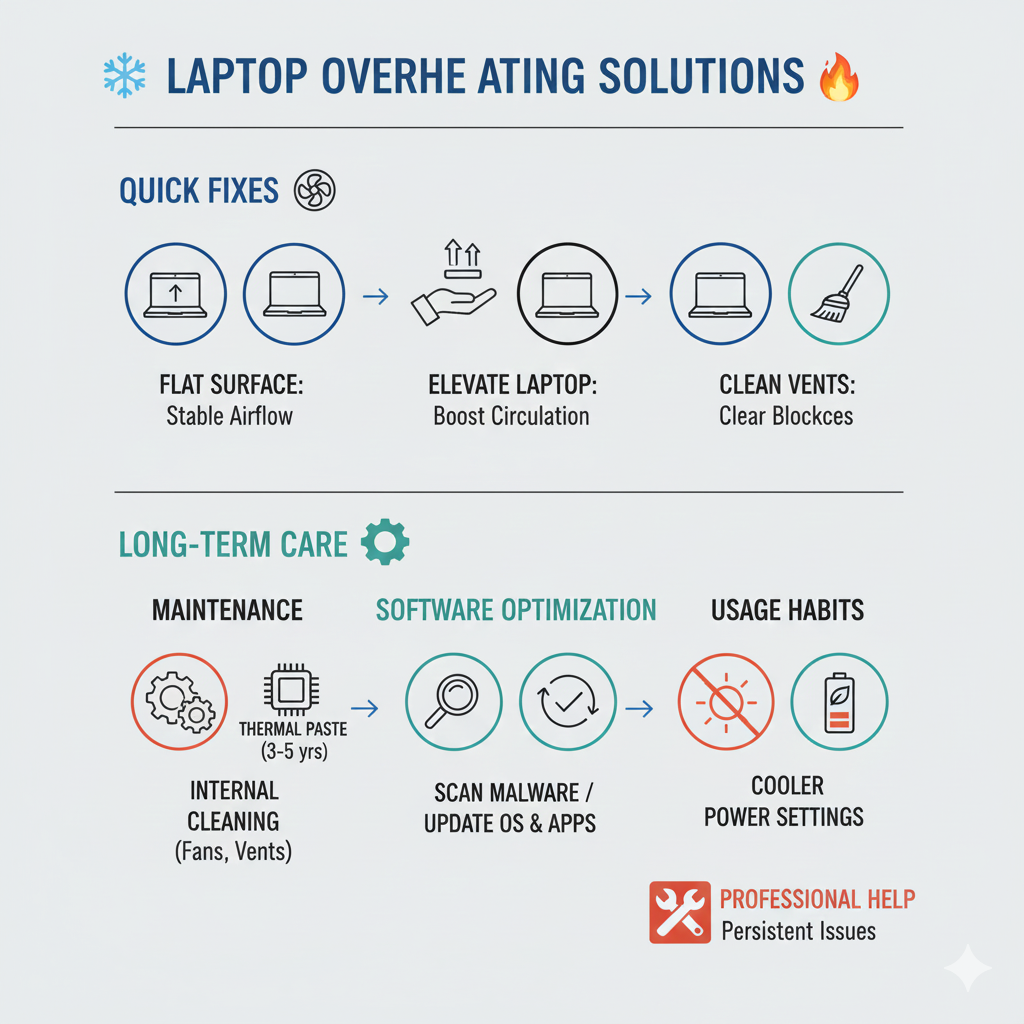
Immediate Actions for a Hot Laptop 🌡️
When you feel your laptop getting unusually hot, these immediate steps can offer quick relief.
1. Relocate Your Laptop to a Hard, Flat Surface
This is perhaps the simplest yet most effective quick fix. 💯
Soft surfaces like blankets, carpets, or even your lap can block the crucial air intake and exhaust vents on your laptop.
Move your laptop to a desk, table, or a dedicated laptop stand.
This ensures unimpeded airflow, allowing the fans to do their job properly.
You’ll often notice an immediate drop in temperature! 📉
2. Elevate Your Laptop for Better Airflow
Even on a hard surface, giving your laptop some elevation can work wonders for airflow. 🌬️
Use small books, bottle caps, or a dedicated laptop stand to lift the back of your laptop slightly.
This creates a space underneath, allowing more air to circulate around the vents.
Increased air circulation helps dissipate heat more efficiently.
3. Close Unnecessary Programs and Browser Tabs
Your laptop’s CPU and GPU work harder when you have many applications running simultaneously or dozens of browser tabs open. 🌐
This increased workload generates more heat.
Close any programs you’re not actively using.
Reduce the number of open browser tabs, especially those with heavy multimedia content or auto-refreshing ads.
Use Task Manager (Windows) or Activity Monitor (macOS) to identify and close resource-intensive applications.
A lighter workload equals less heat and better performance! 💪
4. Check and Clean Air Vents
Dust is a silent killer of laptop cooling systems. 💀
Visually inspect the air vents on the sides, back, or bottom of your laptop.
If you see accumulated dust or lint, gently clean it out.
You can use a can of compressed air to blow out the dust.
Make sure to use short bursts and hold the can upright to avoid moisture buildup.
Alternatively, a soft brush or a dry cloth can carefully wipe away surface dust.
5. Use a Laptop Cooling Pad
For persistent overheating issues, a laptop cooling pad can be a game-changer. ❄️
These pads sit underneath your laptop and contain one or more fans that blow cool air upwards, directly targeting your laptop’s base.
They are particularly useful for gamers, video editors, or anyone who pushes their laptop to its limits.
Cooling pads provide an external boost to your laptop’s natural cooling system.
https://youtu.be/K-u6E44Kq48
Software Solutions to Manage Heat 💻
Beyond physical adjustments, your operating system and software settings can also play a crucial role in temperature management.
1. Adjust Power Settings (Windows) or Energy Saver (macOS)
Your laptop’s power plan directly influences its performance and, consequently, its heat output.
In Windows, navigate to “Power Options” and change your plan from “High Performance” to “Balanced” or even “Power saver” when not performing demanding tasks.
This will reduce the CPU’s maximum processing speed, which generates less heat.
For macOS users, go to “System Settings” > “Battery” (or “Energy Saver” on older versions) and adjust settings to optimize for energy efficiency.
Balancing performance and power consumption is key to a cooler laptop.
2. Update Drivers and Operating System
Outdated drivers, especially for graphics cards, can sometimes lead to inefficiencies and increased heat generation.
Ensure your operating system (Windows Updates, macOS updates) and all device drivers are up to date.
Manufacturers often release updates that improve performance and thermal management.
Visit your laptop manufacturer’s website or use built-in update tools to check for the latest drivers.
3. Scan for Malware and Viruses
Malware or viruses running in the background can consume significant system resources, leading to high CPU usage and overheating.
Run a full system scan using reputable antivirus software.
Removing malicious programs can free up resources and reduce your laptop’s thermal load. 🛡️
4. Monitor Temperatures with Software
Knowledge is power! 💪 Using a temperature monitoring tool can help you understand your laptop’s thermal behavior.
Software like HWMonitor, Core Temp, or SpeedFan (Windows) or Fanny (macOS) can display real-time temperatures of your CPU, GPU, and other components.
This allows you to see if your quick fixes are working and identify when temperatures spike.
| Overheating Symptom | Quick Fix Action |
|---|---|
| Hot to the touch, especially on the bottom | Move to a hard, flat surface or elevate with a stand. |
| Fans constantly running at high speed and loud | Clean air vents with compressed air, close unnecessary apps. |
| Sudden shutdowns or freezing | Reduce workload, check for malware, use a cooling pad. |
| Slow performance, lagging during tasks | Adjust power settings, update drivers, free up RAM. |
| Distorted display or graphical glitches | Immediately reduce GPU load, consider professional help. |
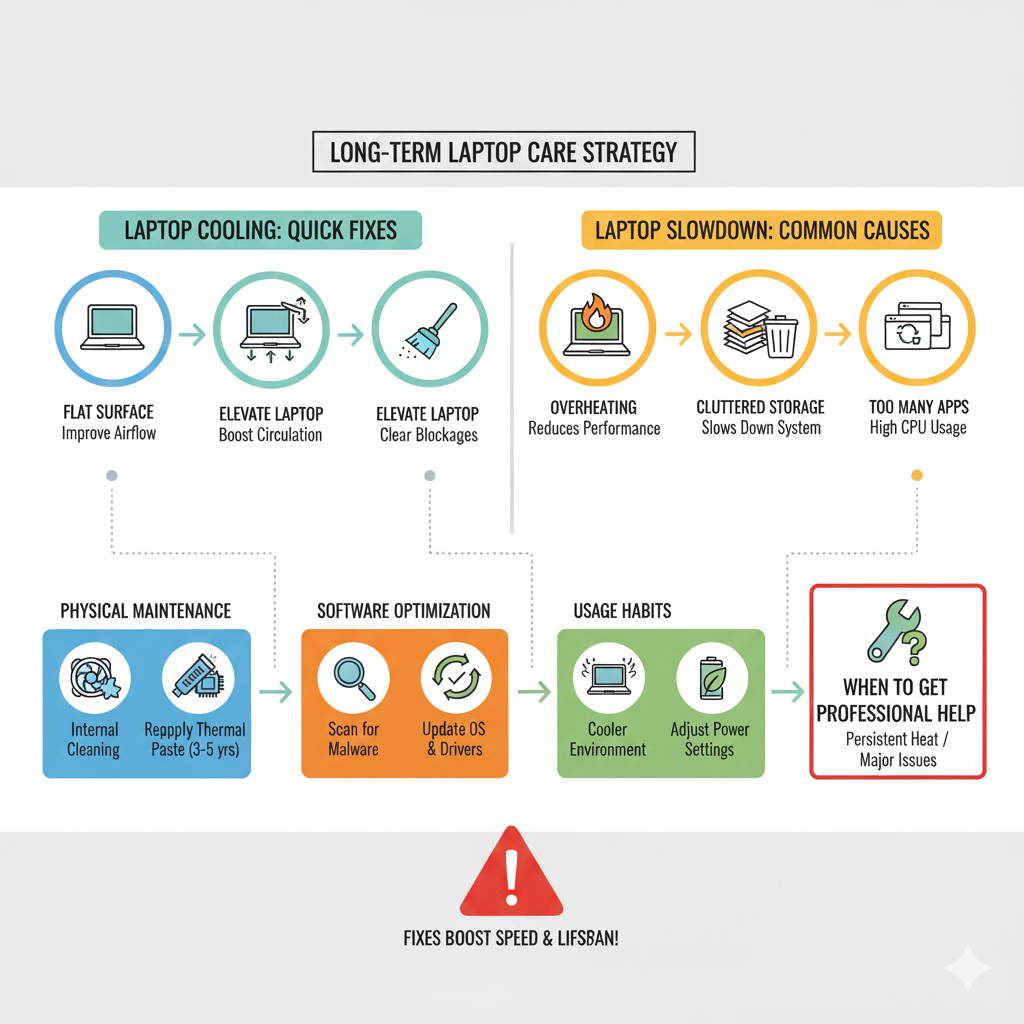
Long-Term Maintenance for a Cooler Laptop 🛠️
While quick fixes are great, regular maintenance is crucial for preventing overheating in the long run.
1. Regular Internal Cleaning (Advanced Users)
For those comfortable with opening their laptop, a thorough internal cleaning every 6-12 months can make a huge difference.
This involves carefully opening the laptop, cleaning the fans, heatsinks, and vents directly.
If you’re unsure, it’s best to take your laptop to a professional technician. 🧑🔧
As Leonardo da Vinci said, “Simplicity is the ultimate sophistication.” Keeping your internals clean is simple yet highly effective.
2. Reapplying Thermal Paste (Expert Level)
The thermal paste between your CPU/GPU and heatsink can dry out and become less effective over time (typically 3-5 years).
Replacing it can significantly improve heat transfer.
This is an advanced procedure that requires opening the laptop, removing the heatsink, cleaning old thermal paste, and applying new paste.
If you’re not experienced, consult a professional to avoid damaging components.
3. Consider Your Environment
Where you use your laptop matters. 🌍
Avoid direct sunlight or hot rooms, especially during summer months.
Ensure the ambient temperature around your laptop is reasonable.
A cooler room means less heat for your laptop to contend with.
4. Optimize Storage and RAM
While not directly related to heat, a cluttered hard drive or insufficient RAM can force your system to work harder, leading to increased heat.
Regularly clean up unnecessary files, uninstall unused programs, and defragment your hard drive (for HDDs).
Consider upgrading your RAM if you frequently run many applications or demanding software. 📈
https://youtu.be/M-YlXkP_2S0
When to Seek Professional Help 🚨
Sometimes, despite your best efforts, overheating persists.
If your laptop continues to run excessively hot, shuts down frequently, or exhibits strange behavior (like distorted screens), it might be time to call in the experts.
A professional technician can diagnose hardware issues, perform a thorough internal cleaning, replace faulty fans, or reapply thermal paste correctly.
Ignoring persistent overheating can lead to irreversible damage to your laptop.
Preventative Measures Checklist ✅
- Always use your laptop on hard, flat surfaces.
- Periodically clean air vents with compressed air.
- Keep your workspace tidy to minimize dust intake.
- Close unnecessary background programs and browser tabs.
- Invest in a laptop cooling pad if you perform demanding tasks.
- Ensure your operating system and drivers are updated.
- Adjust power settings to “Balanced” or “Power saver” when not needing full performance.
- Monitor temperatures occasionally with a software tool.
- Consider professional internal cleaning and thermal paste replacement every few years.
Essential External Resources 📚
For more detailed information and advanced troubleshooting:
Intel: How to Keep Your Laptop Cool for Gaming
Microsoft: Tips to improve PC performance in Windows
How-To Geek: How to Fix an Overheating Laptop
PCMag: How to Clean a Laptop Fan and Vents
iFixit: MacBook Pro Thermal Paste Replacement Guide (example)
Conclusion ✨
Dealing with a hot laptop can be frustrating, but with these quick fixes and a little regular maintenance, you can keep your device running cool and extend its life. 😌
Remember, a cool laptop is a happy and efficient laptop!
By taking proactive steps, you can prevent overheating from becoming a serious problem.
Don’t let your laptop reach its boiling point – empower yourself with these solutions!
Happy computing! 🥳
Here’s an infographic summarizing the quick fixes, and a feature image for your blog post! infographics and feature images
Here’s an infographic summarizing the quick fixes, and a feature image for your blog post!
Here’s an infographic summarizing the quick fixes, and a feature image for your blog post!