
Few computer problems are as immediately disruptive and confusing as a keyboard that suddenly starts typing the wrong characters.
You press ‘A’ and get ‘S’, or you press ‘U’ and get ‘4’.
This issue is particularly common on laptops and can range from a simple, accidental toggle of a setting to a more serious software conflict or hardware malfunction.
The key to fixing this is a systematic diagnosis, as the causes are varied and often non-obvious.
This definitive guide provides a step-by-step troubleshooting process to resolve the issue of your laptop keyboard typing wrong characters, restoring your ability to type correctly and efficiently.
Phase 1: The Quick Fixes – Language and Layout
The vast majority of cases where a keyboard types the wrong characters are due to an incorrect language setting or an activated keyboard mode designed for specific layouts.
These are the simplest and most common fixes.
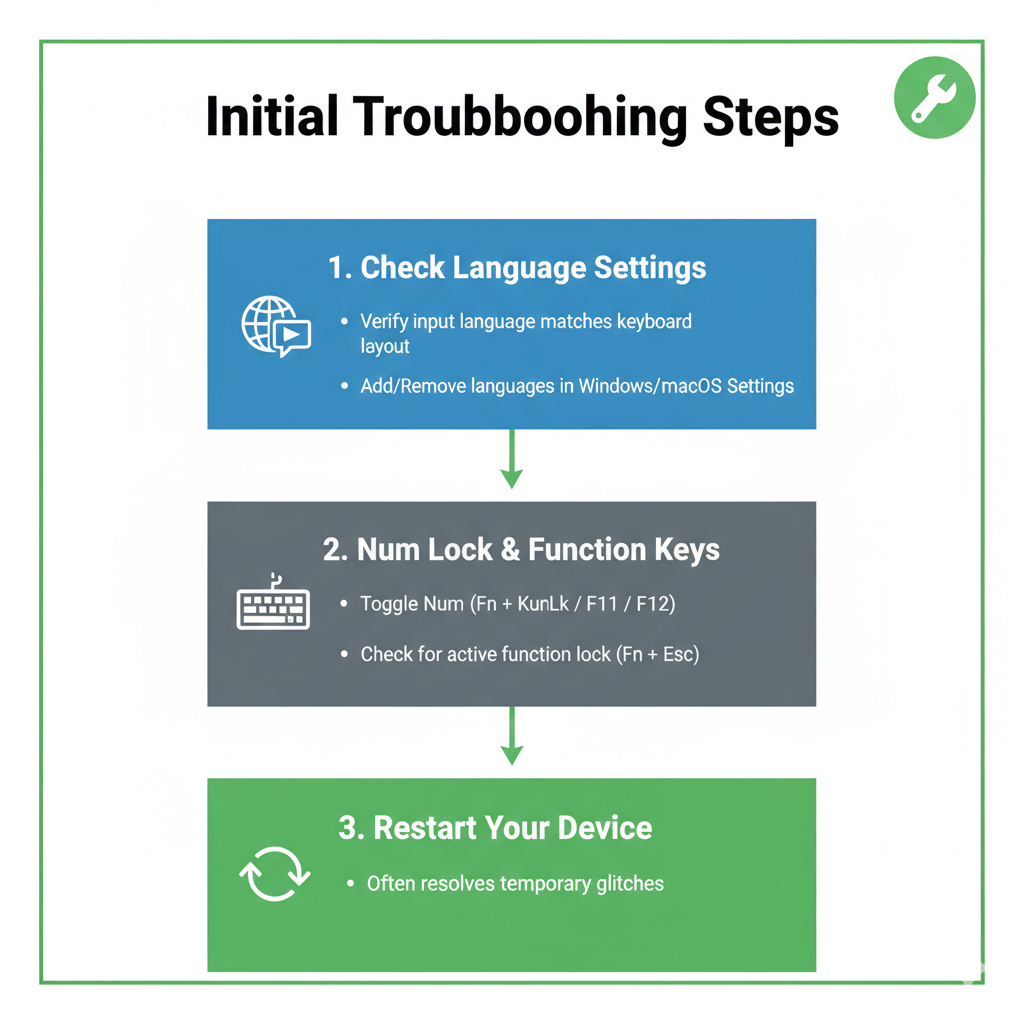
1. Check and Correct Keyboard Language
The most frequent cause is an accidental switch of the keyboard input language or layout.
Windows Shortcut
- The quickest way to check is to use the keyboard shortcut
Windows Key + Spacebar. - This cycles through all installed keyboard languages.
- If you see a language pop-up (e.g., ENG US, ENG UK, FR), cycle through them until the correct one is selected.
Settings Check (Windows)
- Go to Settings -> Time & Language -> Language & Region.
- Ensure your preferred language (e.g., English (United States)) is at the top of the list and that the correct keyboard layout (e.g., QWERTY) is selected.
- An incorrect layout, such as a Dvorak or a different regional QWERTY variant (like QWERTZ or AZERTY), will cause keys to output different characters.
Settings Check (macOS)
- Go to System Settings -> Keyboard -> Input Sources.
- Ensure only the correct input source (e.g., U.S.) is listed.
2. The Num Lock Problem (Typing Numbers Instead of Letters)
On many compact laptops, the keyboard lacks a dedicated numeric keypad.
To compensate, manufacturers overlay a numeric keypad onto the main letter keys (typically ‘U’, ‘I’, ‘O’, ‘J’, ‘K’, ‘L’, ‘M’).
When Num Lock is accidentally activated, these keys will output numbers instead of letters.
Deactivate Num Lock
- Look for a dedicated Num Lock key, often labeled
NumLkor with a small lock icon. - On most laptops, you must press the Fn key in combination with the Num Lock key (e.g.,
Fn + NumLk).
On-Screen Keyboard
- If you cannot find the key, open the On-Screen Keyboard (search for it in the Start Menu) and click the
NumLkkey to toggle it off.
https://youtube.com/watch?v=FqbNsPd0Mhk
3. The Sticky Shift/Alt Key Issue
If your keyboard is typing symbols (e.g., ! instead of 1, @ instead of 2), it suggests the Shift key is stuck or being registered as pressed.
If it’s typing characters with accents or special symbols, the Alt or AltGr key may be stuck.
Physical Check
- Press the Shift, Alt, and Ctrl keys several times to ensure they are not physically stuck down.
Accessibility Check
- Go to the Ease of Access settings and ensure Sticky Keys is disabled, as this feature can cause modifier keys to remain active after a single press.
https://www.youtube.com/watch?v=FqbNsPd0Mhk
Phase 2: Software and Driver Troubleshooting
If the quick fixes fail, the problem is likely deeper in the operating system’s interaction with the keyboard hardware.
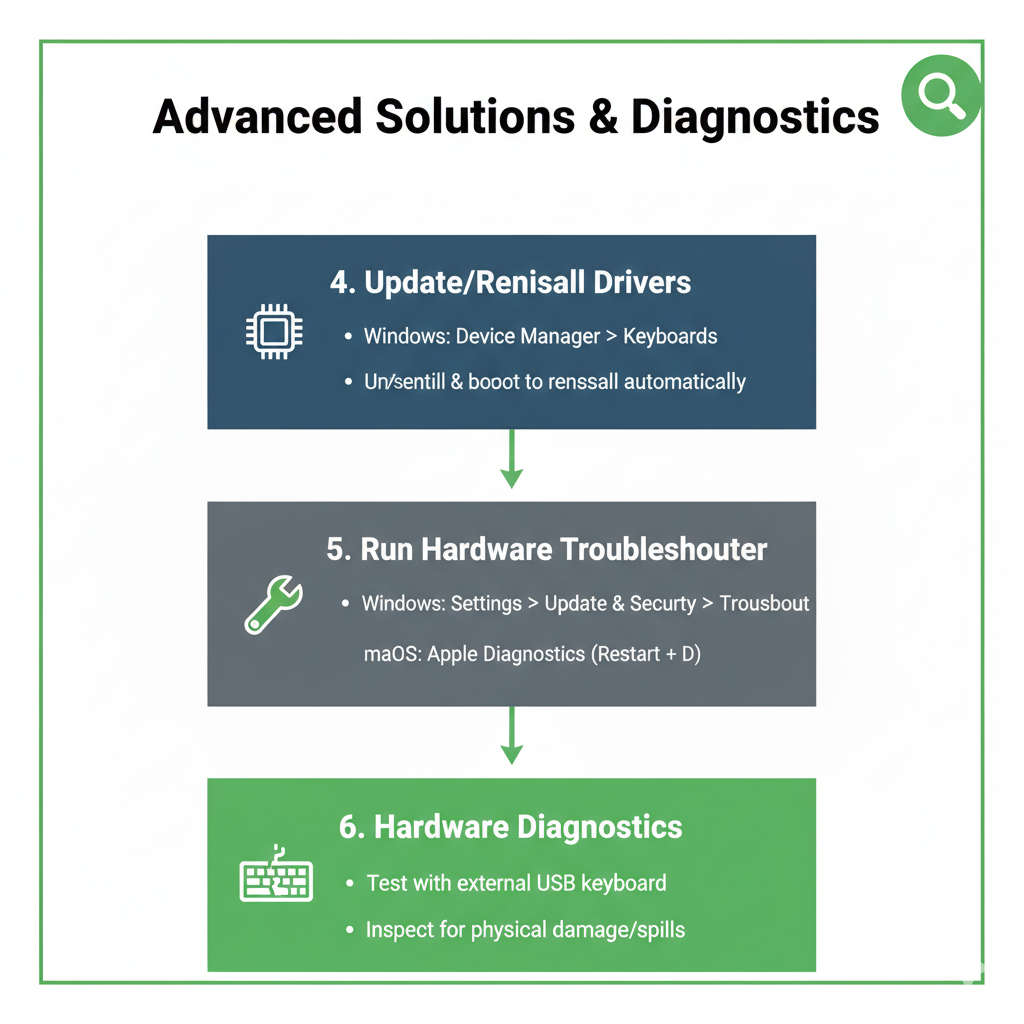
4. Update or Reinstall the Keyboard Driver
A corrupted or outdated keyboard driver can cause the operating system to misinterpret key signals.
Device Manager
- Open the Device Manager (search for it in the Start Menu).
Locate and Update
- Expand the “Keyboards” section.
- Right-click your keyboard entry and select “Update driver.”
- Choose the option to “Search automatically for updated driver software.”
Reinstall Driver
- If updating fails, right-click and select “Uninstall device.”
- Do not delete the driver software.
- Restart your computer.
- Windows will automatically reinstall the generic driver upon reboot, which often resolves corruption issues
5. Check for Keyboard Remapping Software
Third-party utilities designed to remap keys (e.g., AutoHotkey, SharpKeys) or even gaming software can sometimes interfere with the standard keyboard layout.
Identify and Disable
- Check your system tray and startup programs for any keyboard remapping utilities.
- Temporarily disable or uninstall them.
Test in Safe Mode
- Boot your laptop into Safe Mode.
- If the keyboard works correctly in Safe Mode, a third-party application is the culprit.
6. Run the Keyboard Troubleshooter
Windows has a built-in troubleshooter that can automatically detect and fix common keyboard issues.
Run Troubleshooter
- Go to Settings -> Update & Security (or System in Windows 11) -> Troubleshoot -> Other troubleshooters.
- Run the Keyboard troubleshooter.
Phase 3: Advanced Diagnostics and Hardware
If all software solutions fail, the issue may be a hardware malfunction or a deeper system problem.
7. Test with an External Keyboard
This is the definitive test to determine if the problem is the laptop’s built-in keyboard hardware or the operating system.
Connect External Keyboard
- Plug in a known-working external USB keyboard.
Test the Keys
- If the external keyboard types correctly, the problem is definitively the laptop’s built-in keyboard hardware.
- This usually means a physical defect, liquid damage, or a loose ribbon cable.
If External Fails
- If the external keyboard also types the wrong characters, the problem is a system-wide software issue (e.g., a virus, a deeply corrupted system file, or a persistent software conflict).
8. System File Checker (SFC) and Virus Scan
A virus or deeply corrupted system files can sometimes hijack keyboard input.
https://www.youtube.com/watch?v=FqbNsPd0Mhk
Run SFC
- Open Command Prompt as an administrator and type
sfc /scannow. - This utility scans and repairs critical Windows system files.
Virus Scan
- Run a full system scan with your antivirus software to check for malware that might be intercepting or altering keyboard input.
9. Hardware Malfunction
If the external keyboard works, but the built-in one does not, the issue is hardware-related.
Liquid Damage
- Even a small amount of liquid can short-circuit the keyboard matrix, causing adjacent keys to register as pressed, leading to wrong characters.
Ribbon Cable
- The keyboard ribbon cable connecting to the motherboard may be loose or damaged.
- This requires opening the laptop and reseating the cable (advanced users only).
Replacement
- If the keyboard is physically damaged or liquid-corroded, the only reliable solution is to replace the entire keyboard unit.
Conclusion: Typing with Confidence
A keyboard typing the wrong characters is a frustrating experience that can severely impact productivity.
By following this systematic guide, you can quickly isolate the cause.
In most cases, the fix is as simple as toggling the Num Lock key or correcting an accidental language switch.
For more persistent issues, a driver update or a deeper software scan will be necessary.
By understanding the common causes—from simple layout errors to complex hardware failures—you can confidently troubleshoot and resolve this common laptop keyboard conundrum.
| Symptom | Probable Cause | Primary Fix |
|---|---|---|
| Typing ‘U’, ‘I’, ‘O’ outputs ‘4’, ‘5’, ‘6’ | Num Lock is accidentally activated | Press Fn + NumLk or toggle Num Lock on On-Screen Keyboard |
| Typing ‘A’ outputs ‘Q’ or ‘Z’ | Incorrect keyboard language/layout selected (e.g., QWERTY vs. AZERTY) | Use Win + Spacebar or correct layout in Language Settings |
| Typing ‘1’ outputs ‘!’ or ‘2’ outputs ‘@’ without pressing Shift | Shift key is stuck (physically or via Sticky Keys) | Physically unstick key or disable Sticky Keys in Ease of Access |
| External keyboard works, but built-in keyboard types wrong characters | Hardware issue (liquid damage, ribbon cable, matrix failure) | Reinstall driver; if persistent, seek hardware repair/replacement |