
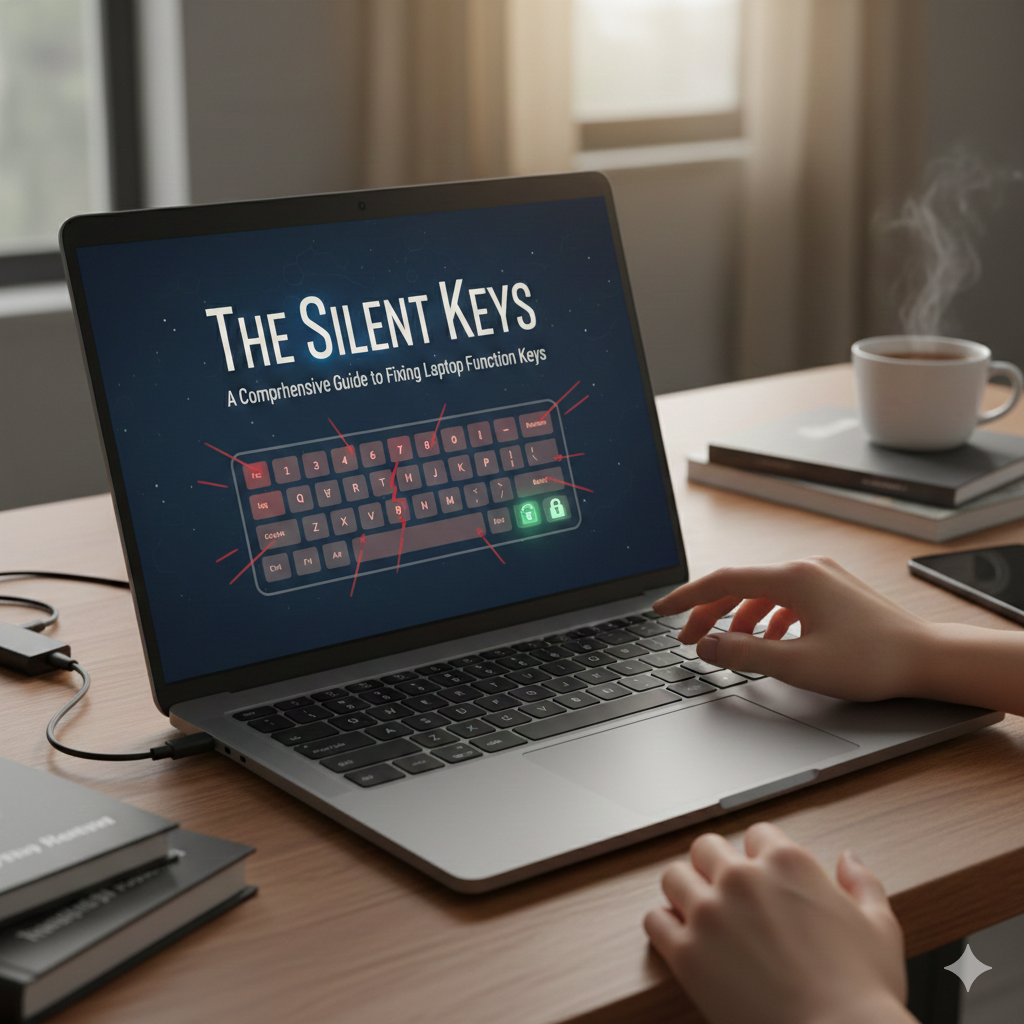
The function keys (F1 through F12) on a laptop keyboard are the unsung heroes of productivity.
They are the gateway to essential hardware controls—volume, brightness, media playback, and even the BIOS/UEFI settings.
When these keys suddenly stop working, it can bring your workflow to a grinding halt, forcing you to navigate through menus for simple tasks.
The problem is often complex, as the failure can stem from a hardware lock, a BIOS setting, a missing driver, or a software conflict.
This comprehensive guide provides a systematic, step-by-step approach to diagnosing and fixing the issue of laptop function keys not working, ensuring you regain full control over your machine.
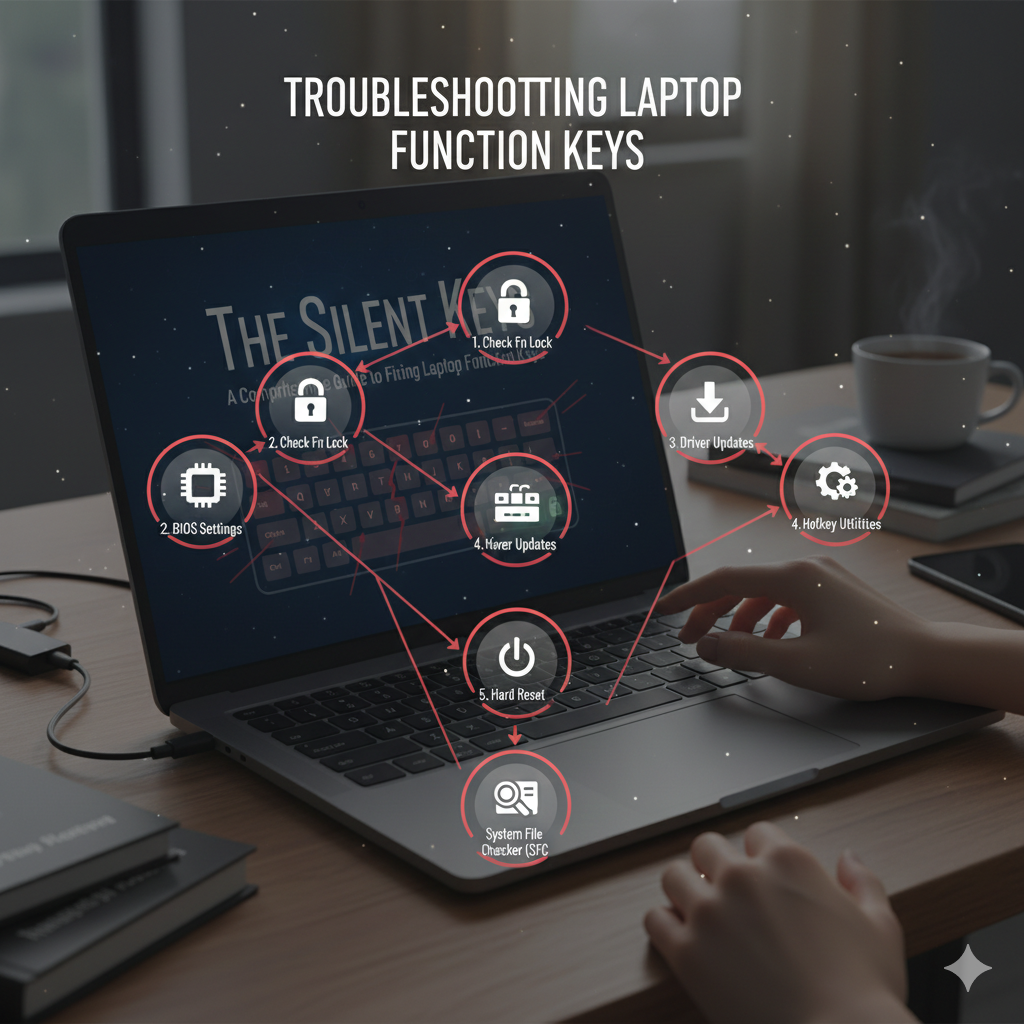
Phase 1: The Quick Fixes – Hardware and BIOS Checks
Before diving into software and drivers, the most common causes of non-functional function keys are simple hardware toggles or BIOS settings.
These are the quickest and easiest fixes, often resolving the issue without needing to touch the operating system.
1. The Fn Lock and Sticky Keys
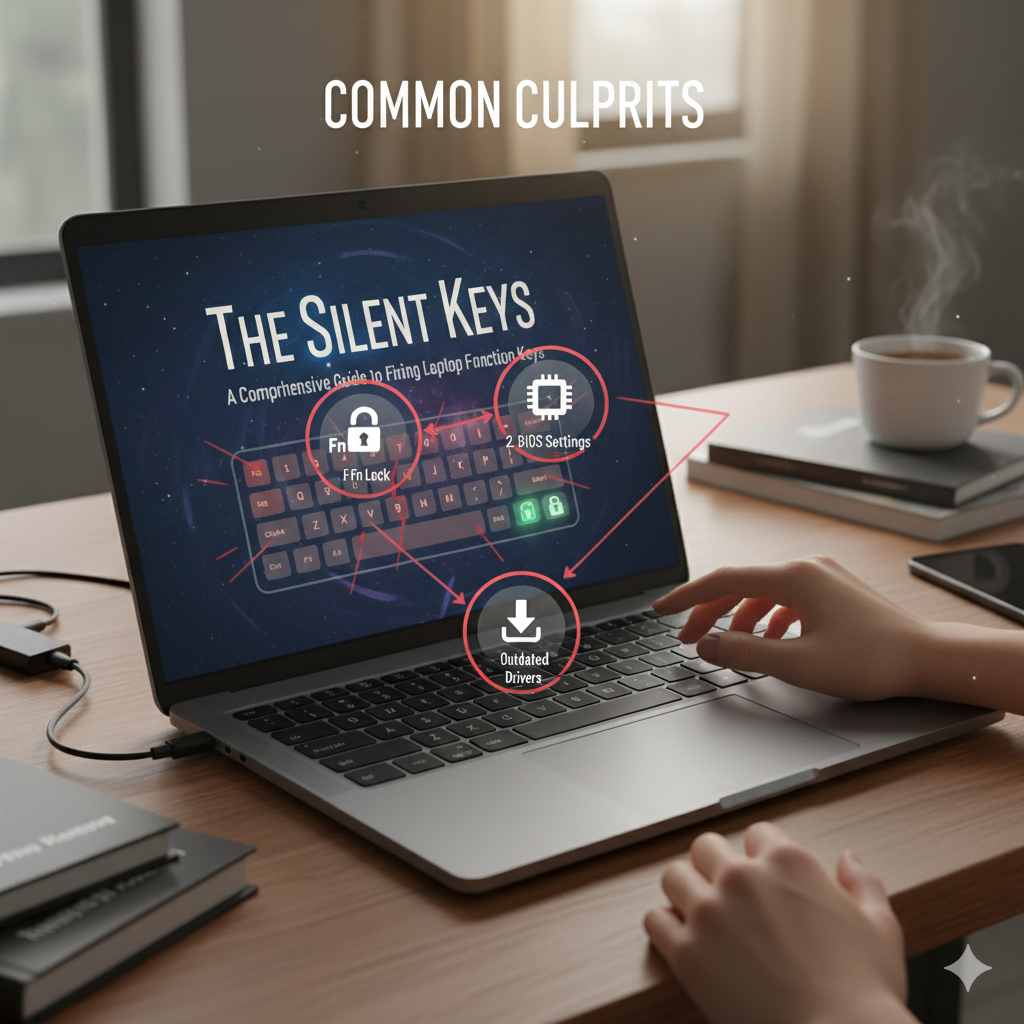
The most frequent culprit is the Fn Lock feature, which toggles the primary function of the F-keys between their standard F1-F12 role and their secondary multimedia/hardware control role.
Toggle the Fn Lock
- Look for a dedicated Fn Lock key, often labeled with a small lock icon or “Fn” in a different color.
- This key is usually pressed in combination with the Fn key and the Esc key (e.g.,
Fn + Esc). - On some keyboards, it might be a simple press of the
Fnkey itself.
Test the Behavior
- If pressing
F1alone does nothing, but pressingFn + F1works, the Fn Lock is likely engaged. - Toggling it should restore the default behavior, allowing you to use the F-keys without holding the
Fnkey.
Sticky Keys
- Ensure that Windows’ accessibility features, such as Sticky Keys or Filter Keys, are not inadvertently interfering with the key presses.
- These features can sometimes cause key combinations to behave unexpectedly.
- Check the Ease of Access settings in the Control Panel.
2. The BIOS/UEFI Setting
Many modern laptops, particularly those from manufacturers like HP, Dell, and Lenovo, have a BIOS setting that dictates the default behavior of the F-keys.
This is a firmware-level setting that overrides the operating system.
Access the BIOS
- Restart your laptop and press the designated key (often
F2,F10,Del, orEsc) to enter the BIOS/UEFI setup menu. - The exact key varies by manufacturer and model.
Locate the Setting
- Look for a setting related to “Action Keys Mode,” “Function Key Behavior,” or “Hotkey Mode.”
- This is usually found under the “System Configuration,” “Advanced,” or “Configuration” tab.
Change the Default
- Change the setting from “Function Key” (F1-F12 by default) to “Multimedia Key” (Volume, Brightness by default), or vice-versa, depending on your preference.
- Saving and exiting the BIOS will apply the change, which persists even after a fresh OS install.
3. Hard Reset the Laptop
A hard reset can clear residual power and resolve temporary hardware conflicts that might be affecting the keyboard controller or the System Management Controller (SMC) on macOS devices.
Power Down
- Shut down the laptop completely.
Disconnect Power
- Unplug the AC adapter and remove the battery (if possible).
Drain Power
- Press and hold the power button for 15-20 seconds to drain any residual charge from the system capacitors.
Restart
- Reconnect the battery and AC adapter, then restart the laptop and test the function keys.
- This simple step often resolves transient firmware issues.
Phase 2: The Software Layer – Drivers and Utilities
If the hardware checks fail, the problem is likely rooted in the operating system’s interaction with the keyboard hardware.
This often involves outdated or corrupted drivers and utility software.
4. Update or Reinstall the Keyboard Driver
The keyboard driver is the software interface between the operating system and the physical keyboard.
A corrupted driver is a common cause of selective key failure.
Device Manager
- Open the Device Manager (search for it in the Start Menu).
Locate the Keyboard
- Expand the “Keyboards” section.
- You will typically see “Standard PS/2 Keyboard” or a manufacturer-specific entry.
Update Driver
- Right-click the keyboard entry and select “Update driver.”
- Choose the option to “Search automatically for updated driver software.”
Reinstall Driver
- If updating fails, right-click and select “Uninstall device.”
- Do not delete the driver software.
- Restart your computer.
- Windows will automatically reinstall the generic driver upon reboot, which often fixes corruption issues.
5. Manufacturer Hotkey Utility Software
Many laptop manufacturers (HP, Dell, Lenovo, Asus) use proprietary utility software to manage the function keys and their secondary actions.
This software often contains the necessary drivers and configuration files to make the keys work.
Identify the Software
- Search your manufacturer’s support website for software like “HP Hotkey Support,” “Dell QuickSet,” “Lenovo Utility,” or “ASUS ATK Package.”
Download and Install
- Download the latest version of this utility software for your specific laptop model and operating system.
- Even if you have it installed, reinstalling the latest version can resolve conflicts.
Check for Conflicts
- If you recently installed a third-party keyboard utility (e.g., for remapping keys), try uninstalling it to see if it was conflicting with the native hotkey software.
6. Windows Updates and Troubleshooting
Ensure your operating system is fully up-to-date, as Microsoft often releases fixes for hardware compatibility issues and driver bugs.
Run Windows Update
- Check for and install all pending updates.
- Pay special attention to optional updates, as these sometimes contain hardware-specific driver updates.
Run the Troubleshooter
- In Windows Settings, search for “Troubleshoot settings.”
- Run the “Keyboard” troubleshooter to allow Windows to automatically detect and fix common issues, such as incorrect settings or minor driver problems.
Phase 3: Advanced Diagnostics and Hardware Issues
If the problem persists after the quick fixes and software updates, the issue may be more complex, involving system files, the keyboard controller, or physical damage.
7. Test in Safe Mode or External Keyboard
Testing the keys in a different environment can help isolate whether the problem is software-related or hardware-related.
This is a crucial diagnostic step.
Safe Mode
- Boot your laptop into Safe Mode.
- Safe Mode loads only essential drivers and services.
- If the function keys work in Safe Mode, the problem is almost certainly a third-party application or service running in the background.
- You can then use the Task Manager to systematically disable startup programs.
External Keyboard
- Connect an external USB keyboard.
- If the F-keys on the external keyboard work, the issue is localized to your laptop’s built-in keyboard hardware or its ribbon cable connection.
- If the external F-keys also fail, the problem is deeper in the operating system or a system-wide setting, suggesting a software or driver issue.
8. System File Checker (SFC) and DISM
Corrupted system files can sometimes interfere with core hardware functionality, including the keyboard.
Run SFC
- Open Command Prompt as an administrator and type
sfc /scannow. - This utility scans and repairs critical Windows system files.
Run DISM
- If SFC fails, run the Deployment Image Servicing and Management (DISM) tool:
DISM /Online /Cleanup-Image /RestoreHealth. - This repairs the Windows image itself.
Check for Errors
- After the scans complete, restart your computer and test the function keys again.
9. Check for Physical Damage and Spills
Physical damage, particularly liquid spills, can short-circuit the keyboard matrix, causing entire rows or sections of keys to fail.
Visual Inspection
- Carefully inspect the area around the non-working keys for any signs of liquid residue or physical damage.
Cleaning
- Power down the laptop and use a can of compressed air to clean out any dust or debris that might be lodged under the keys.
- Hold the can upright to prevent propellant from damaging the electronics.
Hardware Failure
- If all software and driver solutions fail, the issue is likely a hardware failure, requiring the replacement of the keyboard unit or a service repair to check the ribbon cable connection to the motherboard.
Conclusion: Regaining Control
A non-functional set of function keys is a frustrating but usually fixable problem.
By systematically working through the three phases—checking the simple hardware locks and BIOS settings, updating the necessary drivers and utility software, and finally, performing advanced diagnostics—you can pinpoint the root cause.
For most users, the solution lies in toggling the Fn Lock or adjusting a BIOS setting.
For the more complex cases, a driver update or a hard reset will often resolve the issue.
Regaining control over your function keys is a small but significant step in restoring your laptop’s full productivity and your peace of mind.
| Symptom | Probable Cause | Primary Fix |
|---|---|---|
| F-keys work only with Fn key pressed | Fn Lock or BIOS Hotkey Mode is active | Press Fn + Esc or change BIOS setting |
| F-keys work in Safe Mode, but not normal mode | Software conflict (third-party utility) | Disable startup programs or uninstall conflicting software |
| Keys stopped working after a system update | Corrupted or outdated driver/utility | Reinstall keyboard driver and manufacturer hotkey utility |
| Keys are completely unresponsive after trying all software fixes | Hardware failure or ribbon cable issue | Perform a hard reset; if failure persists, seek professional repair |