
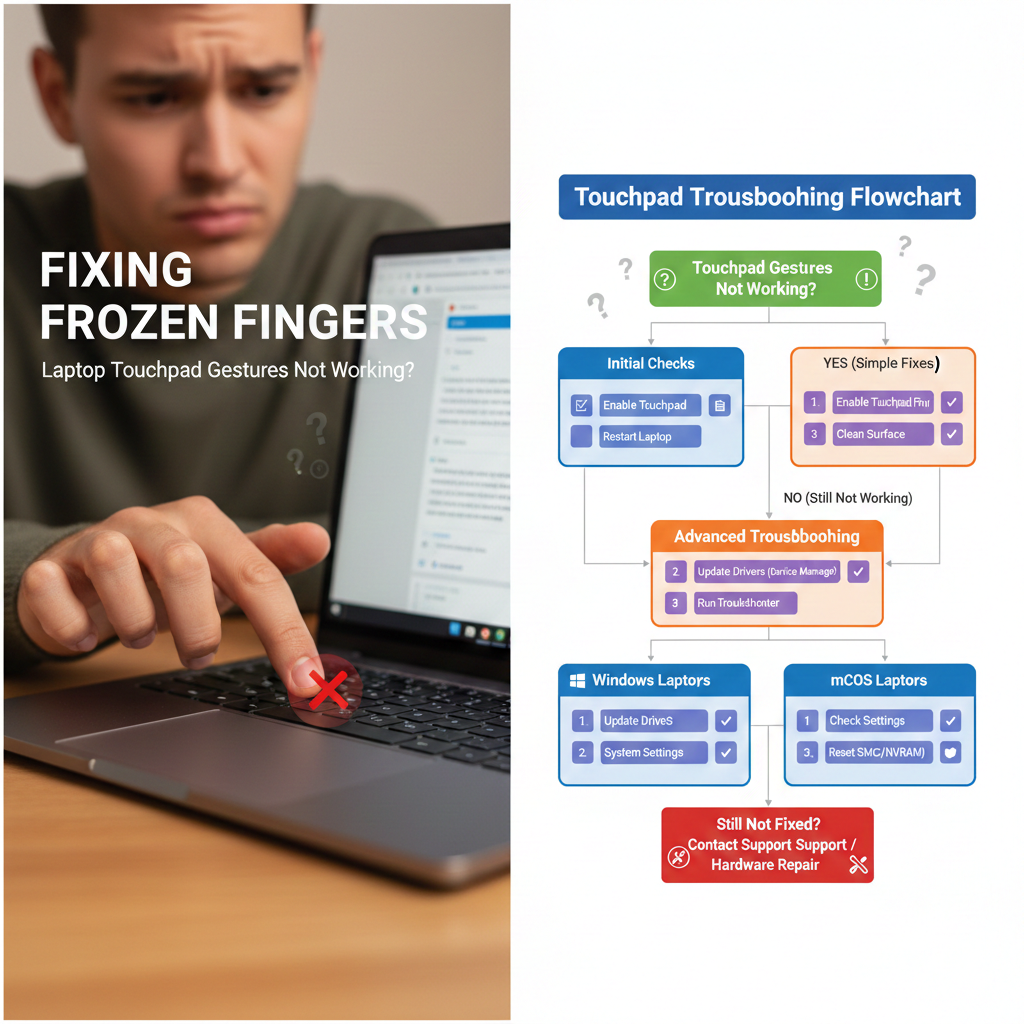
Having trouble with your laptop’s touchpad gestures? You’re not alone! 😩
Many users experience frustrating moments when their multi-touch gestures, like scrolling, pinching to zoom, or swiping between desktops, suddenly stop working.
This can severely impact your workflow and make navigating your computer a cumbersome task. 💻
But don’t despair!
This comprehensive guide will walk you through various troubleshooting steps, from simple checks to more advanced solutions, to get your touchpad gestures back in action. 🚀
Let’s dive in and fix those frozen fingers!
“The only thing worse than a slow computer is a computer that doesn’t listen to your touch.”
Understanding Your Laptop Touchpad 💡
Before we jump into the fixes, it’s helpful to understand what makes your touchpad tick.
Most modern laptops use precision touchpads, which are designed to offer a smooth and responsive experience, supporting a wide array of multi-touch gestures.
These touchpads rely on a combination of hardware and software (drivers) to interpret your finger movements and translate them into actions on your screen. 🤓
When something goes wrong, it could be a software glitch, an outdated driver, incorrect settings, or even a hardware issue.
Identifying the root cause is the first step towards a solution.
Initial Checks: The Simple Solutions First 🧐
Sometimes, the solution is much simpler than you think.
Always start with these basic checks before moving on to more complex troubleshooting.
- Is the Touchpad Enabled? Many laptops have a function key (Fn) combination to enable or disable the touchpad. Look for an icon resembling a touchpad on one of your F-keys (e.g., F5, F7, F9). Press Fn + that F-key to toggle the touchpad. Some laptops also have a physical button or a small LED indicator on the touchpad itself to enable/disable it.
- Restart Your Laptop: The classic IT advice! A simple restart can often resolve temporary software glitches that might be interfering with your touchpad gestures. It clears out temporary memory and reinitializes all system processes.
- Check for External Mouse Interference: If you’re using an external mouse, some laptops are configured to automatically disable the touchpad to prevent accidental input. Unplug your external mouse and see if the gestures start working.
- Clean the Touchpad Surface: Dirt, grease, or moisture on the touchpad can sometimes interfere with its ability to register touches accurately. Use a soft, lint-free cloth to gently clean the surface.
Troubleshooting on Windows Laptops 💻
Windows users have several avenues to explore when touchpad gestures misbehave.
Let’s break them down.
1. Check Touchpad Settings ⚙️
Windows settings offer extensive control over your touchpad and its gestures.
It’s crucial to ensure these are configured correctly.
- Open Settings: Go to Start > Settings (the gear icon) > Devices > Touchpad.
- Ensure Touchpad is On: Make sure the “Touchpad” toggle is switched to “On.”
- Check Gesture Settings: Scroll down to “Scroll and zoom” and “Three-finger gestures” or “Four-finger gestures.” Verify that the desired gestures (e.g., two-finger scroll, pinch to zoom) are enabled and configured as you prefer.
- Reset Touchpad Settings: If you’re unsure about your configurations, you can click “Reset your touchpad” to revert to default settings. This can often resolve issues caused by accidental changes.
2. Update or Reinstall Touchpad Drivers 🔄
Outdated or corrupted drivers are a common culprit for touchpad issues.
Updating them is a critical step.
- Open Device Manager: Right-click the Start button and select “Device Manager.”
- Locate Human Interface Devices or Mice and other pointing devices: Expand these categories. You should find an entry for your touchpad, often named “HID-compliant touchpad,” “ELAN Touchpad,” “Synaptics Touchpad,” or something similar.
- Update Driver: Right-click on your touchpad device and select “Update driver.” Choose “Search automatically for drivers.” If Windows finds a newer driver, install it.
- Roll Back Driver: If the issue started after a recent driver update, you can try rolling back to a previous version. Right-click the touchpad device, select “Properties,” go to the “Driver” tab, and click “Roll Back Driver” (if available).
- Uninstall and Reinstall Driver: If updating or rolling back doesn’t work, right-click the touchpad device and select “Uninstall device.” Make sure to check “Delete the driver software for this device” if the option appears. Then, restart your laptop. Windows will typically reinstall the driver automatically upon reboot.
Pro Tip: Always download drivers from your laptop manufacturer’s official website for the best compatibility and performance. Intel’s support page offers general guidance on updating drivers.
3. Run the Windows Troubleshooter 🩹
Windows has built-in troubleshooters that can automatically detect and fix common problems.
- Go to Start > Settings > Update & Security > Troubleshoot > Additional troubleshooters.
- Look for “Hardware and Devices” or “Keyboard” and run the troubleshooter.
4. Check for Windows Updates ⬆️
Sometimes, a pending Windows update might contain crucial fixes or updated drivers for your touchpad.
- Go to Start > Settings > Update & Security > Windows Update.
- Click “Check for updates” and install any available updates.
Troubleshooting on macOS Laptops 🍎
Mac users also encounter touchpad (or trackpad, as Apple calls it) issues, though the troubleshooting steps are slightly different.
1. Check Trackpad Settings ⚙️
macOS offers detailed control over trackpad gestures.
- Go to Apple menu () > System Settings (or System Preferences on older macOS versions).
- Click on “Trackpad.”
- Review the “Point & Click,” “Scroll & Zoom,” and “More Gestures” tabs. Ensure that the gestures you want to use are enabled and configured as expected. You can also watch animations of each gesture to confirm you’re performing them correctly.
Sometimes, simply unchecking and rechecking a gesture can reset it. For detailed information on Mac gestures, refer to Apple’s official support page.
2. Restart Your Mac 🔄
Just like Windows, a good old restart can work wonders on macOS.
It clears temporary files and reinitializes system processes, potentially resolving minor software glitches.
3. Reset SMC and NVRAM/PRAM 💾
These are more advanced resets specific to Macs that can resolve a range of hardware-related issues, including those affecting the trackpad.
- Resetting the System Management Controller (SMC): The SMC controls various hardware functions, including power, battery, fans, and certain input devices. The steps vary slightly depending on whether your Mac has a T2 security chip or not. You can find detailed instructions on Apple’s SMC reset guide.
- Resetting NVRAM/PRAM: NVRAM (nonvolatile random-access memory) and PRAM (Parameter RAM) store certain system settings. Resetting them can sometimes fix trackpad issues. To do this, shut down your Mac, then turn it on and immediately press and hold these four keys together: Option, Command, P, and R. Release the keys after about 20 seconds, during which your Mac might appear to restart. Apple’s NVRAM reset guide provides more details.
4. Check for macOS Updates ⬆️
Keeping your macOS up to date ensures you have the latest bug fixes and driver improvements.
- Go to Apple menu () > System Settings (or System Preferences) > General > Software Update.
- Install any pending updates.
Common Touchpad Gesture Issues and Their Solutions 🧐
| Gesture Issue | Probable Cause(s) | Solution(s) |
|---|---|---|
| Two-finger scroll not working | Disabled in settings, outdated driver, temporary glitch | Check touchpad settings, update/reinstall driver, restart laptop |
| Pinch to zoom unresponsive | Gesture disabled, application specific issue, driver problem | Verify settings, try in different apps, update driver |
| Three/Four-finger swipes not switching desktops/apps | Gestures not enabled, conflict with other software, macOS specific issues (SMC/NVRAM) | Enable gestures in settings, check for conflicting apps, reset SMC/NVRAM (Mac) |
| Touchpad erratic or jumpy | Dirty surface, driver corruption, hardware fault | Clean touchpad, update/reinstall driver, consider professional repair |
| Touchpad completely unresponsive | Disabled via Fn key, serious driver issue, hardware failure | Enable with Fn key, reinstall driver, check for physical damage, seek repair |
“Patience is a virtue, especially when dealing with technology.”
Advanced Troubleshooting and When to Seek Professional Help 🛠️
If you’ve tried all the above steps and your touchpad gestures are still not working, it might be time to consider more advanced solutions or professional assistance.
- Check for System File Corruption: On Windows, you can use the System File Checker (SFC) tool to scan for and repair corrupted system files that might be affecting your touchpad. Open Command Prompt as administrator and type
sfc /scannow, then press Enter. - Malware Scan: Malicious software can sometimes interfere with system functionality, including input devices. Run a full scan with reputable antivirus software. Malwarebytes is a good option for a thorough scan.
- Consider a Clean Install of Your OS: This is a drastic step, but if all else fails, a fresh installation of Windows or macOS can resolve deep-seated software conflicts or corruption. Remember to back up all your data first!
- Hardware Failure: Unfortunately, sometimes the touchpad itself can fail. If you’ve exhausted all software troubleshooting and the problem persists, especially if you’ve dropped your laptop or it has experienced liquid damage, it’s highly likely a hardware issue.
When to contact your laptop manufacturer or a professional repair shop:
- If the touchpad is physically damaged (cracked, loose, or feels different).
- If none of the software solutions work after multiple attempts.
- If your laptop is still under warranty – this is crucial! Contacting the manufacturer is your best bet for a free repair or replacement. You can usually find warranty information and support contacts on their website, such as HP Support or Dell Support.

Preventative Measures for a Smooth Touchpad Experience 🛡️
Once you’ve got your gestures working again, here are some tips to keep them that way:
- Keep Drivers Updated: Regularly check for driver updates from your manufacturer’s website or through Windows Update/macOS Software Update.
- Maintain a Clean Surface: Regularly wipe down your touchpad to prevent dirt and oil buildup.
- Handle Your Laptop Carefully: Avoid dropping your laptop or exposing it to liquids, as physical damage is a common cause of touchpad failure.
- Be Mindful of Software Installations: Be cautious about installing third-party software that claims to “enhance” your touchpad, as these can sometimes cause conflicts.
“An ounce of prevention is worth a pound of cure.”
Conclusion 🎉
Dealing with non-functional touchpad gestures can be incredibly frustrating, but with a systematic approach, most issues can be resolved.
From checking basic settings to updating drivers and performing advanced system resets, you now have a powerful arsenal of troubleshooting techniques.
Remember to start with the simplest solutions and work your way up.
Hopefully, this guide has helped you restore full functionality to your laptop’s touchpad, bringing back the ease and efficiency of multi-touch gestures.
Happy computing! 🥳