
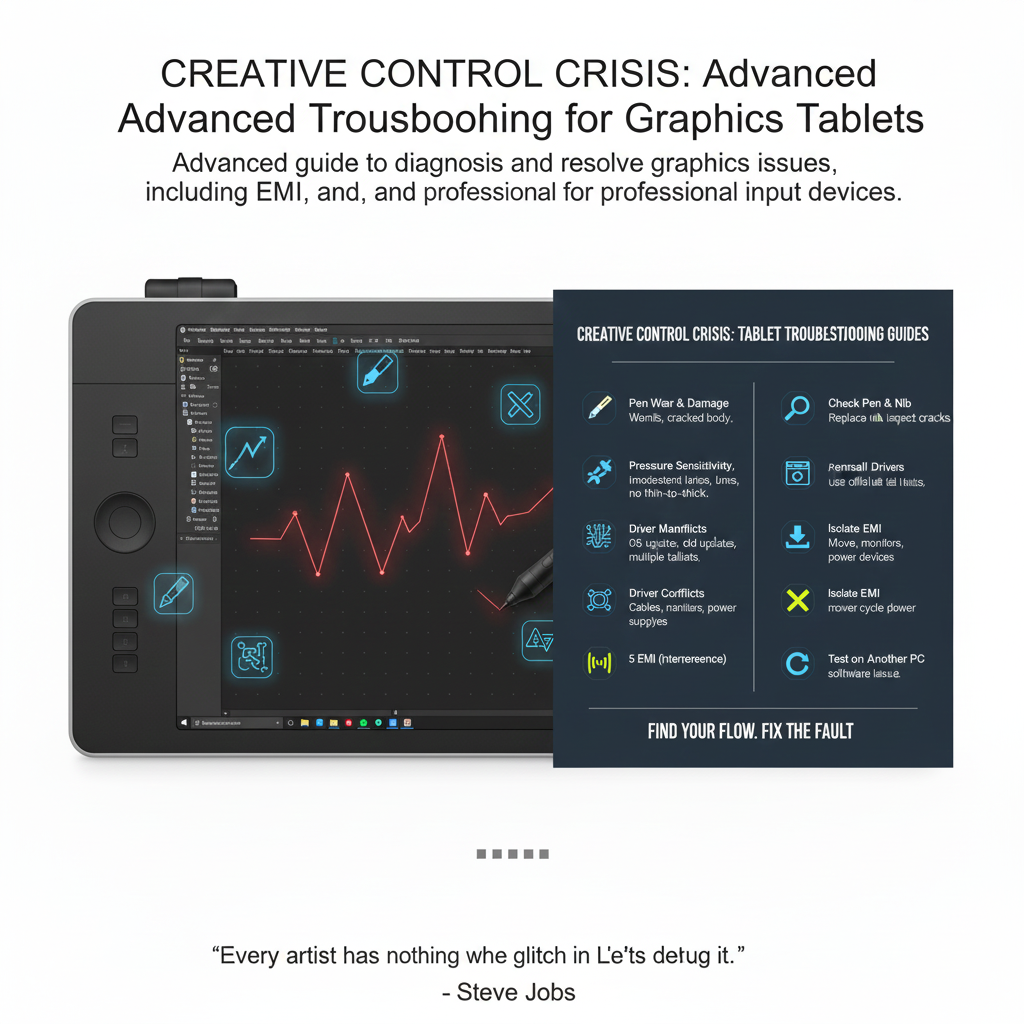
For digital artists, designers, and engineers, the graphics tablet is the primary tool for creative control. When this control is compromised—through erratic pressure sensitivity, inaccurate cursor mapping, or driver conflicts—it triggers a “Creative Control Crisis.”
These advanced input devices, such as those from Wacom, Huion, and XP-Pen, rely on complex driver architectures and precise electromagnetic resonance (EMR) technology, making their troubleshooting a specialized field.
This article provides an advanced guide to diagnosing and resolving the most complex issues affecting graphics tablets and professional input devices.
Phase 1: The Pressure Sensitivity Paradox
The core function of a graphics tablet is to translate the physical pressure applied to the pen tip into a digital value (pressure curve). Failures in this process are the most common and frustrating advanced issues.
Pressure Curve Calibration and Diagnostics
The pen’s pressure curve determines the relationship between physical force and line thickness/opacity. A non-linear or erratic curve can destroy the natural feel of drawing.
- Diagnosis:
- Driver Diagnostics: Use the tablet manufacturer’s built-in diagnostic tool (e.g., Wacom Tablet Properties > Diagnose). This tool provides raw data on the pen’s position, tilt, and, critically, the raw pressure value. Press the pen tip gently and firmly; the raw value should change smoothly and consistently. Erratic jumps indicate a hardware fault (e.g., a faulty pen tip sensor or a cracked digitizer layer).
- Custom Curve Tuning: The pressure curve is user-adjustable. A common advanced technique is to set a softer curve (less pressure required for maximum output) to compensate for a light drawing hand or a stiff pen tip. The goal is to match the curve to the artist’s physical style.
- Root Cause: Windows Ink vs. WinTab: The most frequent cause of pressure failure is a conflict between the two primary Windows tablet APIs:
-
- WinTab: The older, industry-standard API used by professional applications (e.g., older versions of Photoshop, Corel Painter).
- Windows Ink: Microsoft’s modern API, integrated into the OS.
- Conflict: If both APIs are active, they can interfere, leading to pressure loss or erratic behavior.
-
- Resolution: Systematically disable one or the other. Most modern tablet drivers allow the user to toggle “Use Windows Ink” on or off. For professional work, it is often necessary to disable Windows Ink in the tablet driver and ensure the creative application is configured to use the WinTab API.
Pen Tilt and Rotation Errors
Advanced pens support tilt (angle of the pen) and rotation (barrel rotation).
- Symptom: Brushes that rely on tilt/rotation (e.g., calligraphy brushes) do not function correctly or are inconsistent.
- Diagnosis: The tablet’s diagnostic tool should show the raw tilt and rotation values changing smoothly as the pen is manipulated. Inconsistent readings often point to a hardware issue in the pen’s internal coils or the tablet’s EMR sensor array.
- Resolution: Check for magnetic interference. The EMR technology is highly sensitive to magnets. Ensure the tablet is not placed near speakers, external hard drives, or metal desk frames, which can distort the electromagnetic field.
Phase 2: Driver Architecture and OS-Level Conflicts
Multi-Monitor and Scaling Mismatch
In multi-monitor setups, the tablet’s active area must be precisely mapped to the correct display.
- Symptom: The cursor appears on the wrong monitor, or the aspect ratio is stretched/compressed.
- Root Cause: Display Scaling Mismatch. If the primary monitor is set to 100% scaling but a secondary monitor (or the tablet display itself) is set to 150% scaling, the OS reports incorrect coordinate systems to the tablet driver.
- Advanced Resolution:
- Uniform Scaling: Set all monitors to the same scaling factor (ideally 100%) in Windows Display Settings.
- Driver Mapping: Use the tablet driver’s Mapping or Working Area settings to explicitly define which monitor the tablet maps to. For display tablets, ensure the driver recognizes the tablet as a display and not just an input area.
Driver Service Crashes and Reinstallation
A common issue is the tablet driver service crashing, leading to a loss of advanced features (like pressure and tilt) while basic mouse functionality remains.
- Diagnosis: Open the Windows Task Manager > Services tab. Look for the tablet manufacturer’s service (e.g., WTabletServicePro for Wacom, or similar for Huion/XP-Pen). If the service is stopped, attempt to restart it.
- Advanced Reinstallation: A simple driver uninstall often leaves residual files. For a clean slate:
- Uninstall the driver via Programs and Features.
- Manually delete remaining driver files/folders in C:\Program Files and C:\Program Files (x86).
- Use Device Manager to uninstall the tablet device, ensuring “Delete the driver software for this device” is checked.
- Reboot and install the latest driver from the manufacturer’s website.
Application-Specific Conflicts (e.g., Photoshop)
Sometimes, pressure works in the driver test but fails in a specific application.
- Diagnosis: Check the application’s preferences. For example, in Adobe Photoshop, go to Edit > Preferences > Technology Previews and ensure “Disable WinTab support” is unchecked if using the WinTab API, or checked if relying solely on Windows Ink.
Phase 3: Hardware and Environmental Diagnostics
Electromagnetic Interference (EMI)
The EMR technology used by most tablets is a form of passive wireless communication, making it susceptible to EMI.
- Symptom: Jittery lines, sudden cursor jumps, or intermittent loss of tracking.
- Diagnosis: Move the tablet away from potential sources of EMI:
- Unshielded Power Supplies: Laptop power bricks or cheap USB hubs.
- Large Metal Objects: Metal desk frames or filing cabinets.
- High-Frequency Devices: Wireless routers or unshielded speakers.
- Resolution: Use a ferrite bead on the tablet’s USB cable to suppress high-frequency noise.
Cable and Connector Integrity
A damaged USB cable or loose connector can cause intermittent data loss, which the driver interprets as sudden loss of pen position.
- Diagnosis: Use a USB Protocol Analyzer to monitor USB data for repeated CRC errors or NAK responses, indicating packet loss.
- Resolution: Replace the cable. For non-detachable cables, repair or replace the entire unit.
Phase 4: Advanced Pen and Nib Wear
Nib Wear and Sensitivity
- Symptom: Pen requires excessive pressure or line only appears after significant force.
- Diagnosis: Worn nib can get stuck or create friction affecting the internal pressure sensor.
- Resolution: Replace the nib. Ensure correct type (felt, flex, or standard).
Battery and Wireless Pen Issues
- For pens with batteries, low power can cause intermittent communication failures.
- Diagnosis: Check battery level in tablet software. Low battery leads to signal strength drop and tracking loss.
Conclusion
The Creative Control Crisis is a complex, multi-layered problem that demands a methodical, advanced approach.
By understanding the critical role of WinTab and Windows Ink APIs, mastering pressure curve calibration, and eliminating OS-level conflicts and electromagnetic interference, technicians can restore precise, low-latency control.
The goal is a seamless, transparent connection between the artist’s hand and the digital canvas, moving beyond the crisis to unlock full creative potential.
References
[1] Wacom Support. Why is my pen pressure not working.
[2] Wacom Support. Advanced pen settings.
[3] Reddit. PSA: If you have multiple monitors and are having issues.
[4] XP-Pen Blog. [Solved] Clip Studio Paint Pen Pressure Not Working.
[5] Microsoft. Raw Input Overview – Win32 apps.