
In today’s interconnected world, online conferencing has become the backbone of remote work, virtual classrooms, and global collaboration. 🌐
However, few things are as frustrating as a video call riddled with glitches, frozen screens, and choppy audio. 🥶
These exasperating network issues can disrupt productivity, lead to miscommunication, and simply make you want to pull your hair out. 💇♀️
But fear not! This comprehensive guide is designed to equip you with the knowledge and actionable steps needed to diagnose and resolve common network problems, ensuring your online conferences are as smooth as silk. 🌟
“The only way to do great work is to love what you do. If you haven’t found it yet, keep looking. Don’t settle.” – Steve Jobs 💡
Understanding the Root Cause: Why Do Network Issues Happen?
Before we dive into solutions, let’s understand why these pesky network issues occur in the first place. 🤔
Several factors can contribute to a less-than-stellar online conferencing experience.
1. Insufficient Bandwidth 📉
Think of your internet bandwidth as a highway. 🛣️
If too many cars (data) try to use a narrow road at once, traffic jams occur. 🚗🚚
Similarly, if your internet connection doesn’t have enough bandwidth to handle the demands of video, audio, and screen sharing simultaneously, you’ll experience slowdowns and quality degradation.
2. High Latency (Ping) ⏱️
Latency refers to the delay before a transfer of data begins following an instruction for its transfer. 🚀
In simple terms, it’s the time it takes for data to travel from your device to the conferencing server and back. 🔄
High latency results in annoying echoes, out-of-sync audio, and general lag in conversations. 🗣️👂
3. Unstable Wi-Fi Connection 📡
While convenient, Wi-Fi can be prone to interference and signal drops, especially in crowded environments or when you’re far from your router. 📶
A weak or inconsistent Wi-Fi signal is a common culprit for conferencing woes.
4. Device Performance Issues 💻📱
Sometimes, the problem isn’t your network at all, but your device itself. 🤯
An outdated operating system, too many background applications running, or insufficient RAM can strain your computer’s resources, impacting conferencing performance.
5. Firewall or VPN Interference 🛡️
Security software like firewalls and Virtual Private Networks (VPNs) can sometimes inadvertently block or slow down the data flow required for online conferencing, leading to connection issues. 🛑
The Diagnostic Toolkit: How to Identify Your Specific Problem 🛠️
Before you can fix a problem, you need to accurately identify it. 🕵️♀️
Here are some essential tools and steps to diagnose your network issues.
1. Perform an Internet Speed Test ⚡
This is your first and most crucial step. 🎯
Use a reliable speed test tool like Ookla Speedtest to measure your download speed, upload speed, and ping (latency).
- Download Speed: This impacts how well you receive video and audio. For smooth HD video conferencing, aim for at least 8-15 Mbps.
- Upload Speed: Crucial for sending your own video and audio. A minimum of 3-5 Mbps is generally recommended for good quality.
- Ping (Latency): Lower is better! A ping under 50ms is excellent, while anything over 100ms can cause noticeable lag.
2. Check Your Wi-Fi Signal Strength 📶
Most operating systems have a built-in Wi-Fi signal indicator. Look for a strong signal (full bars) near your router. 🏡
If your signal is consistently low, consider moving closer to your router or investing in a Wi-Fi extender.
3. Monitor Network Usage 📊
Your operating system’s Task Manager (Windows) or Activity Monitor (macOS) can show you which applications are hogging your network resources. 🧐
Close any unnecessary apps before your conference call. 🚫
4. Test with Different Conferencing Platforms 🔄
If you’re only experiencing issues with one particular platform (e.g., Zoom, Microsoft Teams, Google Meet), the problem might lie with the platform’s servers or your application settings, rather than your general network connection. Try testing with another platform if possible. 🧑💻
Actionable Solutions: How to Fix Your Network Problems! 🔧
Now that you’ve diagnosed the issue, it’s time to implement the fixes! 💡
1. Optimize Your Internet Connection 🚀
- Go Wired: Whenever possible, use an Ethernet cable to connect your computer directly to your router. This provides the most stable and fastest connection, bypassing Wi-Fi interference entirely. 🔌
- Reduce Network Congestion: Ask others in your household to pause bandwidth-intensive activities like streaming 4K video, downloading large files, or online gaming during your conference. ⏸️
- Reboot Your Router/Modem: A classic but effective troubleshooting step. Unplug your modem and router for 30 seconds, then plug them back in. This can clear temporary glitches and improve performance. 🔄
- Upgrade Your Internet Plan: If your speed tests consistently show low bandwidth, it might be time to contact your Internet Service Provider (ISP) about upgrading to a faster plan. ⬆️
2. Enhance Your Wi-Fi Signal 📶
- Router Placement: Position your Wi-Fi router in a central location, away from walls, large metal objects, and other electronics that can cause interference. Ideally, it should be elevated. 🆙
- Use 5GHz Band: Modern routers support both 2.4GHz and 5GHz Wi-Fi bands. The 5GHz band offers faster speeds and less interference, though its range is shorter. Connect to it if your device and router support it and you are close enough. 🚀
- Update Router Firmware: Regularly check for and install firmware updates for your router. These updates often include performance improvements and bug fixes. 🛠️
- Wi-Fi Extenders/Mesh Systems: For larger homes or dead zones, consider a Wi-Fi extender or a mesh Wi-Fi system to improve coverage and signal strength throughout your space. 🏘️
3. Optimize Your Device for Conferencing 💻
- Close Unnecessary Applications: Before joining a call, close all applications and browser tabs you don’t need. This frees up RAM and CPU resources. 🧹
- Update Software: Ensure your operating system, web browser, and the conferencing application itself are all up-to-date. Software updates often include performance optimizations. 🔄
- Restart Your Computer: A fresh restart can resolve many temporary performance issues by clearing out system caches and memory. ♻️
- Adjust Conferencing App Settings: Many platforms allow you to lower video quality (e.g., from HD to standard definition) or disable incoming video for non-essential participants to reduce bandwidth usage. ⚙️
4. Address Firewall and VPN Settings 🛡️
- Temporarily Disable Firewall/VPN: As a diagnostic step, try temporarily disabling your firewall or VPN to see if it resolves the issue. If it does, you’ll need to configure exceptions for your conferencing application. 🚨
- Consult IT Support: If you’re using a company-issued device and VPN, consult your IT department for assistance in configuring the settings correctly for online conferencing. 🧑💻
5. General Best Practices for Smooth Conferencing ✅
- Use a Quality Headset: A good quality headset with a built-in microphone can significantly improve audio clarity and reduce background noise, even with minor network hiccups. 🎧
- Minimize Background Processes: Close any cloud syncing services (Dropbox, OneDrive), torrent clients, or large downloads running in the background. 🚫
- Consider Your Environment: A quiet environment minimizes the need for noise cancellation, allowing your software to focus its resources on transmitting your voice clearly. 🤫
- Test Before Important Meetings: Always join a test call or a quick call with a colleague before a critical meeting to ensure everything is working perfectly. 🧪
“Connectivity is a human right.” – Tim Berners-Lee 🌍
Advanced Troubleshooting: When All Else Fails 🧐
If you’ve tried everything above and are still facing persistent issues, it might be time to delve a little deeper. 🕵️
1. Check for ISP Outages 🚨
Sometimes, the problem isn’t with your home network but with your ISP. Check their website, social media, or a site like DownDetector to see if there are reported outages in your area. outage 📡
2. DNS Server Flush 🔄
Your Domain Name System (DNS) server translates website names into IP addresses. Sometimes, a corrupted DNS cache can cause connectivity issues. Flushing your DNS cache can help. 🌐
For Windows: Open Command Prompt as administrator and type “ipconfig /flushdns” then press Enter.
For macOS: Open Terminal and type “sudo dscacheutil -flushcache; sudo killall -HUP mDNSResponder” then press Enter (you’ll need your password). 🔑
3. Contact Your ISP 📞
If your speed tests consistently show lower speeds than you’re paying for, or if you suspect an issue with the line coming into your home, don’t hesitate to contact your ISP’s technical support. They can run diagnostics on their end. 🧑🔧
4. Consider a New Router 🆕
An old or outdated router might not be capable of handling the demands of modern internet usage, especially with multiple devices connected simultaneously. Upgrading to a newer, more powerful router can make a significant difference. 🚀
“Great things are done by a series of small things brought together.” – Vincent Van Gogh 🎨
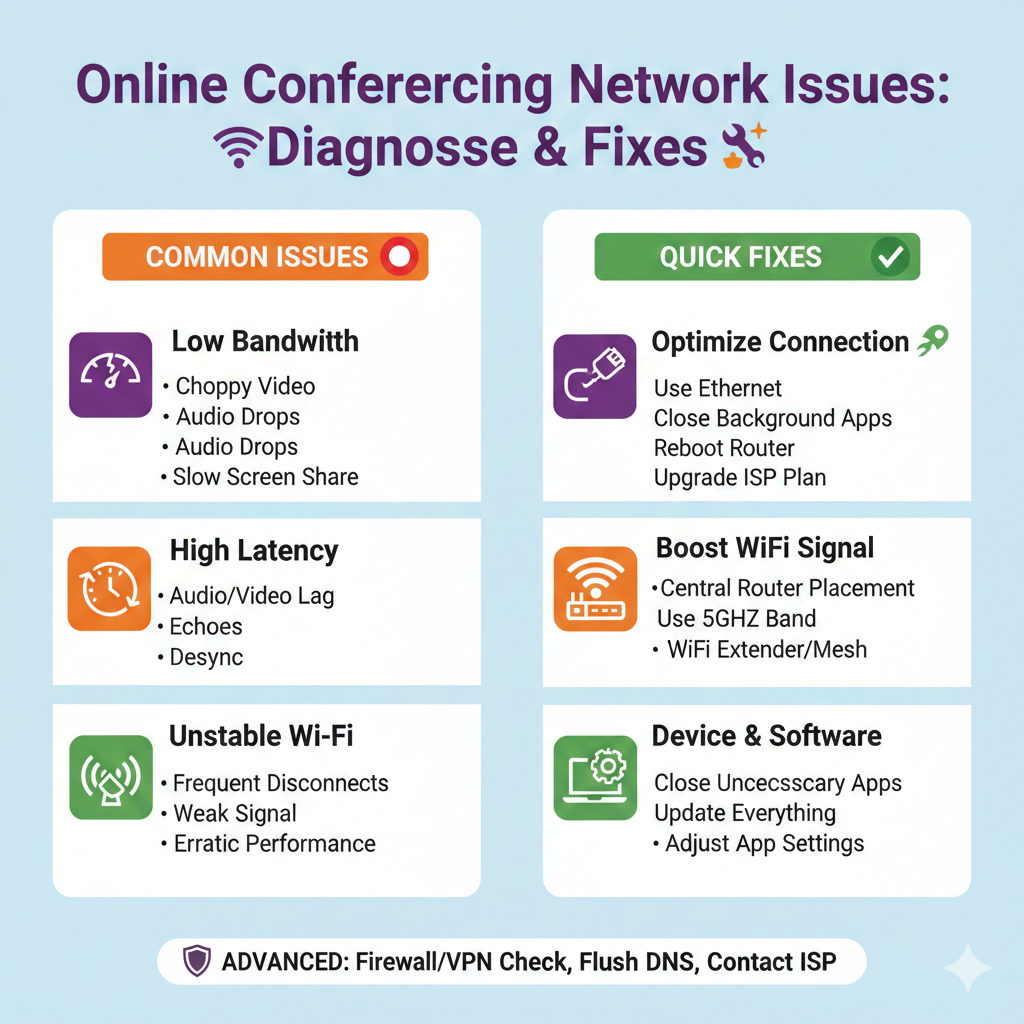
Infographic: Common Conferencing Network Issues & Quick Fixes 📊
Here’s a handy infographic to quickly visualize common issues and their solutions.
| Issue Detected 🔴 | Symptoms 😵 | Quick Fixes ✅ |
|---|---|---|
| Low Bandwidth | Choppy video, pixelation, audio drops, slow screen sharing. | Go wired (Ethernet), close background apps, reduce other network usage, check ISP plan. |
| High Latency | Audio/video out of sync, noticeable delay in conversation, echoes. | Reboot router, use wired connection, ensure router is up-to-date, check for ISP issues. |
| Unstable Wi-Fi | Frequent disconnections, signal drops, erratic performance. | Move closer to router, place router optimally, use 5GHz band, consider extender/mesh. |
| Device Overload | Computer slows down, conferencing app crashes, fan running loudly. | Close unnecessary apps, restart computer, update OS and app, lower video quality. |
| Firewall/VPN Block | Cannot connect to meeting, limited functionality, error messages. | Temporarily disable firewall/VPN, configure exceptions, contact IT support. |
The Future of Seamless Conferencing: Proactive Measures 🔮
Prevention is always better than cure. 💊
By adopting a few proactive habits, you can significantly reduce the chances of encountering network issues during your online conferences. 🌟
- Regular Network Health Checks: Make it a habit to run a speed test occasionally, especially before important meetings, to catch potential issues early. 🩺
- Dedicated Conferencing Setup: If online meetings are a big part of your daily routine, consider setting up a dedicated workspace with an Ethernet connection and minimal distractions. 🖥️
- Invest in Quality Hardware: A good quality router, reliable modem, and a decent webcam and microphone can make a world of difference. 💰
- Stay Informed: Keep an eye on updates from your conferencing platform and ISP, as these often contain improvements and solutions to known issues. 📰
- Educate Your Household: If you live with others, communicate your meeting schedule and politely ask them to reduce their internet usage during those times. It’s a team effort! 🤝
Don’t let network glitches derail your important virtual connections. ⛔
By understanding the common causes of online conferencing issues and applying these practical troubleshooting steps, you’ll be well on your way to enjoying crystal-clear audio and butter-smooth video calls. 🚀
Remember, a little preparation and knowledge can save you a lot of frustration. 💡
Go forth and conference with confidence! 🦸