
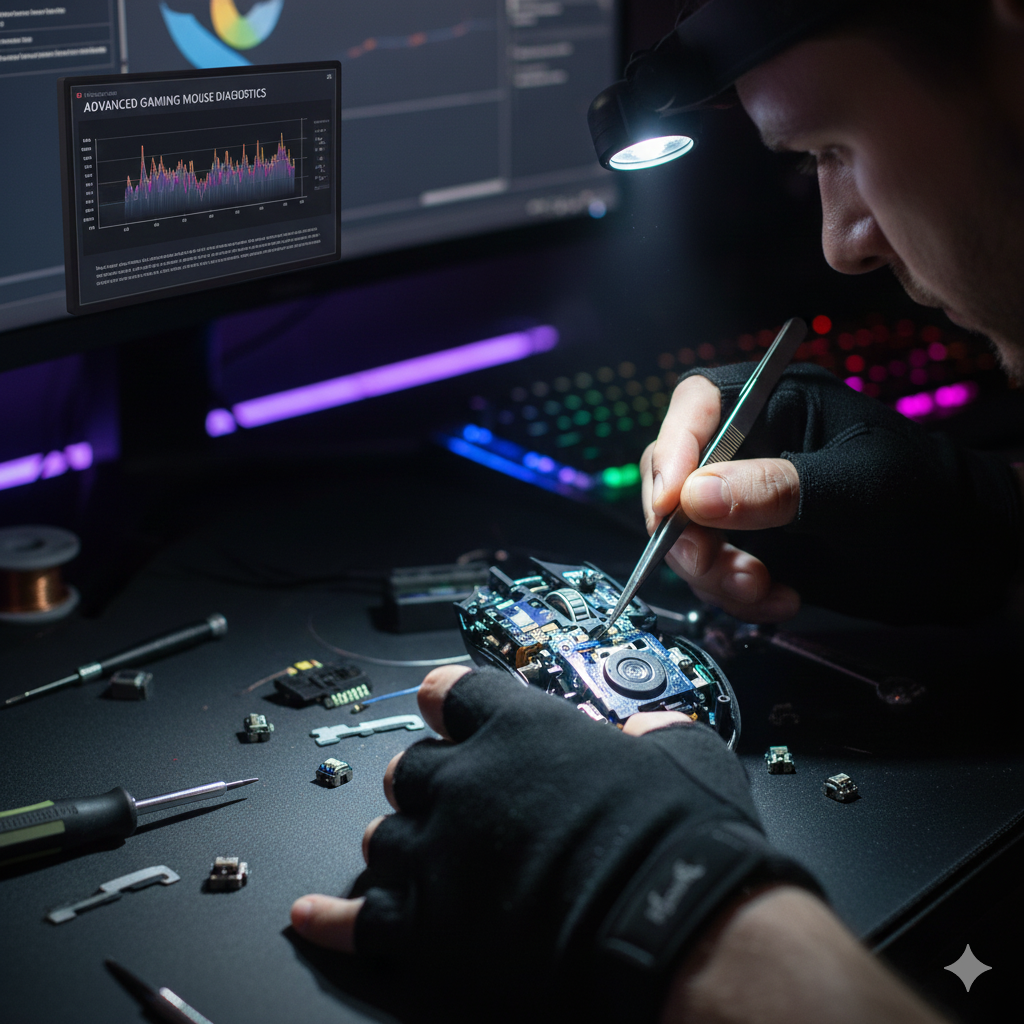
For the competitive gamer, the mouse is the most critical interface, a direct extension of thought into the digital world.
When performance falters—manifesting as DPI drift, inconsistent tracking, or unexplained micro-stutters—it signals a deep-seated issue beyond simple driver updates.
Advanced gaming mouse troubleshooting requires a technical dive into the sensor’s firmware, the host system’s input pipeline, and the physics of optical tracking.
This article explores the advanced diagnostics and solutions for the most elusive mysteries plaguing high-performance gaming mice.
The Sensor’s Core: Understanding the Technology
Modern gaming mice rely almost exclusively on high-end optical sensors (e.g., PixArt PMW/PAW series) designed for “perfect control speed” (PCS) and high acceleration tolerance.
A sensor works by taking thousands of tiny images of the surface per second and comparing them to calculate movement.
1. DPI Drift and Deviation: The Calibration Crisis
DPI (Dots Per Inch) is the sensitivity setting, but DPI Deviation is the difference between the advertised DPI and the actual movement reported.
DPI Drift is the change in this deviation over time or under specific conditions.
•Root Cause: Deviation is often due to manufacturing tolerances or the sensor’s internal firmware scaling.
•Drift, however, is typically caused by:
- Temperature: Thermal expansion/contraction of the sensor or lens assembly, subtly altering the focal length.
- Voltage Instability: Fluctuations in the mouse’s internal power rail affecting the sensor’s analog components.
- Surface Texture: The sensor’s firmware may apply different filtering algorithms based on the perceived texture, leading to inconsistent scaling.
•Advanced Diagnosis: Use specialized raw input analysis tools (e.g., MouseTester) to perform a controlled distance test.
Measure a precise physical distance (e.g., 10 cm) and compare it to the reported digital counts.
Repeat this test after the mouse has been running for an hour (thermal stress) and at different speeds (PCS testing).
Significant variation points to a firmware or hardware flaw.
•Resolution:•Firmware Calibration: Many high-end mice offer a surface calibration feature in their software.
This process teaches the sensor’s firmware the unique characteristics of the mousepad, optimizing the lens focus and filtering.
•Manual Scaling: If deviation is consistent, the only fix is to manually adjust the in-game sensitivity to compensate for the hardware’s inaccuracy.
Note: thermal and voltage effects are subtle but measurable under controlled tests.
2. Perfect Control Speed (PCS) and Acceleration Issues
PCS is the maximum speed (in inches per second, IPS) at which the sensor can track accurately before losing its ability to compare images (spinning out).
Acceleration is the maximum G-force the sensor can handle.
•Symptom: The cursor “spins out” or stops tracking during a fast flick shot.
•Diagnosis: This is a physical limitation.
Use a tool like MouseTester to plot speed vs. reported counts.
A sudden drop-off in reported counts at high speeds indicates the PCS limit has been exceeded.
•Resolution: Ensure the mouse is using a modern sensor with a high PCS (e.g., >400 IPS).
For existing hardware, the only solution is to ensure the mousepad provides optimal contrast and texture for the sensor to capture clear images at high speed.
Hardware limitations like PCS are not firmware-fixable on most consumer devices.
Phase 2: Input Pipeline Bottlenecks (Latency and Jitter)
Even with a perfect sensor, the data must travel cleanly to the game engine.
1. Polling Jitter and Host System Instability
While a 1000 Hz polling rate means a report every 1ms, jitter (inconsistent timing between reports) can cause micro-stutters.
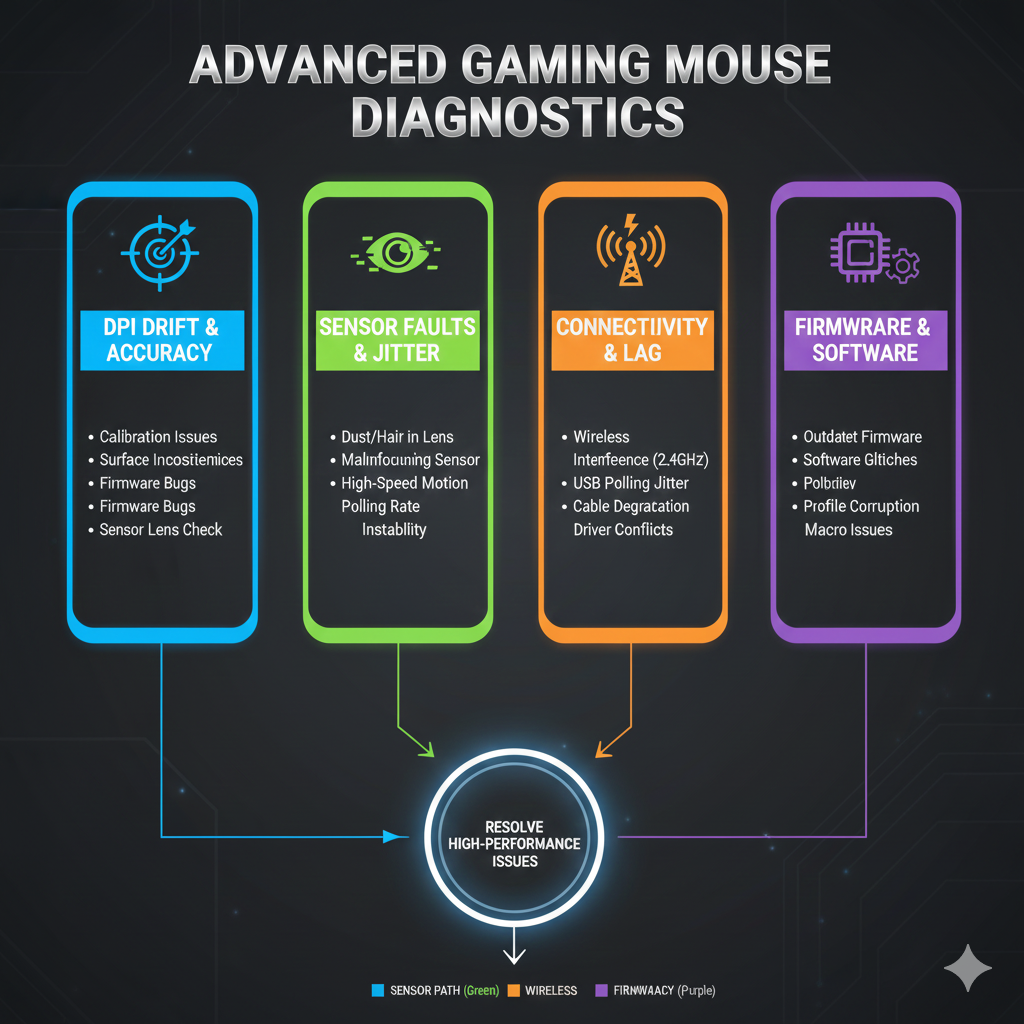
•Root Cause: High polling jitter is often a symptom of high DPC (Deferred Procedure Call) latency on the host PC.
The CPU is too busy servicing a high-priority driver (e.g., network, storage, or audio) to consistently pick up the mouse’s USB report every millisecond.
•Advanced Diagnosis: Use LatencyMon to identify the offending driver.
If a driver (e.g., ndis.sys for networking or a specific audio driver) shows high DPC execution times (>500µs), that driver is the bottleneck, not the mouse.
•Resolution: Update, roll back, or temporarily disable the problematic driver.
In the BIOS, disable unused hardware (e.g., COM ports, extra SATA controllers) to reduce the number of potential DPC sources.
2. USB Interface Overclocking and Stability
Some advanced mice offer polling rates up to 8000 Hz (0.125ms report interval).
•Trade-off: While this reduces latency, it increases the USB interrupt rate eightfold, placing a massive load on the CPU’s interrupt handling.
•Diagnosis: If switching to 8000 Hz causes micro-stutters, use a CPU usage monitor to check the Interrupts and DPCs usage.
If these spike, the CPU or the USB controller is overwhelmed.
•Resolution: Revert to a stable 1000 Hz polling rate.
If the system is powerful enough, ensure the mouse is plugged into a native chipset USB port (not a third-party controller) to minimize processing overhead.
Practical tip: prefer native chipset USB ports for high polling rates.
Phase 3: Wireless and Mechanical Mysteries
Wireless connectivity and mechanical switch degradation introduce unique advanced challenges.
1. Wireless Interference and Signal Quality
High-performance wireless mice use proprietary 2.4 GHz protocols to achieve wired-like latency.
•Symptom: Intermittent lag spikes or brief disconnections in a wireless mouse.
•Diagnosis: Use a 2.4 GHz spectrum analyzer (or a Wi-Fi analyzer app) to check for congestion.
Common culprits include:
- Wi-Fi Routers: Especially those operating on the 2.4 GHz band.
- Bluetooth Devices: High-bandwidth Bluetooth transfers (e.g., file sync) can interfere.
- USB 3.0 Ports: USB 3.0 ports can emit RFI in the 2.4 GHz band.
•Resolution:•Dongle Placement: Use the provided USB extension cable to place the wireless dongle as close as possible to the mouse, away from the PC chassis and USB 3.0 ports.
•Channel Switching: Some mice allow the dongle to switch to a less congested channel within the 2.4 GHz band.
2. Advanced Switch Debouncing and Double-Clicking
The dreaded double-click issue is a mechanical failure exacerbated by firmware settings.
•Mechanism: When a mechanical switch ages, the metal contacts “bounce” for a longer duration after the initial closure.
The mouse’s firmware has a debounce time (e.g., 4ms) to ignore these bounces.
If the bounce duration exceeds the debounce time, the second bounce is registered as a second click.
•Diagnosis: Use a switch tester or the mouse’s proprietary software to check the switch’s health.
The only true advanced diagnosis is to measure the bounce time with a high-speed oscilloscope connected to the switch contacts.
•Resolution:•Firmware Adjustment: Many modern mice allow the user to increase the debounce time in the software (e.g., from 0ms to 16ms).
This fixes the double-click but slightly increases click latency.
•Switch Replacement: For a permanent fix, the mechanical switch must be replaced, often with a higher-quality, gold-plated switch known for lower bounce.
Note: increasing debounce fixes reliability but trades off a small amount of latency.
Phase 4: The Raw Input Imperative
The final stage of optimization is ensuring the operating system and game are not interfering with the raw sensor data.
1. Bypassing OS Acceleration (Windows Pointer Precision)
Windows applies a non-linear acceleration curve (often called “Enhance pointer precision”) that modifies the cursor speed based on the physical speed of the mouse movement.
This is detrimental to muscle memory and accuracy in gaming.
•Diagnosis: Ensure this setting is disabled in the Windows Mouse Properties.
However, some games may still use the Windows API.
•Resolution: Always use games that support Raw Input (e.g., DirectInput or Windows Raw Input API).
Raw Input bypasses the entire Windows mouse acceleration stack, reading the sensor data directly from the USB report and ensuring a 1:1 correlation between physical movement and in-game camera rotation.
2. Angle Snapping and Prediction
Some mouse firmware includes features like Angle Snapping (straightening diagonal movements) or Prediction (guessing the next movement).
While helpful for desktop use, these are fatal for precision gaming.
•Diagnosis: Draw a slow, straight line in a paint program.
If the line is perfectly straight, the mouse is applying angle snapping.
•Resolution: Ensure all such features are disabled in the mouse’s proprietary software.
The goal is to achieve “True Raw Input”—the unadulterated data stream from the sensor.
Pro tip: verify raw input in-game and at OS level for consistent feel. 🤓
Conclusion
Resolving advanced gaming mouse mysteries requires a holistic approach that treats the mouse as a complex embedded system.
By employing tools like LatencyMon and MouseTester, and by understanding the technical nuances of DPI drift, polling jitter, and switch debouncing, technicians can pinpoint the exact failure point.
The ultimate goal is to ensure a clean, low-latency, and perfectly accurate data stream from the sensor to the game engine, moving beyond the click to achieve true peripheral mastery.
https://youtu.be/8sVojJLXwhI
https://youtu.be/rJTHp98Ej6I
External Resources
For deeper reading and manufacturer references, consult these authoritative sources. 🤓
PixArt Imaging — Sensor Technologies
NVIDIA — Latency and Input Research
Microsoft — Raw Input Overview
PC Gamer — Peripheral Hardware Coverage
Keychron — Polling Rate & Peripheral Articles
References
[1] Allion. Mouse DPI instability driving you crazy?.
[2] Keychron. Mouse Polling Rate Explained: What Gamers Need To Know.
[3] NVIDIA. Understanding and Measuring PC Latency.
[4] Microsoft. Raw Input Overview – Win32 apps.
[5] PC Gamer. How gaming mouse firmware works.